We tested 20+ Organization Apps: Here are the Best 10 to Get Organized
The Best Organization apps in 2026 are: Saner.AI, Todoist, Structured, Google Calendar, Time Camp, Notion, and Google Keep



The 10 Best Organization Apps in 2026
We all want to get organized, get more things done, while feeling peace of mind. But it's hard.
How do we solve that? We come to apps. But then, we usually ended up having more apps than we can keep up with.
Notifications from five different tools, tasks that exist somewhere between a Slack thread and a Post-it note, and no single place that shows you what actually needs to happen today.
After trying to find the solution for a long time, I realized:
The apps that solve this issue don't need to have way more features. They just need to be suitable for how your brain functions and actually work from day one.
Saner.AI is a good example of where this category is heading: it pulls your tasks and notes into one AI workspace, then automatically sorts and surfaces important things for you. For people who are tired of jumping between apps, it makes a workday much easier.
In this post, we will look at
- what apps you can use to become more organized,
- how well they integrate with the apps you're already using,
- what the learning curve looks like for a non-technical user, and
- whether they are worth the price
Key insights
- Task tools have very different strengths depending on who's using them. Asana is built for teams, while Todoist and Saner.AI are better for individuals managing their own workload
- The right pick for note-taking tools usually comes down to which ecosystem you're already in (Google, Microsoft, or neither)
Quick guide: 10 best organization apps
Task Management
- Saner.AI — Best for people who want to organize tasks, notes, and priorities in one simple, automatic AI workspace
- Asana — Works for teams managing multi-step projects with clear ownership
- Todoist — Best lightweight option for solo users who want clean, fast task capture without the complexity
- Structured — Fits visual thinkers who prefer a timeline-style daily planner over a traditional task list
Time Management
- Google Calendar — The baseline for time blocking, meeting management, and daily scheduling
- TimeCamp — Works for freelancers and teams who need to track hours and measure where time actually goes
File Management
- Notion — Good for technical people who want docs, databases, and project notes in one connected place
- Evernote — Fits individuals who live in notes and need fast capture across devices
- Google Keep — Best for quick, low-friction note capture that stays inside the Google ecosystem
- OneNote — Works for Microsoft users who want a free-form digital notebook tied to Office
How did we choose the best organization apps?
The best tool is the one that fits how you actually work, not the one with the longest feature list. We evaluated each tool across three categories based on what gets in the way of real, everyday productivity:
- Ease of setup: Can you get organized from day one, or does it take a week of configuration to feel useful?
- Individual vs. team fit: Is it built for solo use or collaborative work - and does that match your situation?
- Cross-tool integration: Does it connect with the apps you already use, or does it create another silo to manage?
- Learning curve: How long before a non-technical person can use it without a tutorial?
- Pricing transparency: Is the free plan genuinely useful, or is it a stripped-down teaser for a paid upgrade?
- Search and retrieval: For note and file tools specifically - how fast and reliable is finding something you saved three months ago?
Now let's dive in!
What are the best apps to Get Organized in 2026
Best Organization apps in 2026 are: Saner.AI, Asana, Todoist, Structured (Task Management); Google Calendar, Time Camp (Time Management); Notion, Evernote, Google Keep, Microsoft OneNote (File management)
🧠 Best Organization Apps in 2026 - Comparison Table
| 🧰 Tool | 🎯 Best For | ⚙️ Key Features | 💰 Pricing (2026) |
|---|---|---|---|
| Saner.AI | AI-first personal organization | AI task capture, auto-organize notes, daily planning, ADHD-friendly workflow | Free; Paid ~$8–16/mo |
| Asana | Team project management | Tasks, timelines, workflow automation, team collaboration | Free; Paid from $10.99/user/mo |
| Todoist | Simple task management | Clean UI, recurring tasks, priority levels, integrations | Free; Pro from $4/mo |
| Structured | Visual daily planning | Timeline-based planning, time blocking, mobile-first UX | Free; Pro ~$4.99/mo |
| Google Calendar | Scheduling & planning | Calendar sync, reminders, event management, integrations | Free |
| TimeCamp | Time tracking & reporting | Automatic tracking, productivity insights, billing & reports | Free; Paid from $7.99/user/mo |
| Notion | All-in-one workspace | Docs, databases, tasks, AI writing, customizable workflows | Free; Plus from $10/mo |
| Evernote | Note-taking + organization | Notes, web clipper, reminders, document storage | Free; Personal from $14.99/mo |
| Google Keep | Quick notes & capture | Fast note-taking, checklists, voice notes, sync with Google | Free |
| Microsoft OneNote | Structured note-taking | Notebook system, handwriting, deep Microsoft integration | Free (with Microsoft account) |
A. Task & Project Management
1. Saner.AI
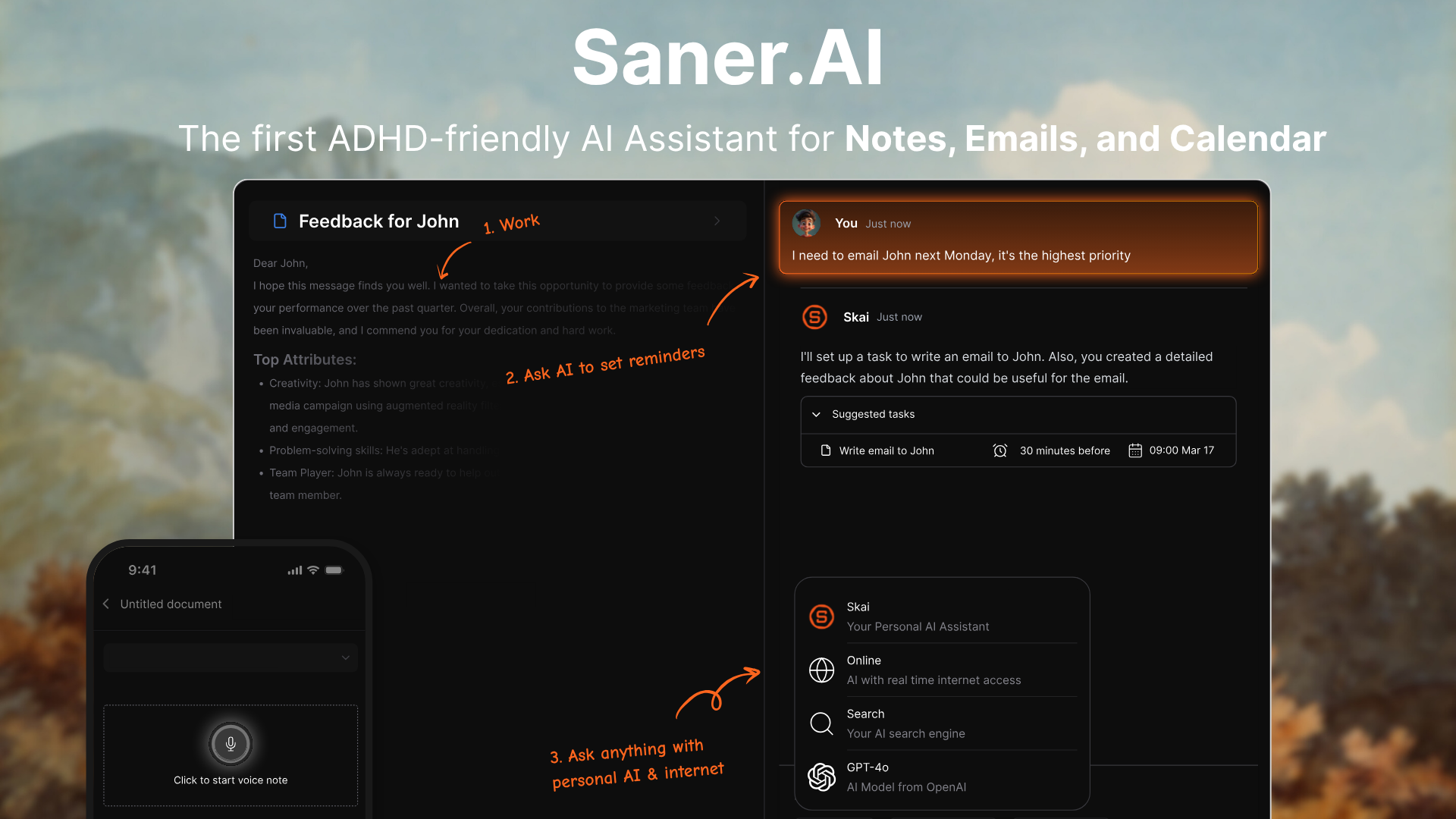
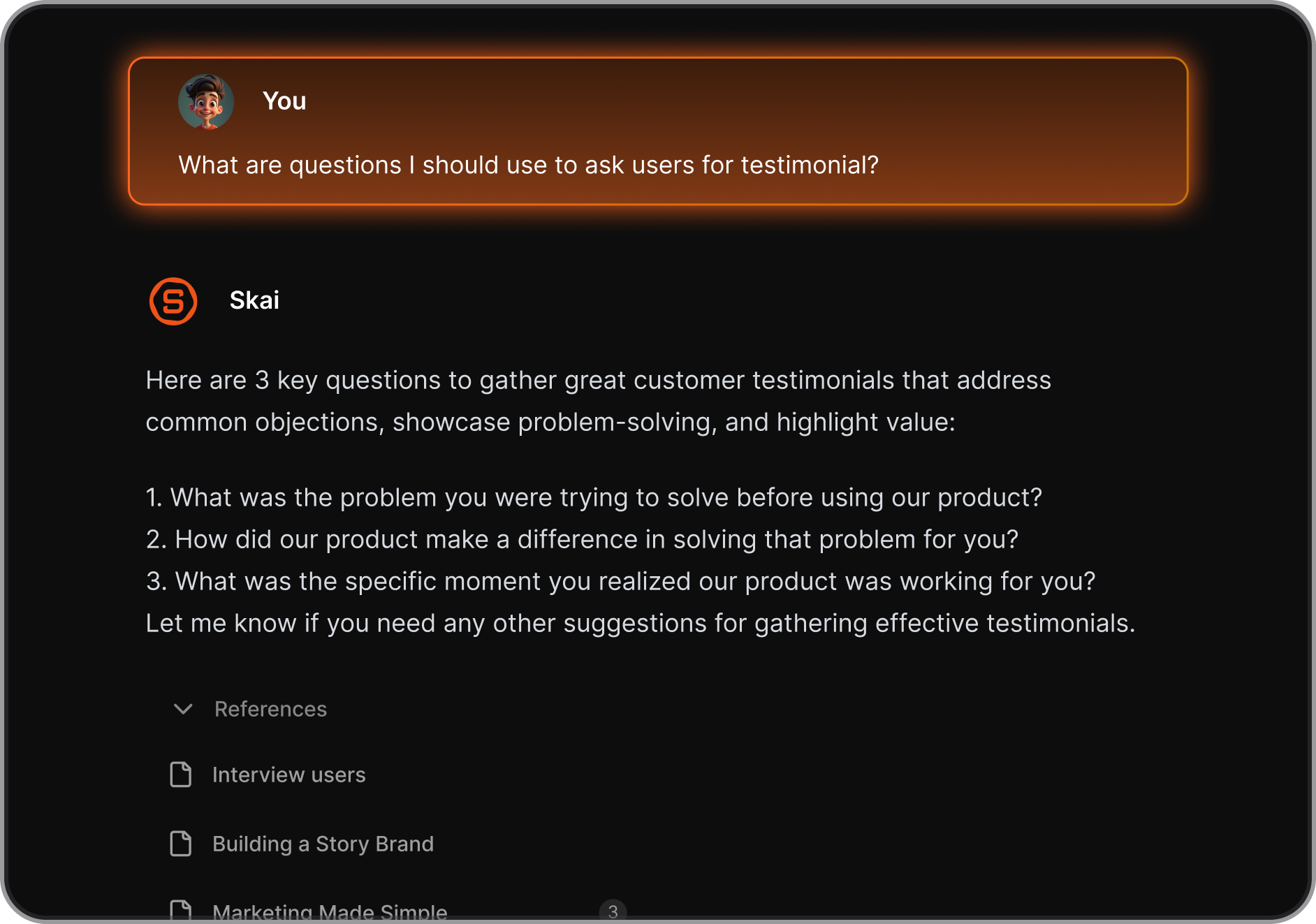
Saner.AI is an AI personal assistant tool. It feels like your to-do list, and your notes have a brain. Instead of organizing everything manually, I could just dump thoughts, tasks, or notes in plain text and let the AI structure them for me.
What stood out is how it removes the friction of “where should I put this?” I didn’t need folders, tags, or systems upfront. I just wrote things down, and Saner handled turning them into tasks, grouping ideas, and keeping everything searchable.
Key features
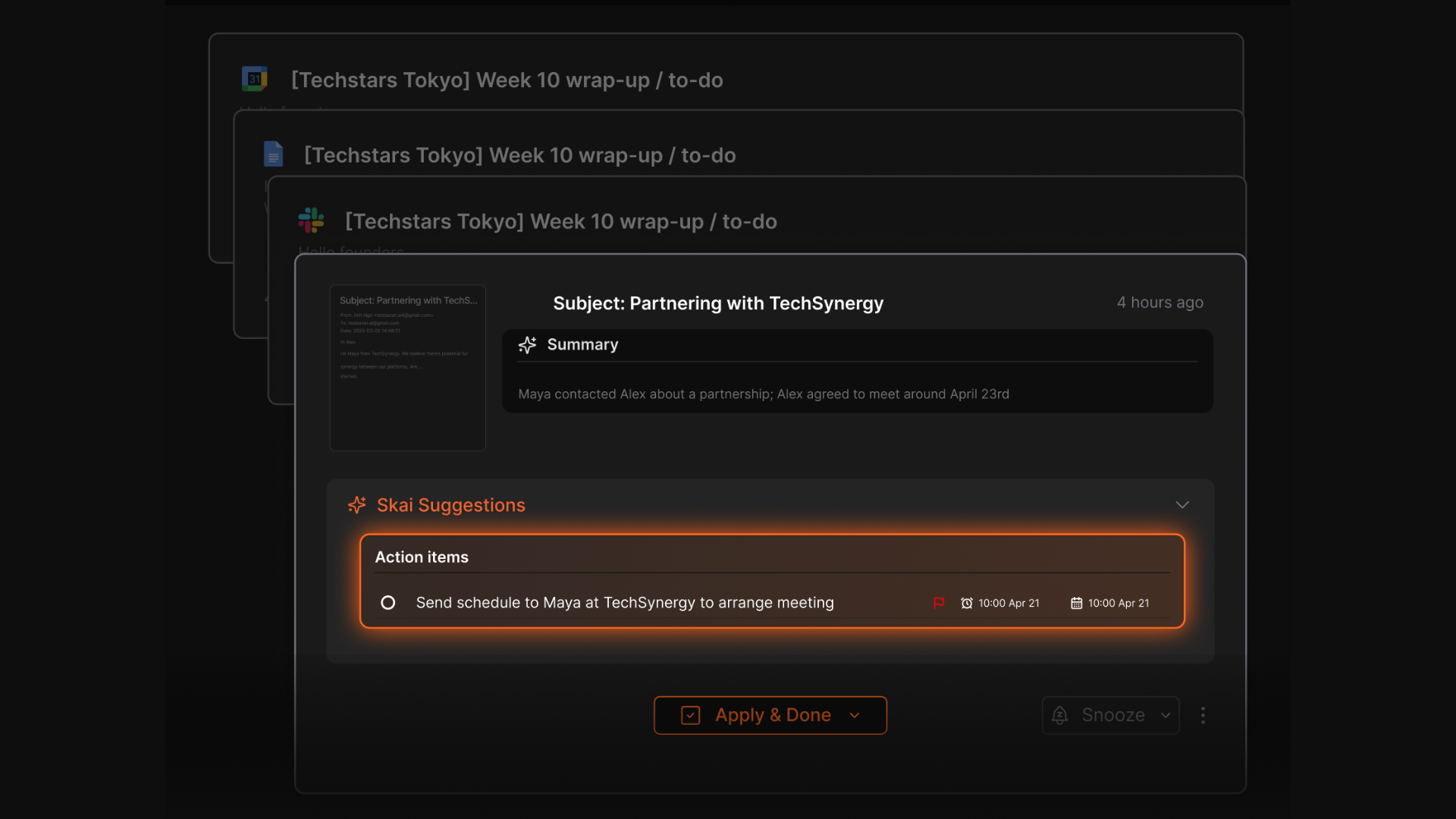
- I could write messy notes or random thoughts, and the AI automatically turned them into structured tasks or organized notes. No need to pre-plan categories or systems.
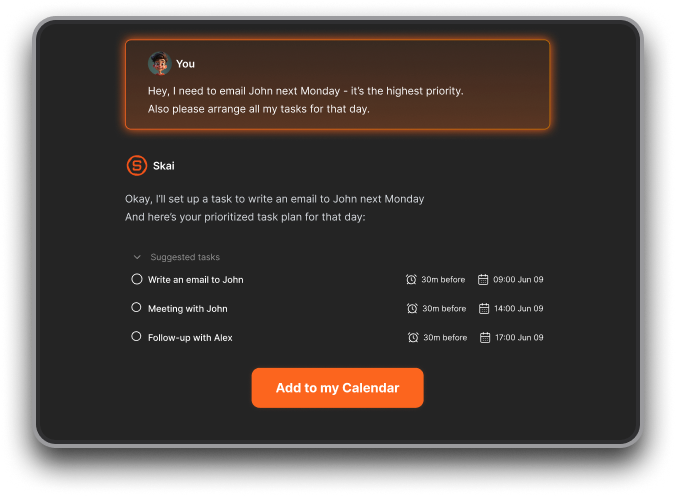
- It suggests what to focus on based on my inputs, helping me prioritize without manually sorting everything.
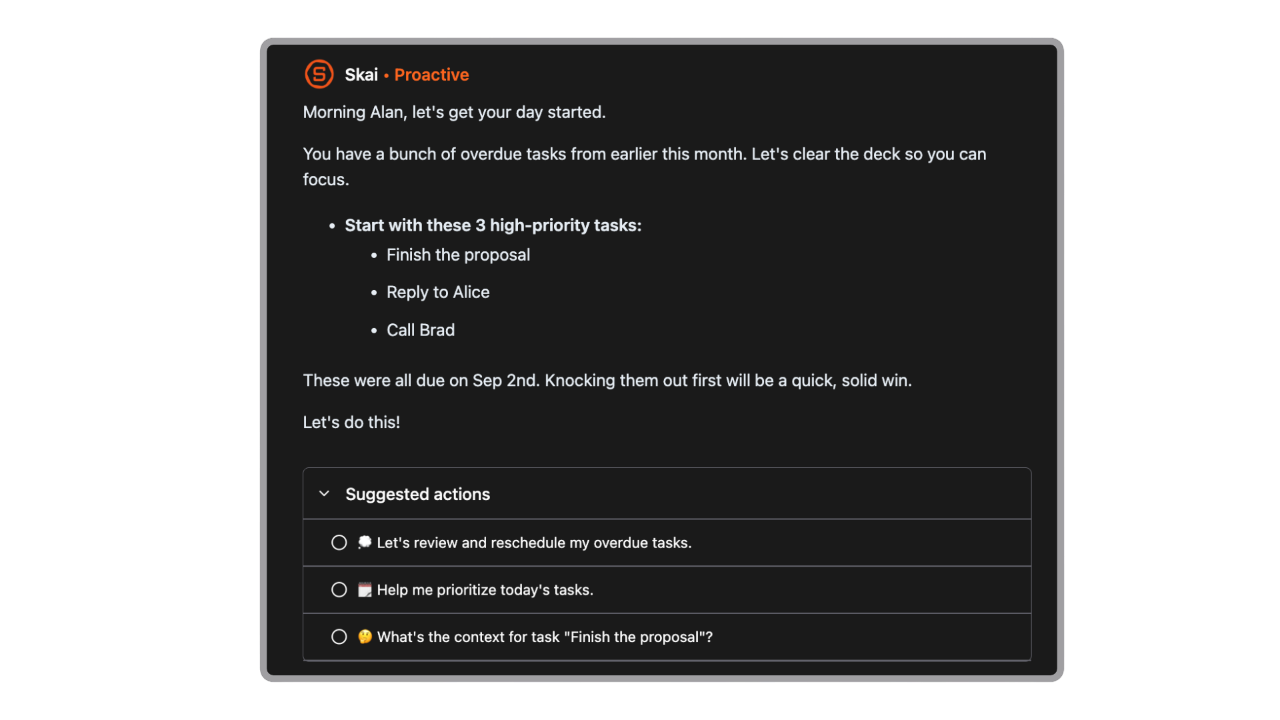
- AI daily planning: This is what I used the most. It helps turn everything I captured into a clear daily plan, suggesting priorities so I don’t have to decide from scratch every morning.
- Tasks, notes, and ideas live in one place, so I didn’t need separate apps for note-taking and task management.
Pros
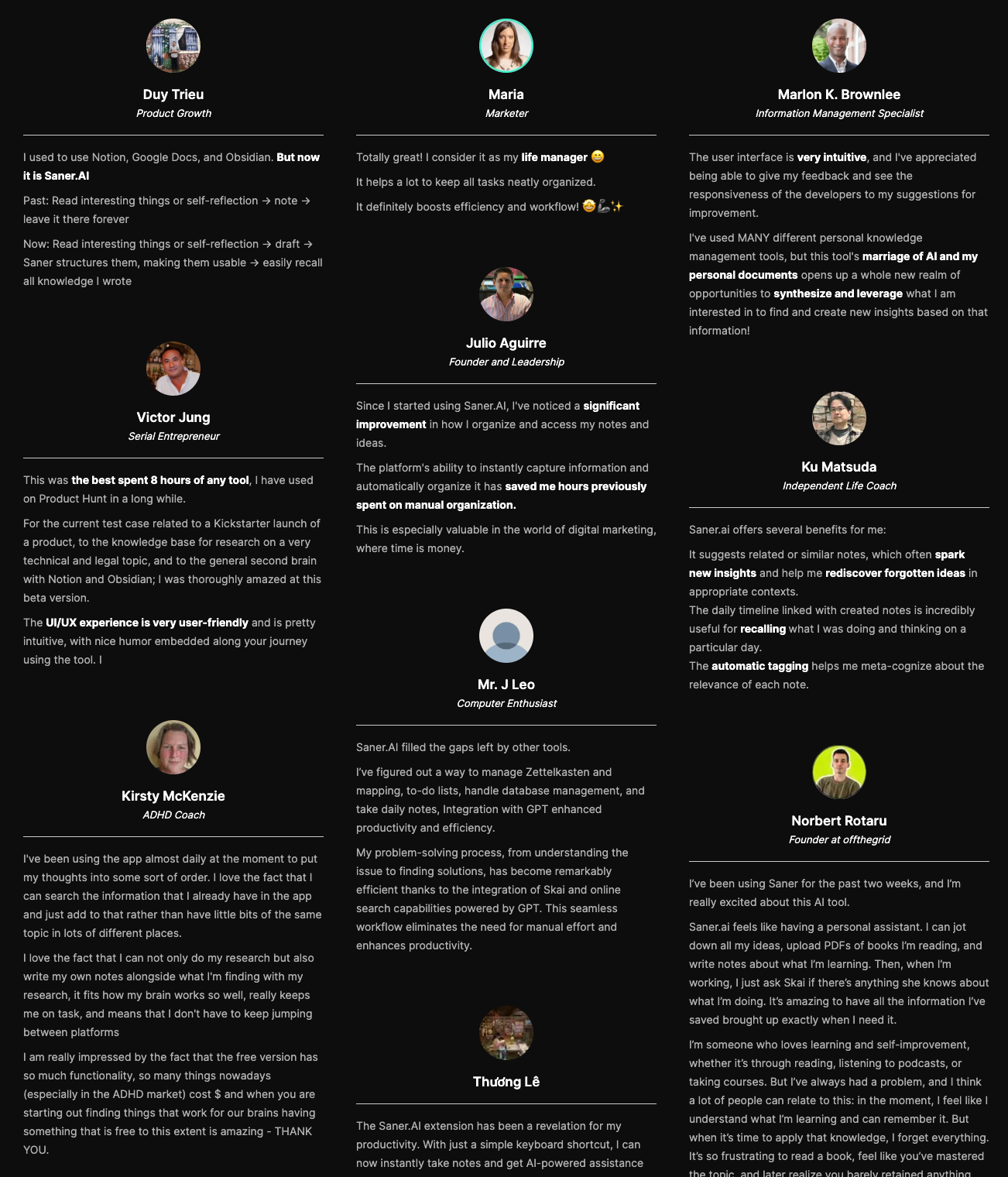
- "I'm impressed by how Saner.AI adapts to my ADHD style of working - it helps me stay on track, avoid distractions, and access relevant information quickly" – verified reviews
- "It tackles issues like context switching, overwhelm, and forgetfulness with ease - the simple design combined with the AI assistant makes it super easy to stay on top of work and life" – verified reviews
- "I consider it my life manager - it helps a lot to keep all tasks neatly organized and definitely boosts efficiency and workflow" – verified reviews
- "The user interface is very intuitive, and I've appreciated being able to give feedback and see how responsive the developers are to suggestions for improvement" – verified reviews
Cons
- The web interface will be more suitable for a complex workflow.
Pricing
- Free
- Paid plan typically around $8–16/month
Who is it suitable for?
- People who struggle with overthinking organizational systems
- ADHD users or anyone who prefers “just write it down” workflows
- Solo workers, creators, or marketers managing lots of scattered ideas
- Anyone tired of switching between notes app + task manager
Saner.AI review
"The biggest benefit for me in using Saner is the Proactive AI. Staying on top of the constant flow of email and multiple calendars is challenging, and so far, Saner is the only AI-based tool that truly feels like a personal assistant." - Jerry
How to start using it?
- Sign up on Saner.AI and create your workspace.
- Import or capture your existing project notes
- Start using the AI assistant
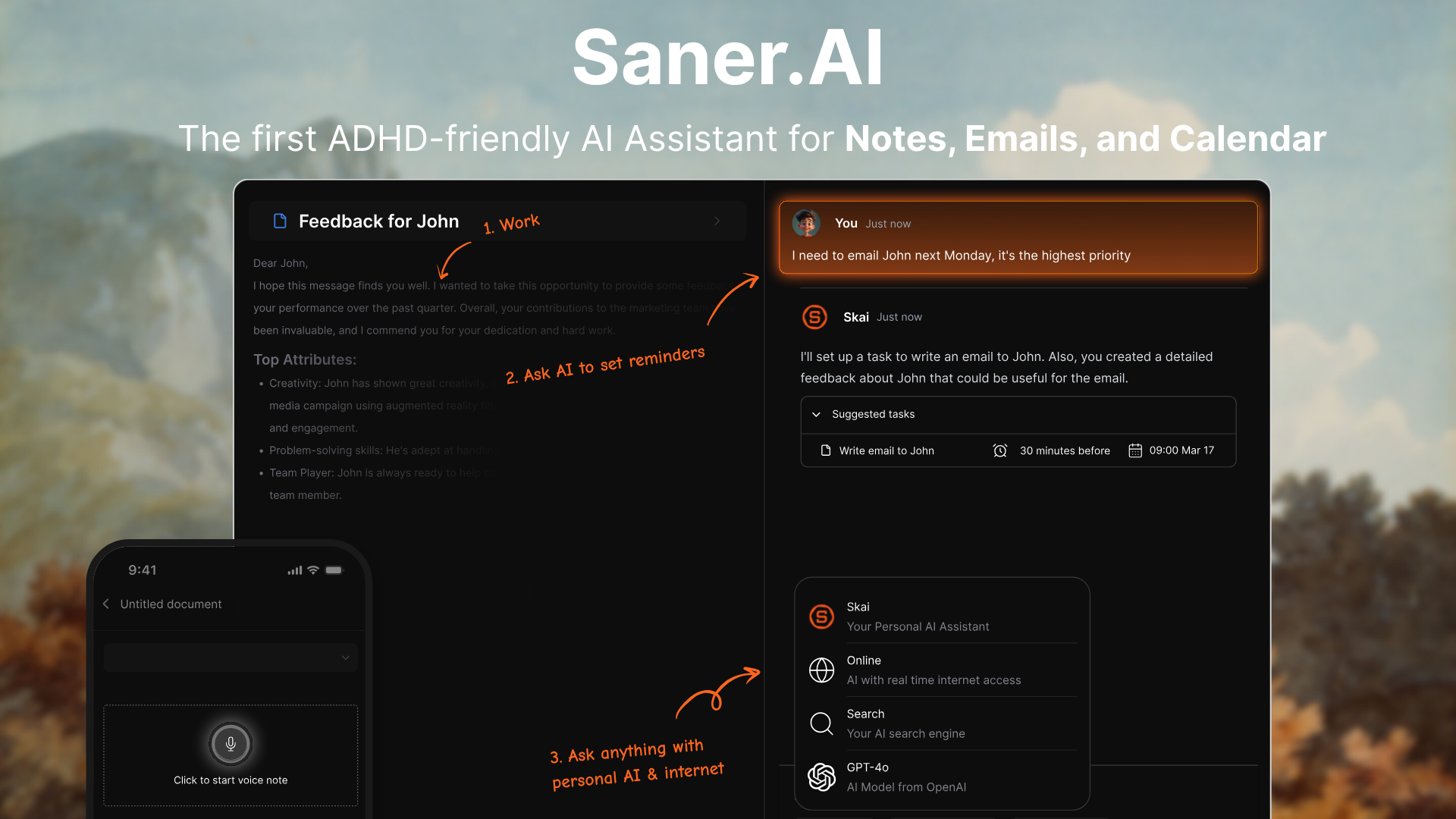
Stay on top of your work and life with the AI Calendar
2. Asana
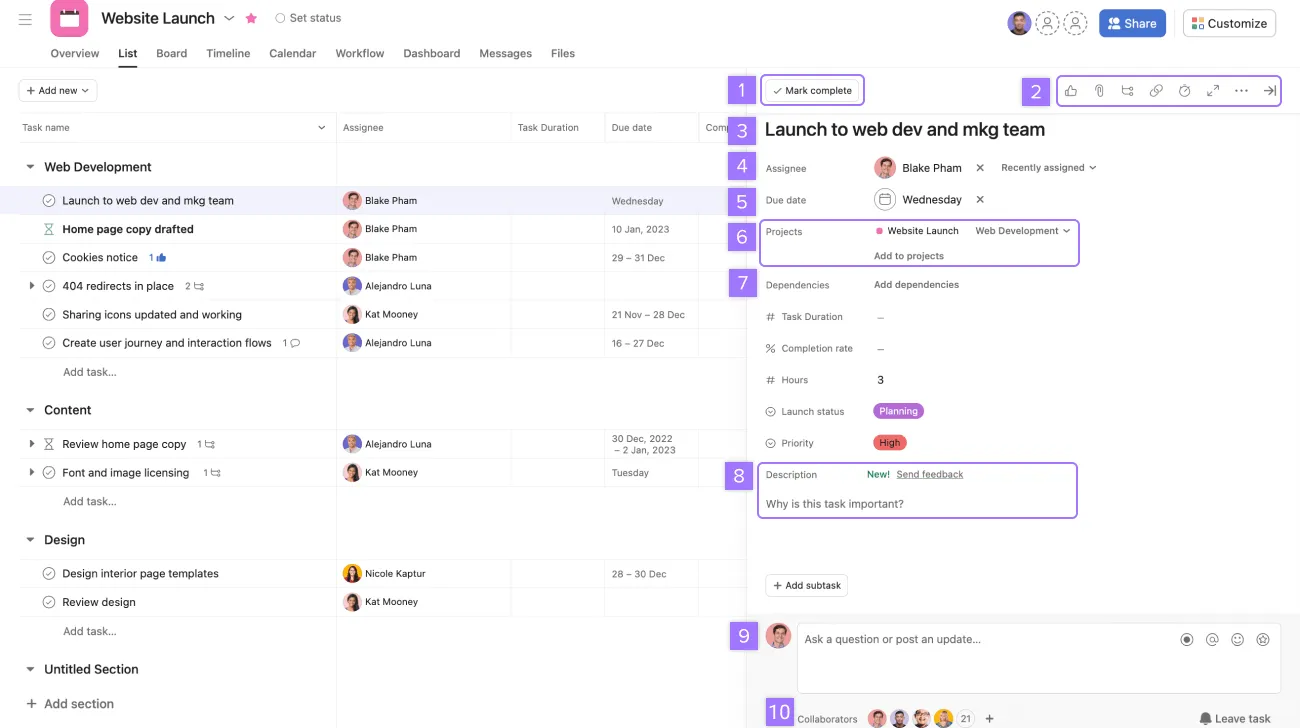
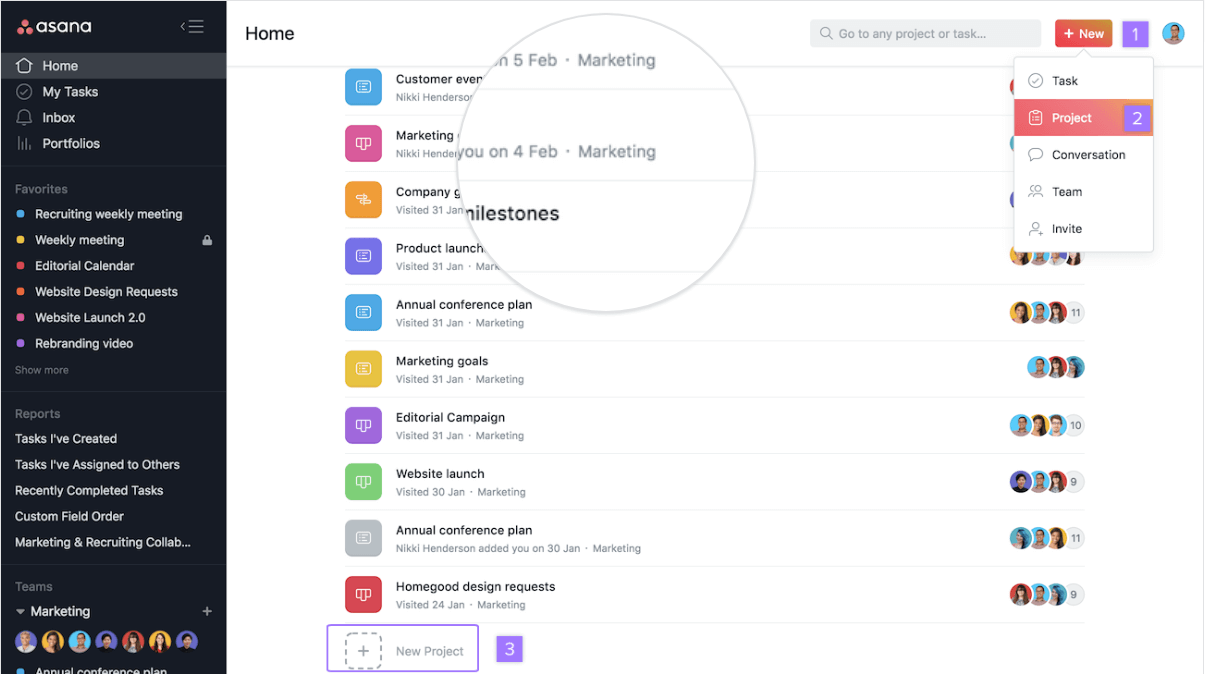
I tested Asana as a structured project and task management tool, and it’s very different from AI-first apps like Saner.AI. Instead of capturing messy thoughts, Asana is built for planning, tracking, and coordinating work across projects and teams. Personally, I think that if you want to get organized as a team or as an individual with Asana, it requires a bit of discipline and effort.
Key features
- I could organize work into projects with tasks, subtasks, deadlines, and assignees. It’s very clear who owns what.
- Multiple views (List, Board, Timeline, Calendar): I switched between views depending on how I wanted to see my work-Kanban for flow
- Tasks support comments, attachments, and mentions, which makes it easy to manage communication without switching apps.
- Workflow automation: I set simple rules (like auto-assigning tasks or updating statuses) to reduce repetitive admin work.
Pros
- "Asana keeps everything organised, makes it easy to work with my team, and gives me that little boost of satisfaction when I check things off" – verified reviews
- "I use it to manage my daily tasks. This tool is the perfect planner — more interactive than other tools" – verified reviews
- "It has completely transformed the way my team organizes projects and handles deadlines" – verified reviews
- "It does a great job of helping a team stay on track with multiple projects and multiple workflows" – verified reviews
Cons
- "When you set up a new account, you're naturally opted in to email notifications, which can be really annoying and a pain to remove" – verified reviews
- "Too many email notifications unless you turn them off" – verified reviews
- "Threads can become so huge that we lose track of what is being said and the notification system is mediocre" – verified reviews
- "It doesn't support assigning work to a large group of individuals very well. Also." – verified reviews
Pricing
- Free plan available
- Starter plan: around $10.99/user/month (billed yearly)
- Advanced plan: around $24.99/user/month (billed yearly)
Who is it suitable for
- Teams managing multiple projects with clear workflows
- Marketing, product, or operations teams that need visibility across tasks
- People who prefer structured systems over flexible, AI-driven ones
- Companies that need collaboration, task ownership, and deadlines in one place
Asana review (sources)
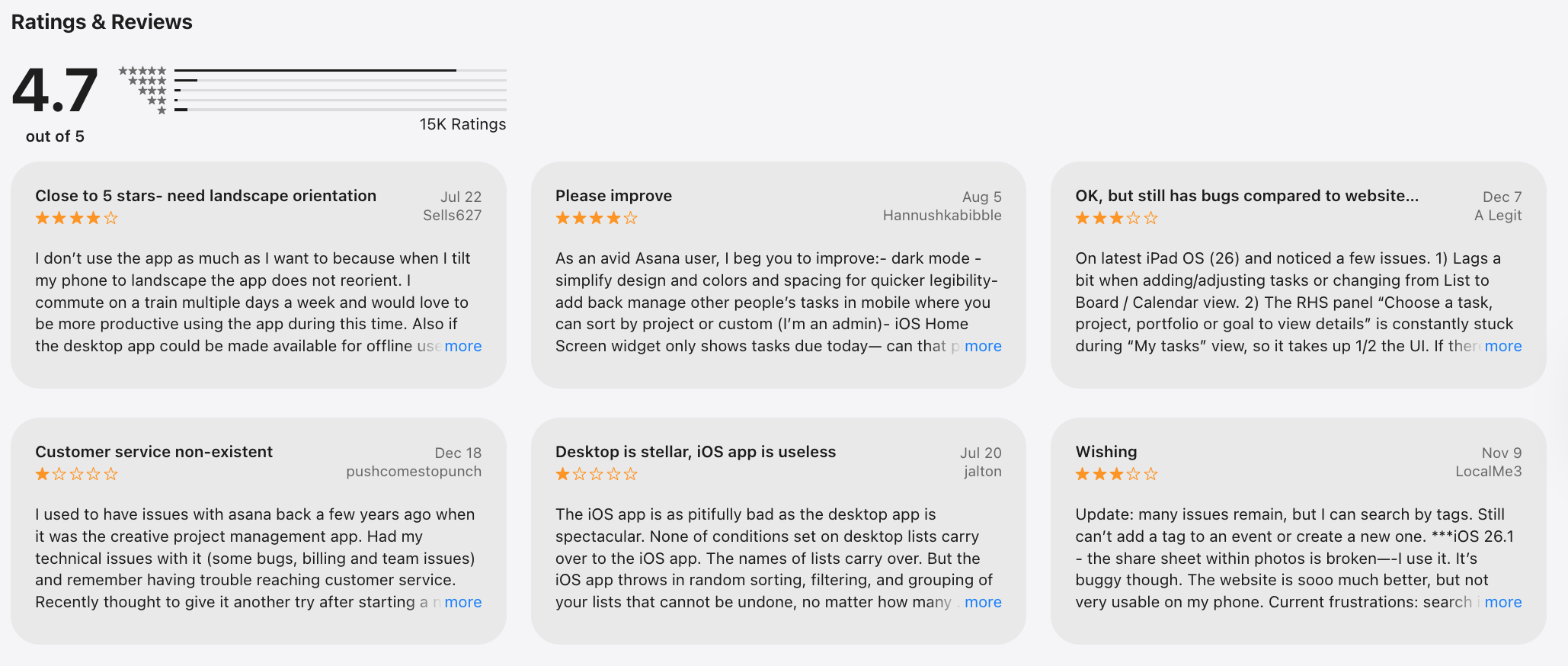
"Asana is really helpful for planning work and managing tasks. Everything is well organized and easy to follow. It helps me stay productive and focused. Overall, it’s a great app for work and teamwork." - Maisarah Asri
"Doesn't provide the same task grouping functionality as the website, and the web interface is a pita to use on a phone." - Henry Bevan
How to get started
- Go to Asana
- Create a workspace and set up your first project
- Add tasks, assign owners, and choose a view (list, board, or timeline)
3. Todoist
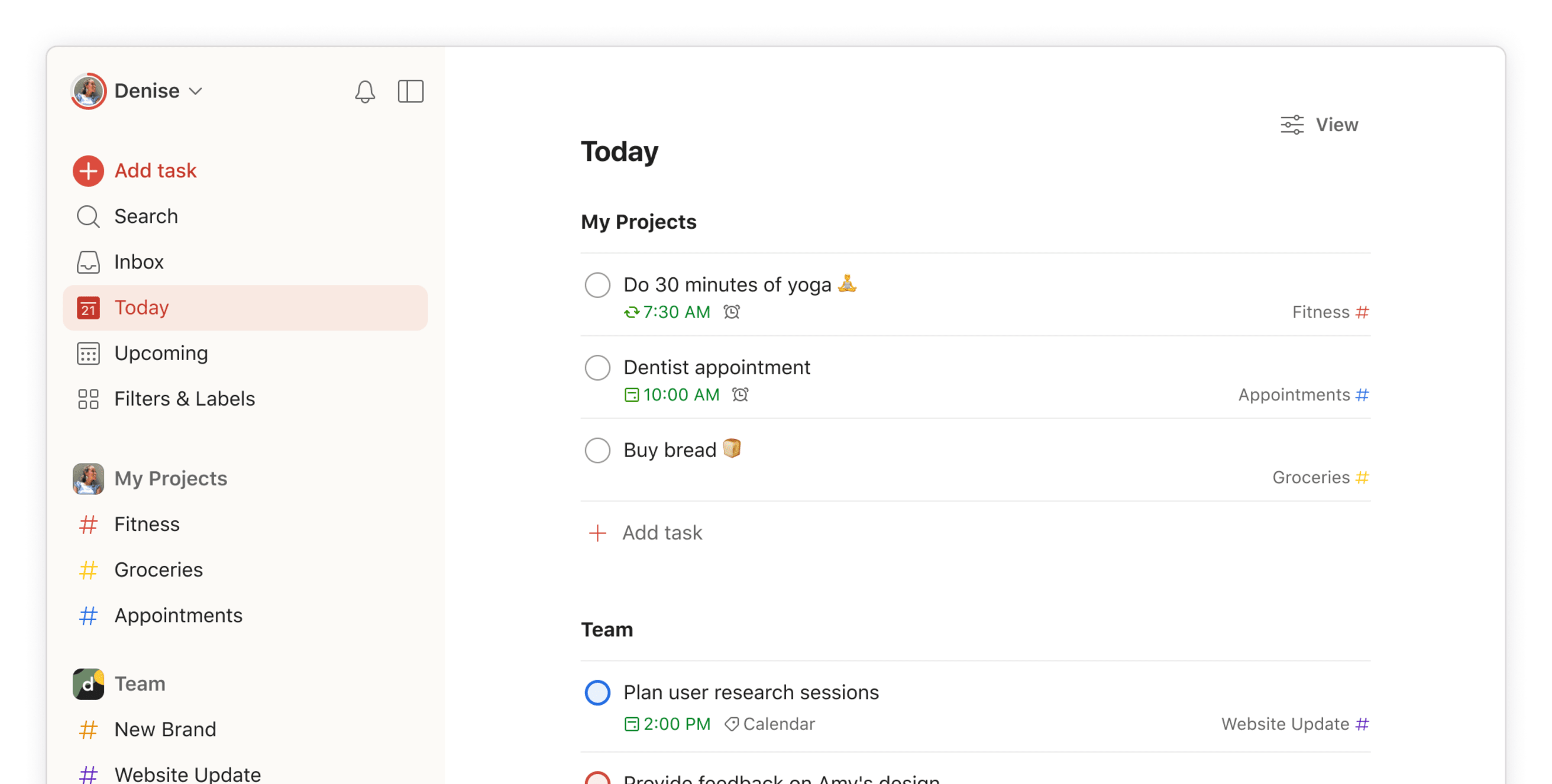
When considering the organizational benefits of Todoist. It acts as a task management tool, and it sits right in the middle between simple to-do lists and more structured project tools like Asana. It’s lightweight, but still easy to use. Could be a good choice to stay organized with your todos, but one con is it doesn't support note-taking.
Key features
- Tasks can be grouped into projects and broken down into sections, making it easy to manage different areas of work.
- I set recurring tasks (daily, weekly, etc.) and priority levels to stay on top of important work.
- It works across desktop, mobile, and browser, so my tasks stay updated everywhere.
Pros
- "I always have a mental checklist of to-dos in my mind but haven't found anything to work as a useful, simple checklist like Todoist." – verified review
- "It allows me to dump my tasks easily, set up recurring reminders, and communicate with my team effectively, with minimal learning curve." – verified review
- "It integrates well with Outlook and the desktop app is very lightweight." – verified review
Cons
- "While it is great for quick tasks that can be done within a few minutes, it becomes less useful as the tasks get bigger." – verified review
- "Reliable features are only available on paid plans, like set reminders and chronological views, and you're unable to collaborate in any way on the free tier." – verified review
- "Sometimes there would be glitches in assigning tasks to certain team members when using the mobile version instead of the desktop." – verified review
Pricing
- Free plan with up to 5 projects
- Pro plan at $5/month
- Business plan at $8/user/month with team tools and admin controls
Suitable for
- Anyone who wants a simple, fast, and reliable to-do list app. Especially great for solo users, freelancers, and small teams who value clarity over complexity.
How to start
- Head to todoist.com, sign up for a free account, and upgrade to Pro if you want more control and customizations.
Todoist Reviews (source)
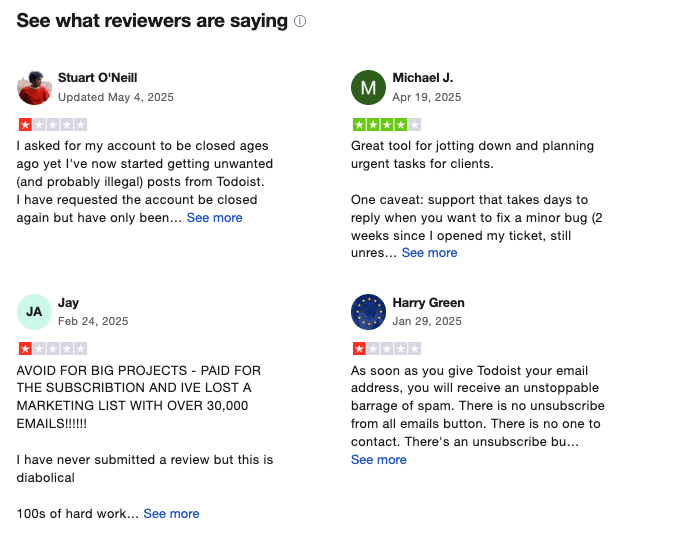
"Covers the bases for a reasonable price. Reliable, cross-platofrm, with reasonable team pricing." - Tom H
"It seems impossible to cancel a subscription after you sign up for a free trial." - Fisayo
4. Structured
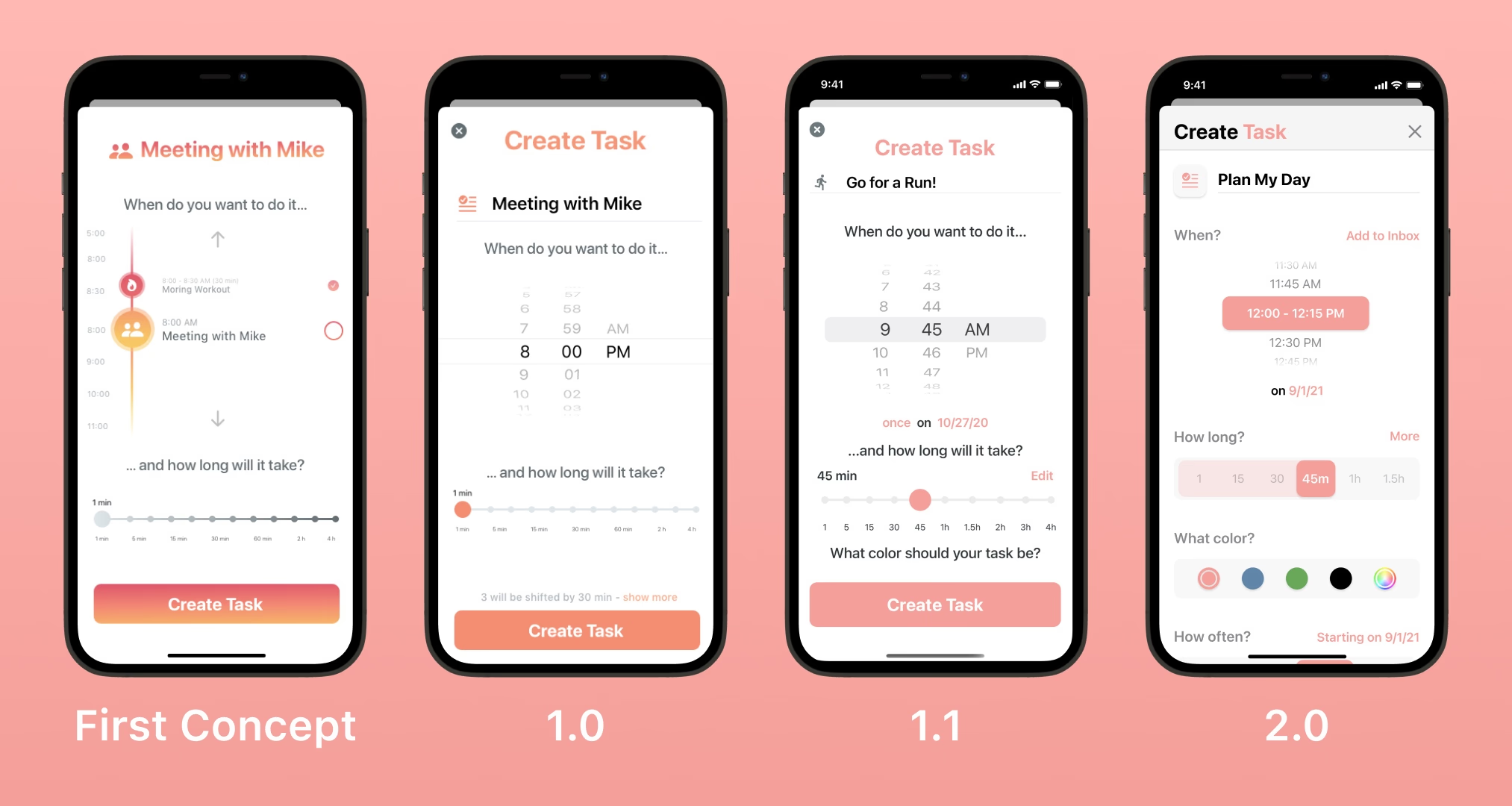
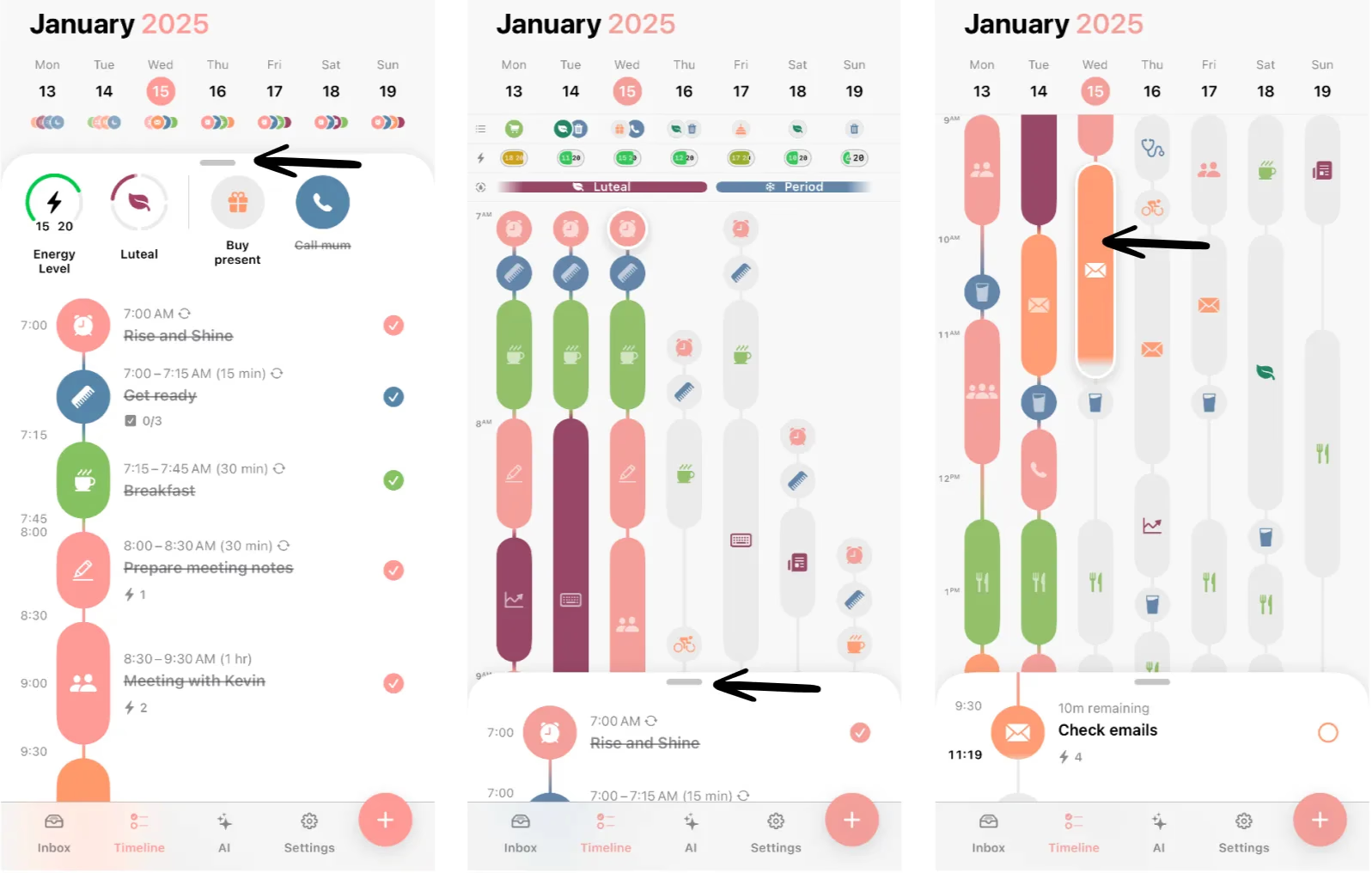
I tested Structured as a visual daily planner, and it feels like a mix between a calendar and a to-do list. What I like is how straightforward it is. I could quickly turn tasks into time blocks and see my entire day laid out like a timeline. I think it's quite a decent option for users who like a visually beautiful app
Key features
- I could plan my day as a visual timeline, combining tasks and events in one place. It makes time feel more tangible.
- I can easily assign duration to tasks and drag them into my schedule without overthinking.
- The app is minimal and easy to use, so I didn’t feel overwhelmed when planning my day.
- It sends alerts for upcoming tasks, helping me stay on track throughout the day.
Pros
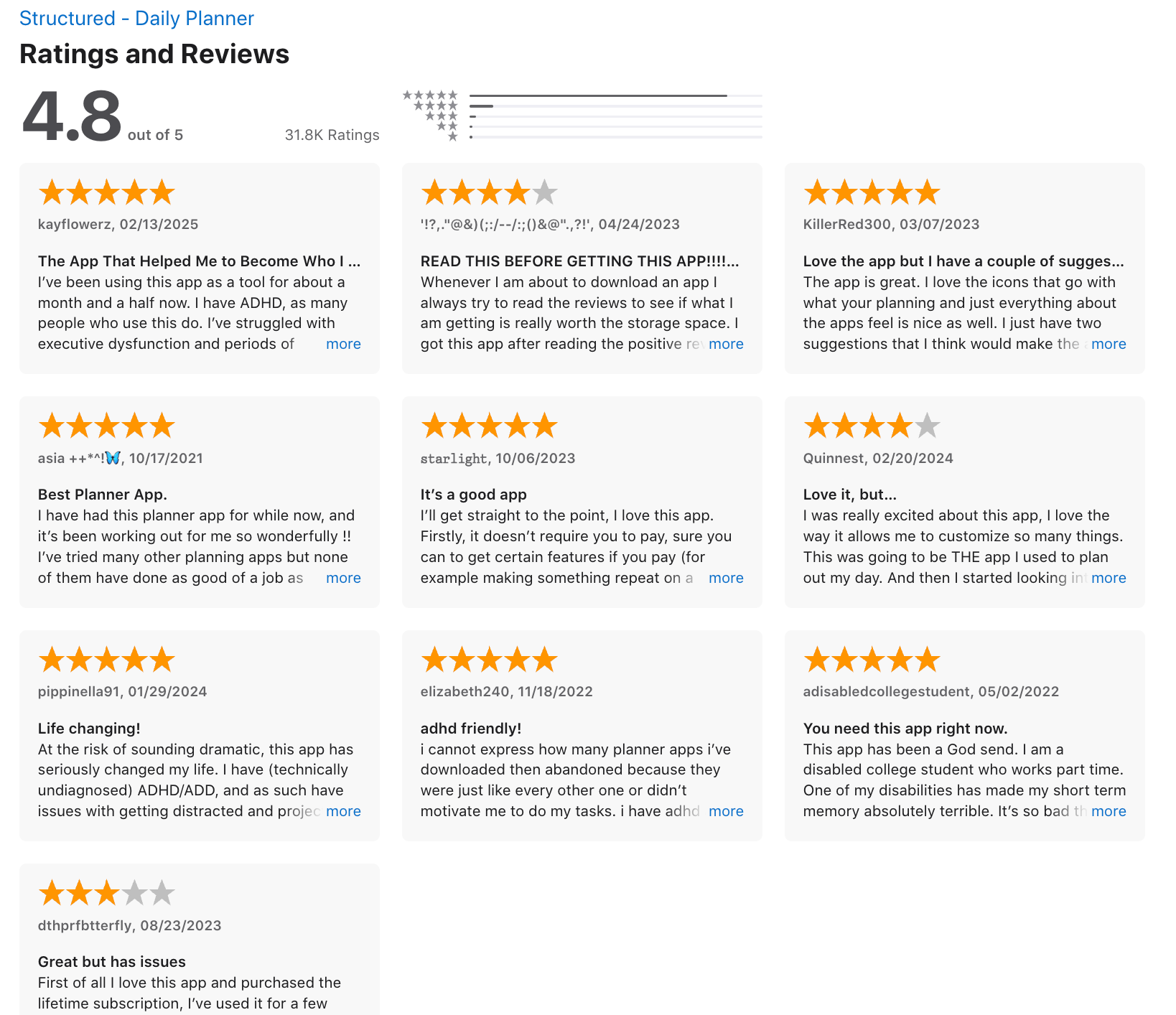
- "I love the features of this planner. It is the closest to how I set up my bullet journal" – verified reviews
- "Everything about the simple and attractive layout...was designed for a low-dopamine brain." – verified reviews
- "I love the idea of 'energy expenditure' as it forces me to really consider whether I will have the energy for something, not just the time" – verified reviews
Cons
- "As an Android user who works mainly on a desktop/laptop, this isn't doing it for me. The features I see advertised, which do look great, are only available on Apple devices" – verified reviews
- "If something takes longer than expected you have to reschedule everything after it one by one" – verified reviews
- "Inbox tasks can't easily be reordered and the widgets are a little funky on Android, like only showing one or two upcoming tasks" – verified reviews
Pricing:
- Free plan available (basic features)
- Pro version: around $4.99/month or ~$14.99/year (varies slightly by platform)
Suitable for:
- People who prefer visual, time-based planning
- ADHD users who need structure for their day
- Students or solo workers managing daily tasks
How to start:
- Download Structured from the App Store
- Add your tasks and assign time blocks
- Build your daily timeline and adjust as needed
Structured review (source)
B. Time Management
1. Google Calendar
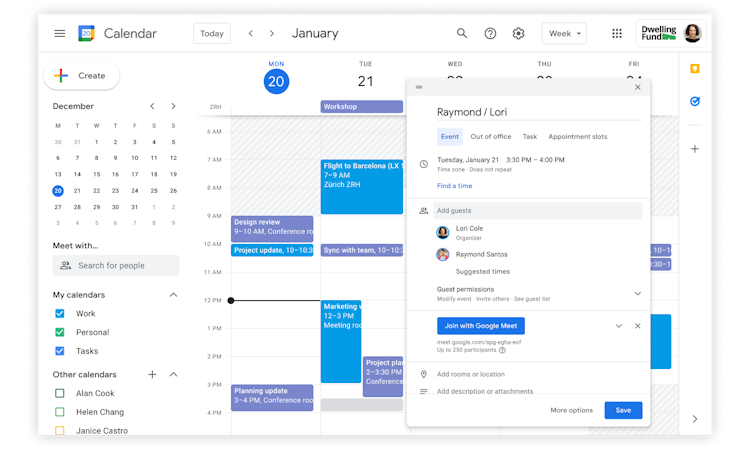
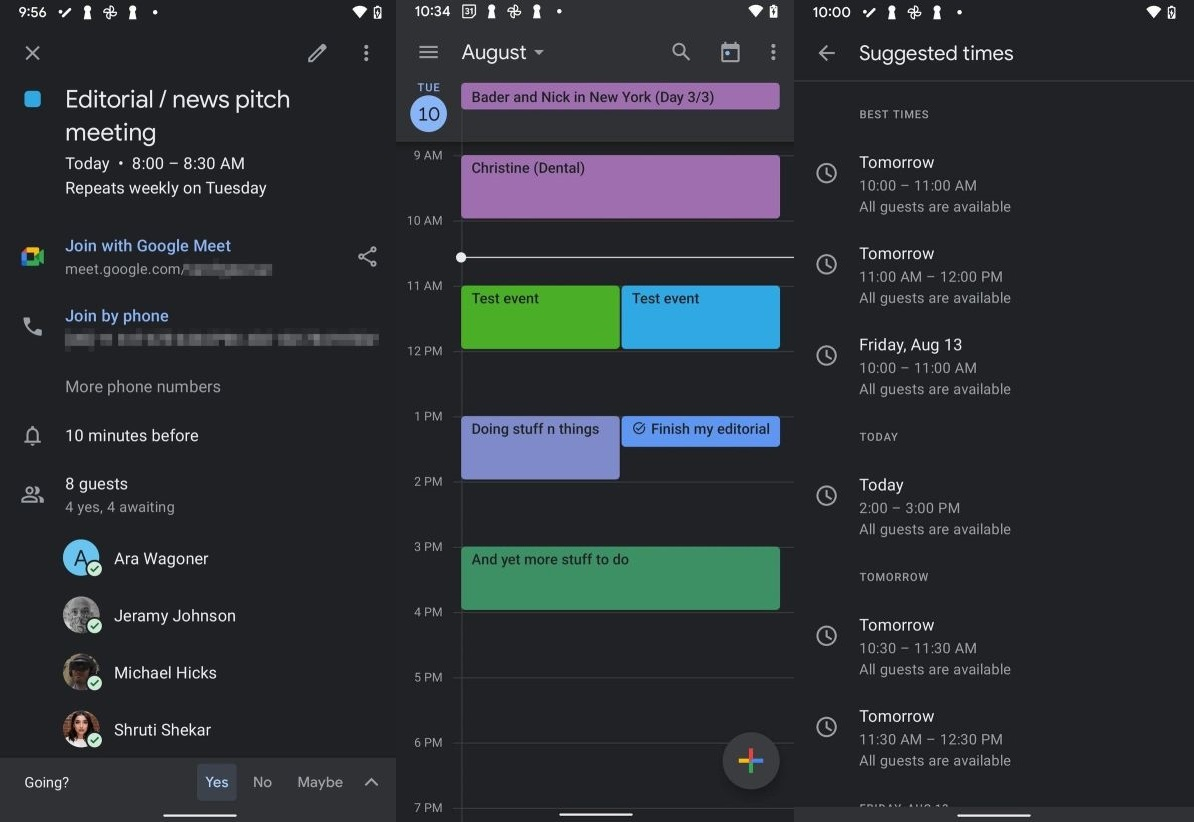
I tested Google Calendar as a time management tool, and it’s one of the simplest ways to plan your schedule. It focuses purely on events, time blocks, and reminders rather than tasks or notes.
What I like is how fast it is to use. I could create events in seconds, drag things around, and instantly see how my day or week looks. If you are new into this "get organized" journey, Google calendar is a good place to start.
Key features
- I could quickly create events, set durations, and move them around visually. It’s great for planning my day or week at a glance.
- Shared calendars: I used this to coordinate with others, seeing availability and scheduling meetings without back-and-forth.
- Notifications and reminders: It sends alerts before events, helping me stay on track without constantly checking my schedule.
Pros:
- "It is very easy to schedule meetings and reminders. I like how it syncs with my email and other Google tools" – verified reviews
- "Google Calendar's ability to create a shared calendar is awesome. It saves us time and ensures that we are aligned on commitments" – verified reviews
- "Multiple calendars make it easy to track things and remain organized. Being able to alter the view between day up to year is very helpful" – verified reviews
Cons
- "Sometimes managing many calendars at the same time can be confusing - if I paired other calendars it can be not so clear which one I am using" – verified reviews
- "The phone app also has a hard time integrating with my laptop. If I delete an event out of my phone, sometimes it still appears on my laptop and has to be deleted twice" – verified reviews
Pricing
- Free for personal use (with a Google account)
- Included in Google Workspace plans (starting around $6/user/month)
Who it’s best for
- Anyone who wants a simple, reliable way to manage their time
- Teams scheduling meetings and coordinating availability
- People who prefer time blocking over task lists
- Users already in the Google ecosystem
Google Calendar reviews (source)
"I like the full screen widget. It helps me because of the color changing features." - Addison M
"Can't synch family calendars as it says all calendars are off. used to love this app. can't create events either. try to manually synch and it gives an error. cleared the cache now can only see tasks from the main calendar. can't even uninstall. " - Odessa Fulks
How to get started
- Go to Google Calendar
- Sign in with your Google account
- Start adding events or blocking time for your tasks and meetings
2. TimeCamp
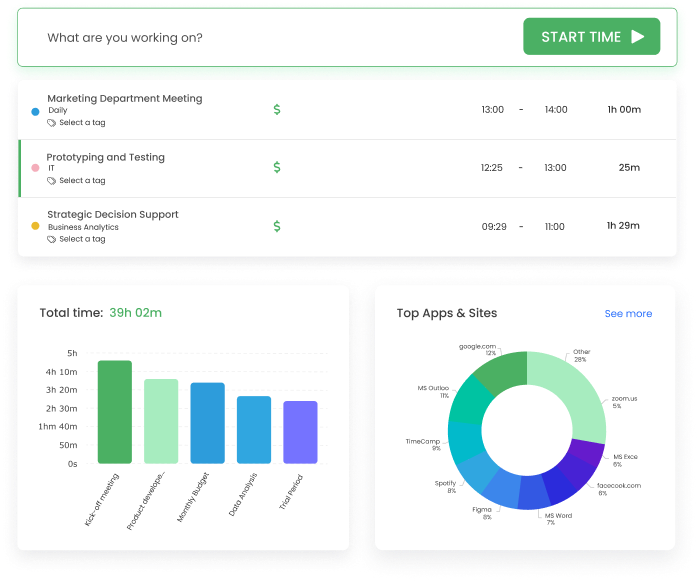
I tested TimeCamp, and it’s built mainly for tracking how much time you spend on tasks, projects, or apps throughout the day. It runs in the background and logs activity automatically, so I didn’t have to constantly start and stop timers. This is a small add-on tool if you really want to track your time
Key features
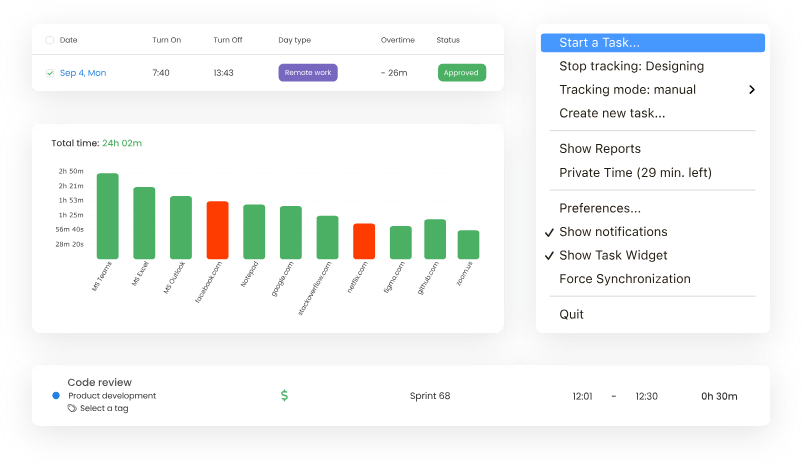
- It runs in the background and tracks time based on apps, websites, or tasks, so I didn’t need to manually log everything.
- I could still start timers or fill in timesheets if I wanted more control over tracking.
- It generates detailed reports showing how time is spent across projects, which is useful for productivity analysis or client billing.
- It connects with apps like Asana, Trello, and others to track time directly within existing workflows.
Pros
- "TimeCamp has been a very good choice for us — particularly as a freelance/consulting style operation or small-to-medium team working mostly on computers and needing solid time transparency and billing integrity" – verified reviews
- "Easy to use, I can export reports in order to formally charge my clients for the time spent on them." – verified reviews
- "It allows me to work the way I naturally work without stressing about losing track of time" – verified reviews
Cons
- "The mobile experience and some of the on-the-go features didn't feel as polished — I had bumps like timers hanging, geofencing or offline entries being a bit unpredictable" – verified reviews
- "Sometimes there is a bug when your timer doesn't stop even when you clicked the stop button" – verified reviews
- "The initial setup can take a little time, and some of the settings are not the most intuitive" – verified reviews
Who is it for?
- Freelancers or agencies tracking billable hours
- Teams that need time reports for projects or clients
- People who want visibility into how they spend their time
- Managers monitoring productivity and workload distribution
Pricing:
- Free plan available (basic time tracking)
- Starter plan: around $2.99/user/month
- Premium plan: around $4.99–$7.99/user/month (depending on features)
- Enterprise: custom pricing
TimeCamp review (source)
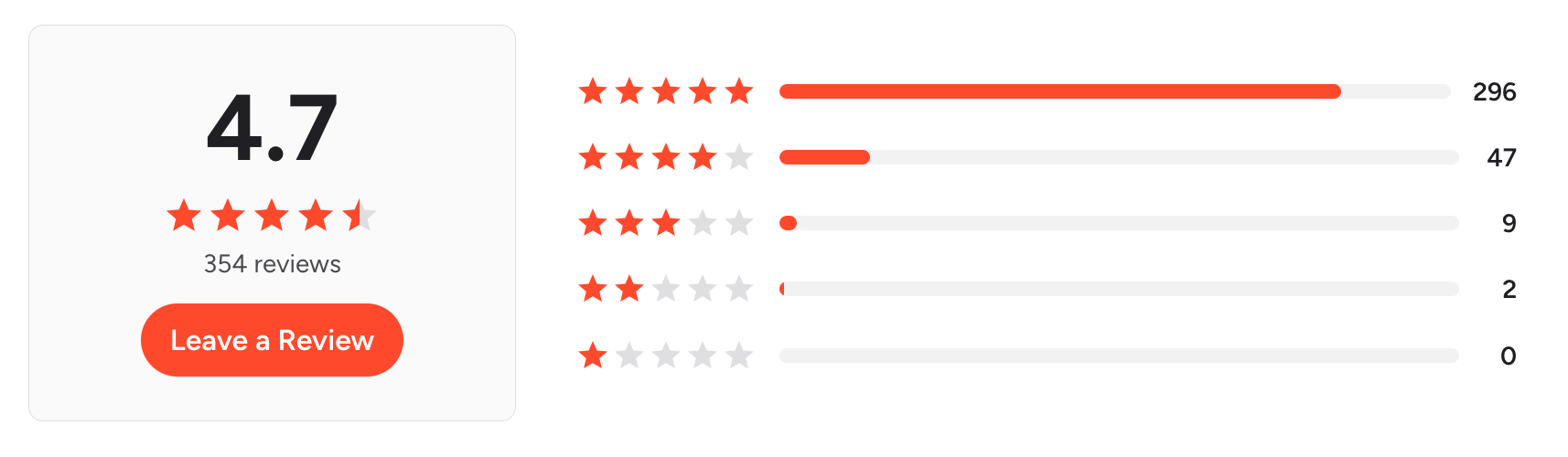
"I don't have to worry about "starting the clock," which I'll forget 90% of the time. Instead, my app and even tab-level usage is tracked automatically in the background, and I can login to TimeCamp later and easily identify how much time I spent on different tasks for different clients." - Shannon P
"If I forget to move change what I'm working on and need to go back to select tasks to move them, there is no quick way to select (drag through tasks or click on the top record hold ctrl-shift and click the bottom record, etc.)." M R
How to get started
- Go to TimeCamp
- Create an account and install the desktop or browser app
- Start tracking time automatically or assign tasks to track manually
C. File Management
1. Notion
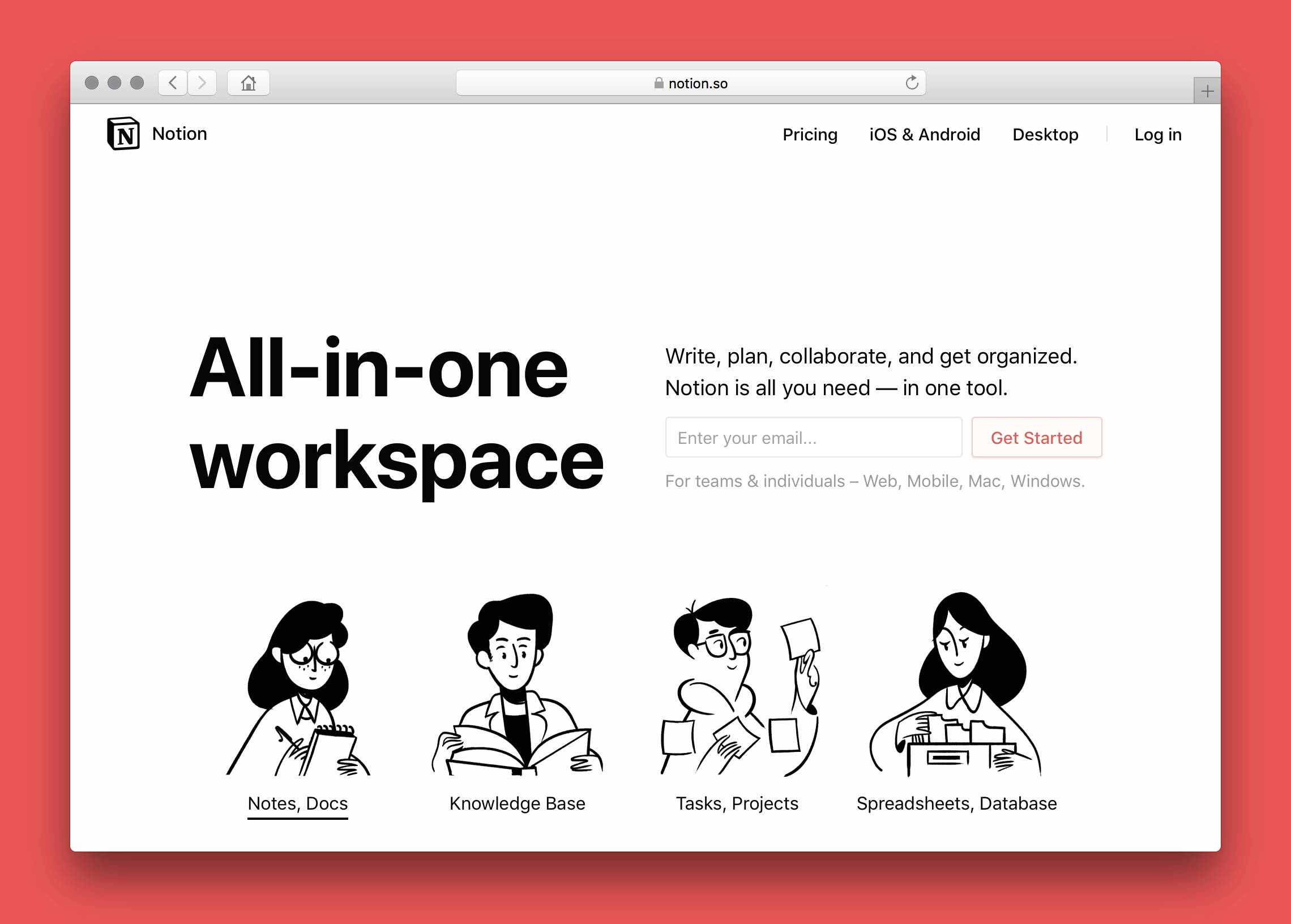
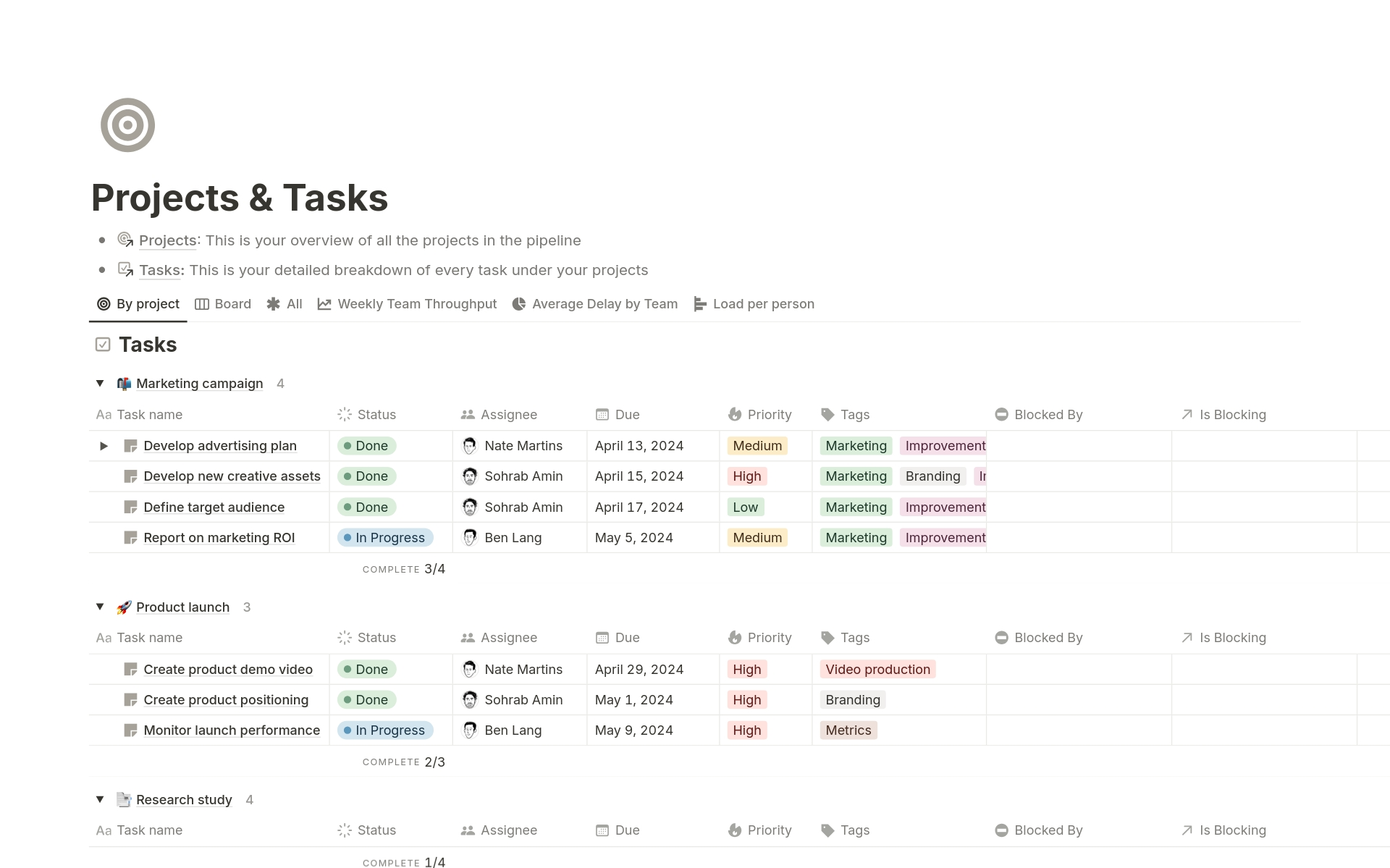
I tested Notion as an all-in-one workspace, and it’s one of the most flexible apps I’ve used. It combines note-taking, task management, databases, and documentation into a single system. However, it can get overwhelmed fast and you can fall into the trap of trying to perfect the system instead of working
Key features
- I could create pages, wikis, and dashboards exactly how I wanted.
- Notion’s databases (tables, boards, calendars) let me manage tasks, content, or projects in a structured way, with filters and views.
- Notion AI can help summarize notes, generate content, and clean up writing, which is useful for documentation and content workflows.
Pros
- "I like that it's flexible and everything lives in one place, so you're not constantly bouncing between tools" – verified reviews
- "I love that I can have a Tasks database where one item is a simple checkbox, but clicking into it reveals a full project brief, a linked Client database entry, and an embedded Figma file" – verified reviews
- "Amazing do it all workspace for task management, team and project collaboration, note taking, and scheduling" – verified reviews
- "It makes collaboration feel much more organized and intentional" – verified reviews
Cons
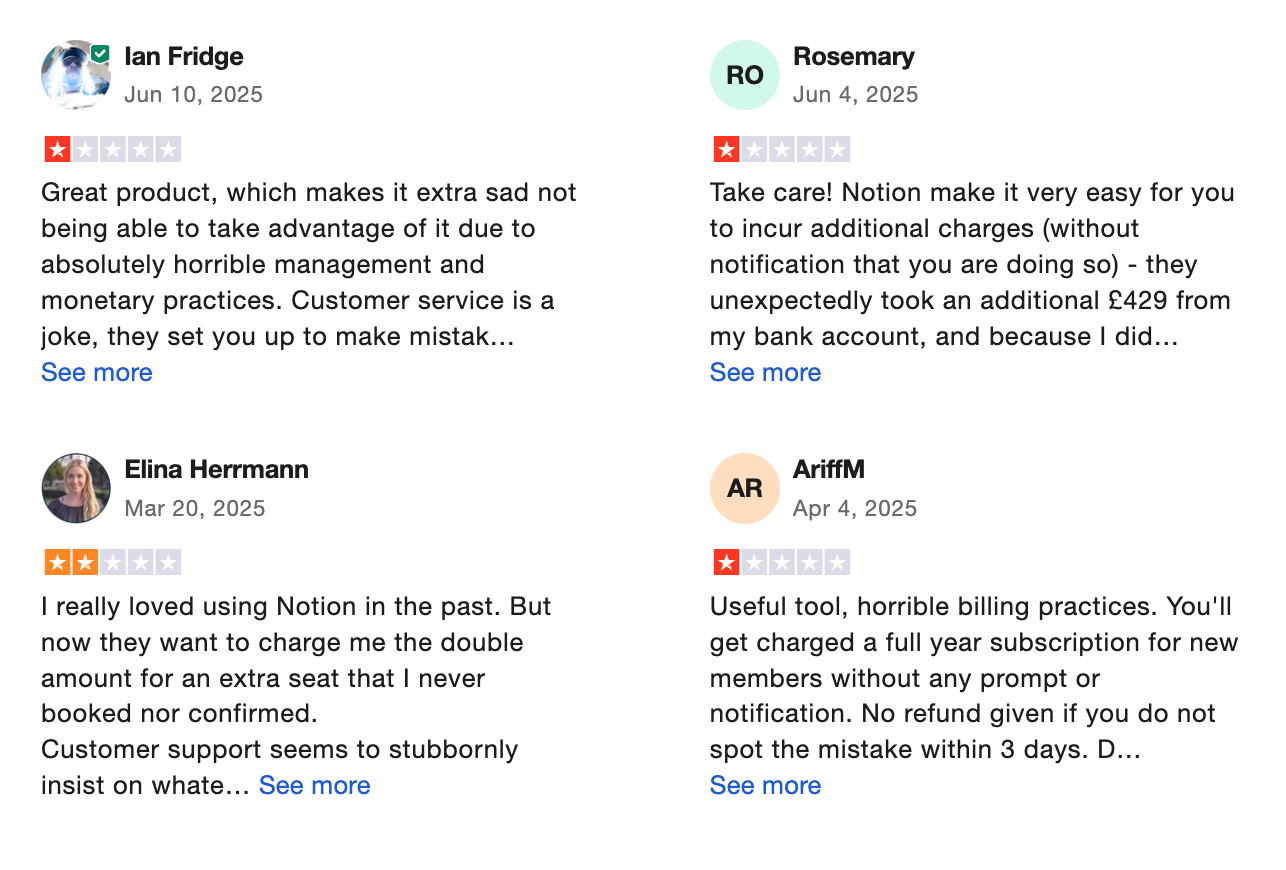
- "I get the philosophy of Notion is that you can build it to do whatever you need it to do but I don't really have time for that" – verified reviews
- "Permissions and complex databases are a headache to support, and big workspaces bog down, so new editors must be taught not to kill views or duplicate fields when deploying department-level templates" – verified reviews
- "Setting up effective workflows often requires significant customization, which can be time-consuming. As workspaces grow, performance can slow down, and finding information can become difficult without strict organization" – verified reviews
Pricing
- Free plan available
- Plus plan: around $10/month (billed yearly)
- Business plan: around $18/user/month (billed yearly)
- Notion AI: additional cost (typically ~$8–10/month)
Who it’s suitable for
- People who want a fully customizable system for notes + tasks
- Content creators, marketers, and knowledge workers
- Teams building internal docs, wikis, or dashboards
- Users willing to invest time in setup and organization
Notion reviews (source)
"I use Notion for everything. Literally. From work (task management, documentations) to personal shopping lists, to-dos, research, meal planner, recipes, etc." - Iuliana Murariu
'It has amazing potential but the free version is just too limited. For example I can't even add one "to do" to my to do list because I don't have any blocks left." - Jana Hayes
How to get started
- Create a workspace and organize project pages
- Use databases to track projects and tasks
2. Evernote
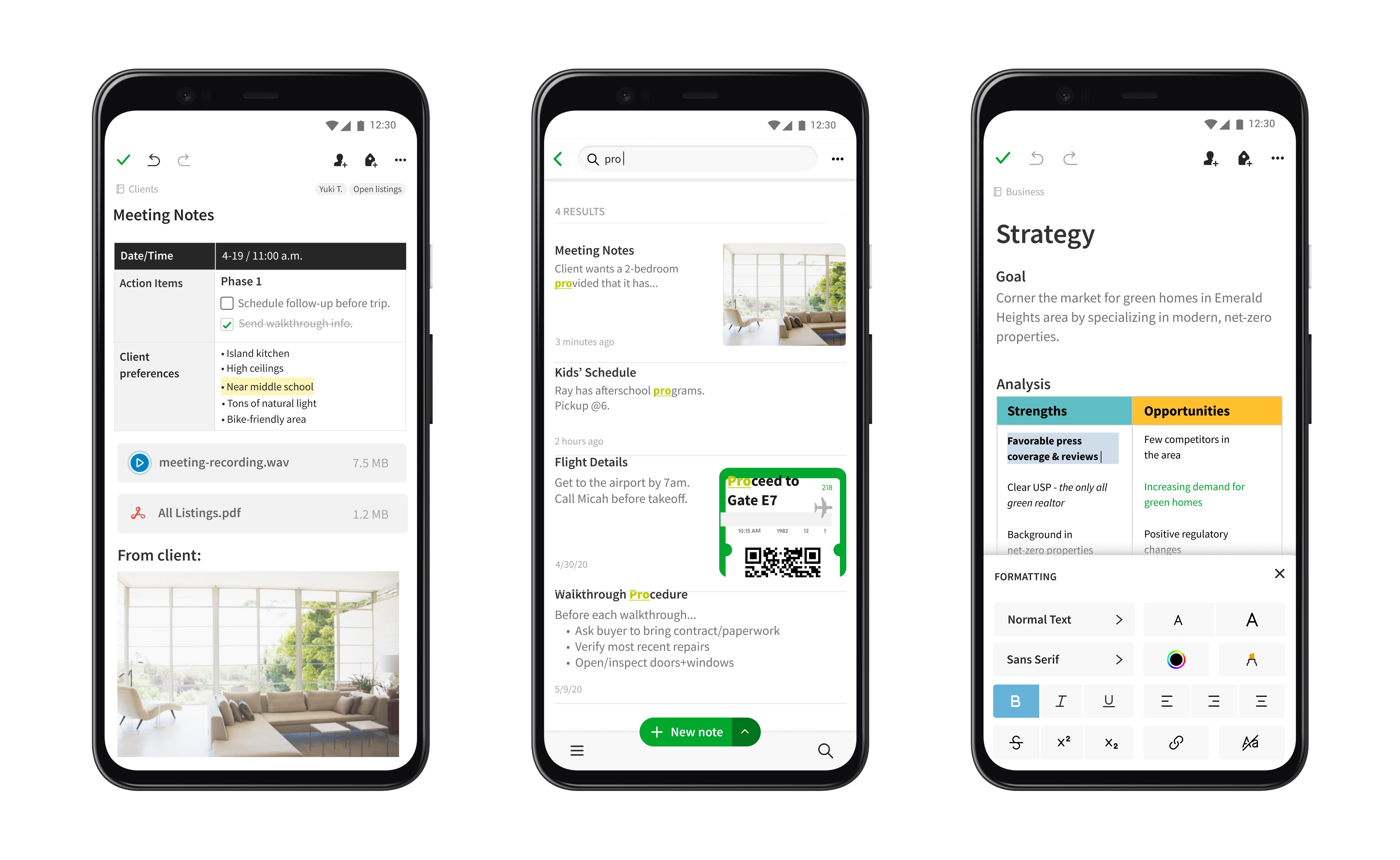
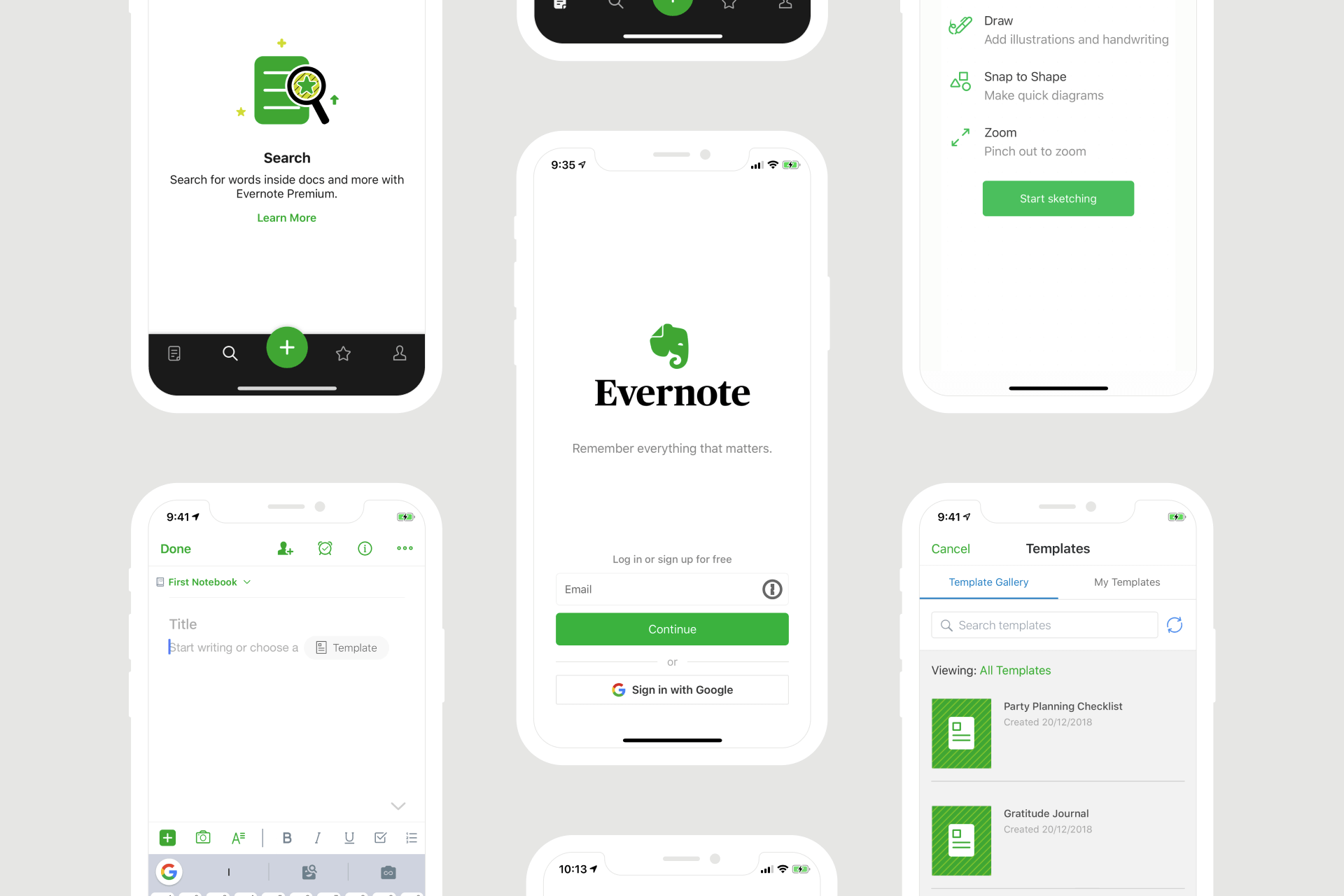
I tested Evernote mainly as a note-taking and information storage tool. It’s designed to help you capture everything, notes, documents, web clippings, and keep it organized in one place. With the price increase, it becomes less affordable. But can be a decent option for traditional users to stay organized with a small number of notes
Key features
- I could save text notes, images, PDFs, and even web pages using the Web Clipper.
- Notes are organized into notebooks and tags, which helps with structure—but requires manual setup and maintenance.
- The search is powerful. I could find text inside PDFs and images, which is useful if you store a lot of documents.
- Notes sync across phone and desktop, so everything stays accessible wherever I go.
Pros
- "I particularly love the tagging feature and shared notebooks " – verified reviews
- "Evernote helps me grab my random thoughts and voice recordings on the fly and they are synced between my phone and laptop" – verified reviews
Cons
- "The user interface is somehow complicated to beginers as it has so many features that might require an introductory learning before getting to know the user interface." – verified reviews
- "There are several features that are not very user-friendly, like attaching files to a note, exporting the note, no integration of apps that can be directly used to email the note" – verified reviews
- "Sometimes when I add notes I noticed the search function misses them, only until you refresh it manually" – verified reviews
Pricing
- Free plan available (limited features and sync)
- Personal plan: around $10.83/month (billed yearly)
- Professional plan: around $14.17/month (billed yearly)
Suitable for
- Professionals, students, and anyone who needs a reliable note archive with powerful search and media support.
- Great if you work across multiple devices or need to save everything in one place.
How to start
- Head to evernote.com, create a free account, and start testing it out. You can always upgrade once you hit the limits.
Evernote reviews (source)

"It’s helped standardize how we plan content and track outreach outreach efforts, so we can keep our messaging consistent across social, email and reports especially with a lean team all wearing a few hats." - Thaura G
"While generally reliable, I have encountered occasional errors, such as double typing issues or content not saving properly when working on very long notes." - Yujin C
3. Microsoft Onenote
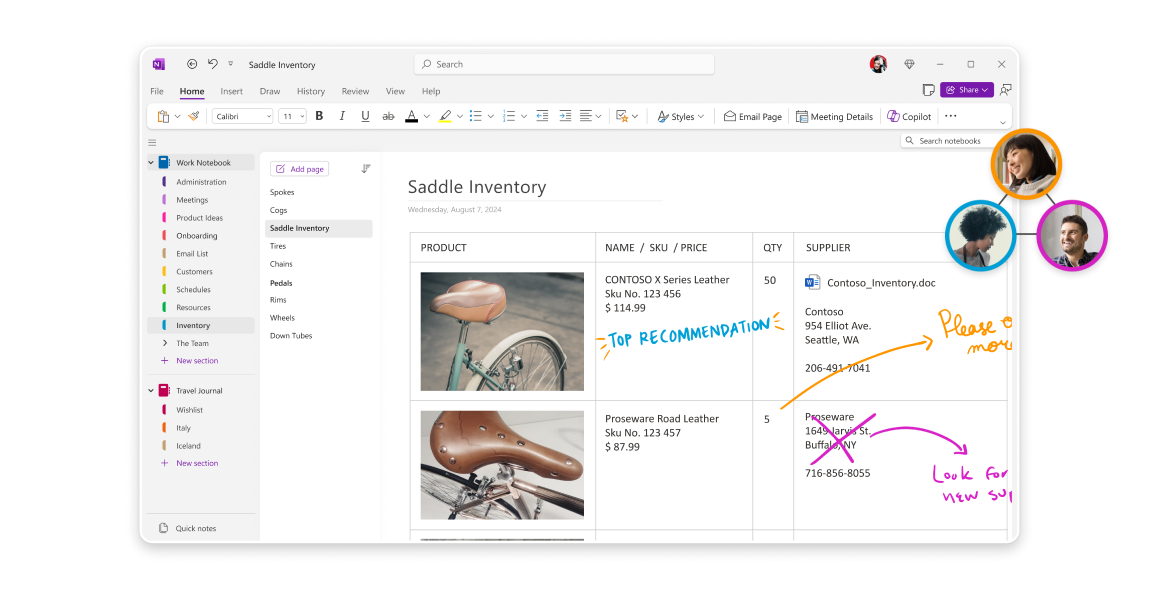
I tested Microsoft OneNote as a note-taking tool, since many traditional Microsoft users are using it. Personally, I think it works well for storing and organizing different types of information in one place.
Key feature
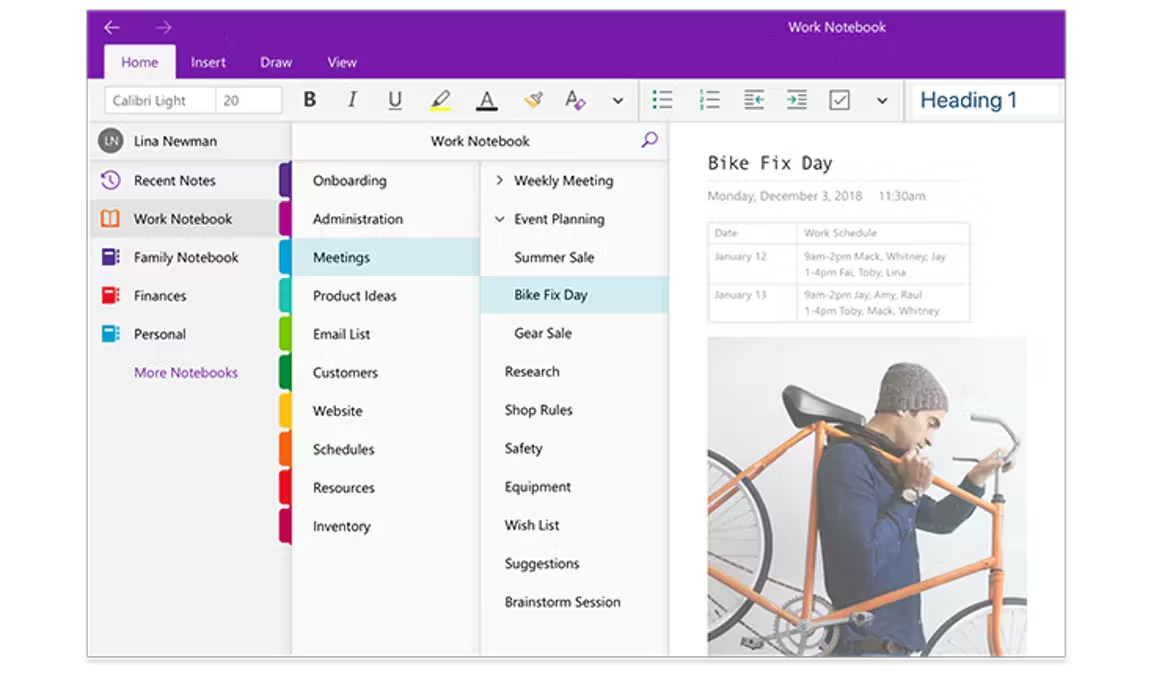
- I could organize files, notes, and documents into notebooks and sections.
- I can embed files, images, PDFs, and screenshots directly into pages, so everything related stays together.
- It’s easy to find information later, even inside images or inserted documents.
- Everything updates across desktop, mobile, and tablet, so I always have access to my files and notes
Pros:
- "it has become even more powerful with its integration with Copilot, MS Teams and Loop." – verified reviews
- "OneNote makes it easy to organise notes, tasks, and ides in a digital notebook format. It integrates seamlessly with Microsoft 365 apps like outlook and Teams." – verified reviews
- " can use it for note taking, drawing diagrams and syncing across platforms" – verified reviews
Cons:
- "Syncing across devices is often glitchy, leading to frustrating delays and incomplete transfers. The interface feels a bit dated. Formatting options are basic and lack the robust features of other programs" – verified reviews
- "I don't like that there aren't more flexible options for OneNote, like being able to make 'real' notebooks within folders." – verified reviews
- "I dislike the typing speed in Microsoft OneNote as it lags when I type, which disrupts my workflow." – verified reviews
- "It is sometimes hard or downright impossible to export to a format that will retain all the information. PDF export sometimes has areas cropped off." – verified reviews
Pricing
- Free to use (included with a Microsoft account)
- Included in Microsoft 365 plans (starting around $6.99/month for personal)
Who it’s best for
- Users in the Microsoft ecosystem (Outlook, Teams, OneDrive)
- Anyone who wants a flexible digital notebook
OneNote Review (source)
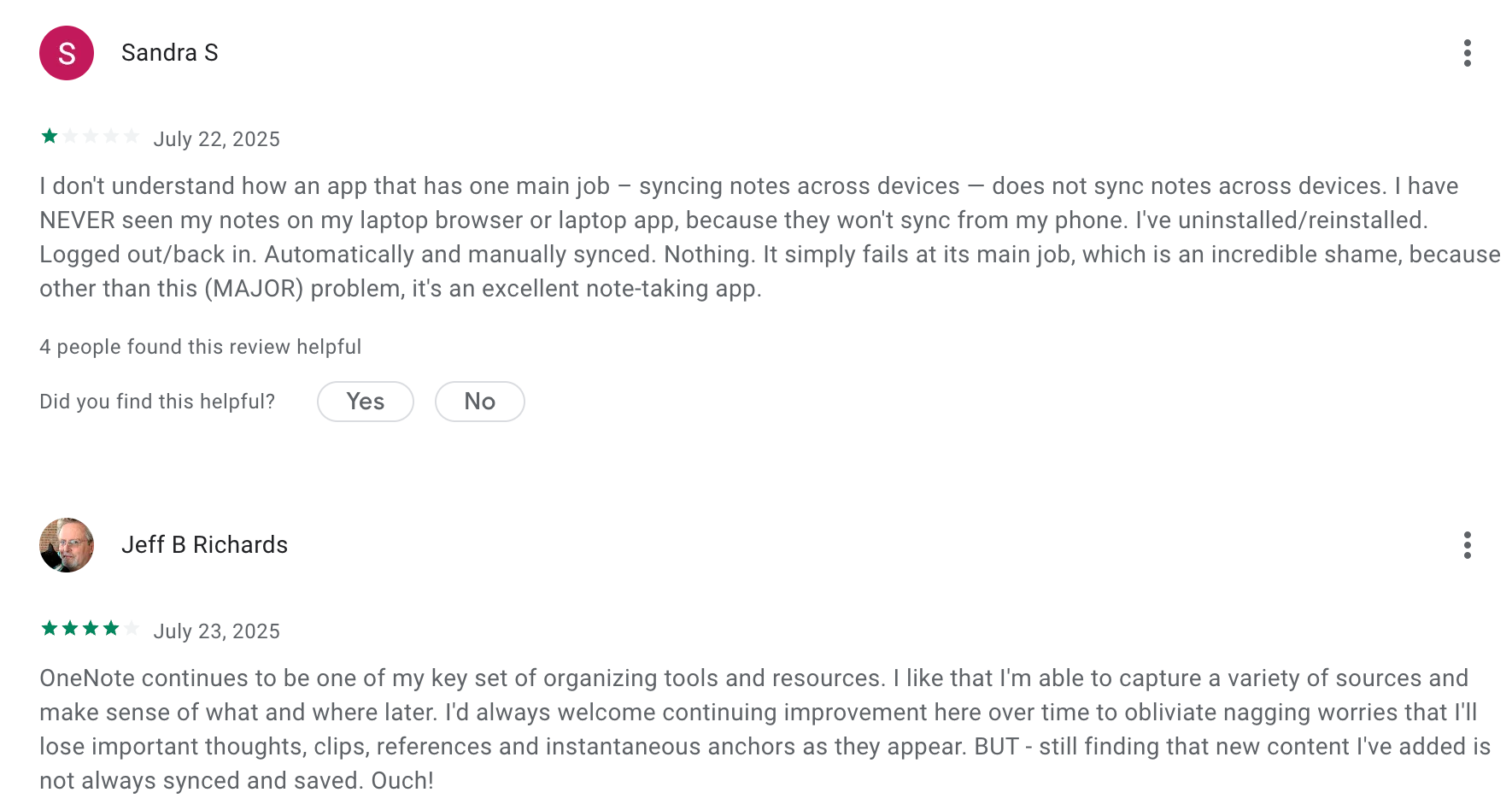
"It can be as simple as you like, and the structure of this notebook is only limited by the user's imagination. I've used it as a diary, keeping health records, lists of books to read, music to listen to, etc." - John
"When opening the app all my previous notes have disappeared. It takes a good +5 minutes to retrieve notebooks. Not sure what and why anything has changed for this to happen and it's incredibly inconvenient." - - jai-
How to get started
- Go to Microsoft OneNote or download the app
- Sign in with your Microsoft account
- Create your first notebook and start adding notes freely
4. Google Keep
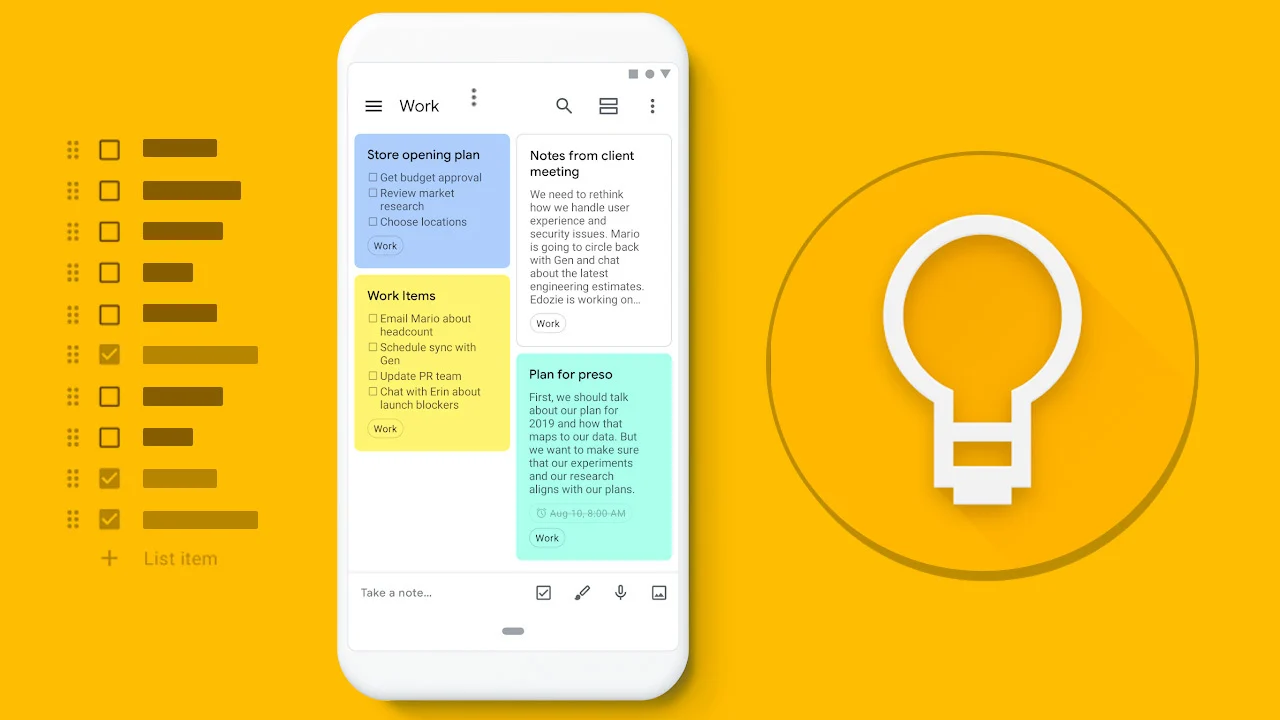
I tested Google Keep as a quick capture and lightweight organization tool. It’s not a full task manager or file system; instead, it’s designed for fast notes, reminders, and simple lists.
I could open it and instantly jot down ideas, save links, or create checklists without thinking about structure. It syncs across devices, so everything is always accessible. It's okay for users who like Google ecosystem
Key features
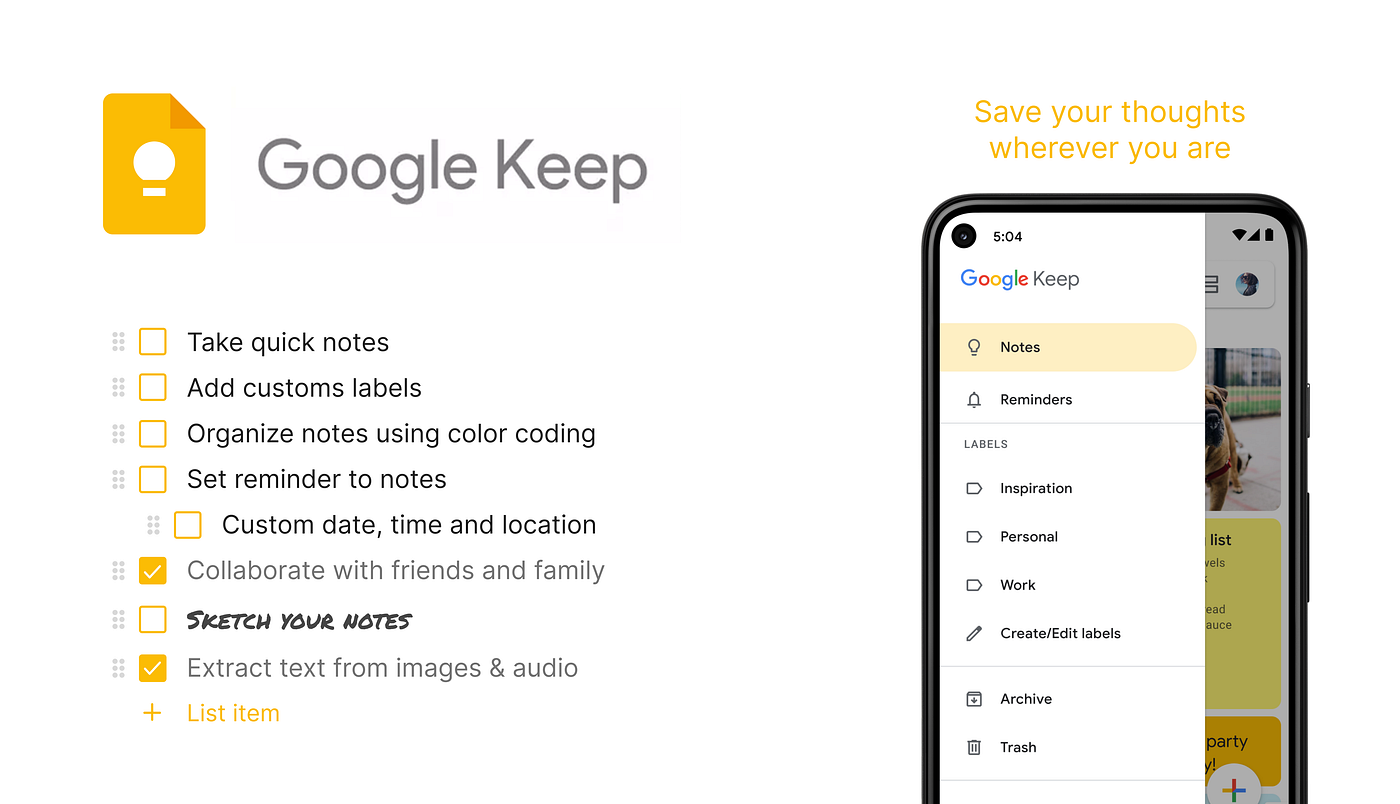
- I could quickly create notes, checklists, voice memos, or images. It’s one of the fastest tools for capturing ideas on the go.
- Notes can be tagged and color-coded, making it easier to visually organize and find things later.
- I can set time- or location-based reminders and pin important notes to the top.
- It connects with Google Docs and other tools, so I can move notes into more structured documents when needed.
Pros:
- "I love how Google Keep syncs across my devices or Google account instantly, meaning I can take some testing notes on the go and have access to them later" — verified review
- "Keep is dead simple. Write a note, maybe make it a list or add a picture. No learning curve, no saving, no files or folders" — verified review
- "I love how Google Keep syncs across my devices or google account instantly" — verified review
Cons:
- "It lacks advanced organization tools like tags or folders, which makes it harder to manage a lot of notes efficiently" — verified review
- "It is too compartmented with boxes and a lack of design tools that allow for individual choice of tools, missing out on handwritten items and designs." — verified review
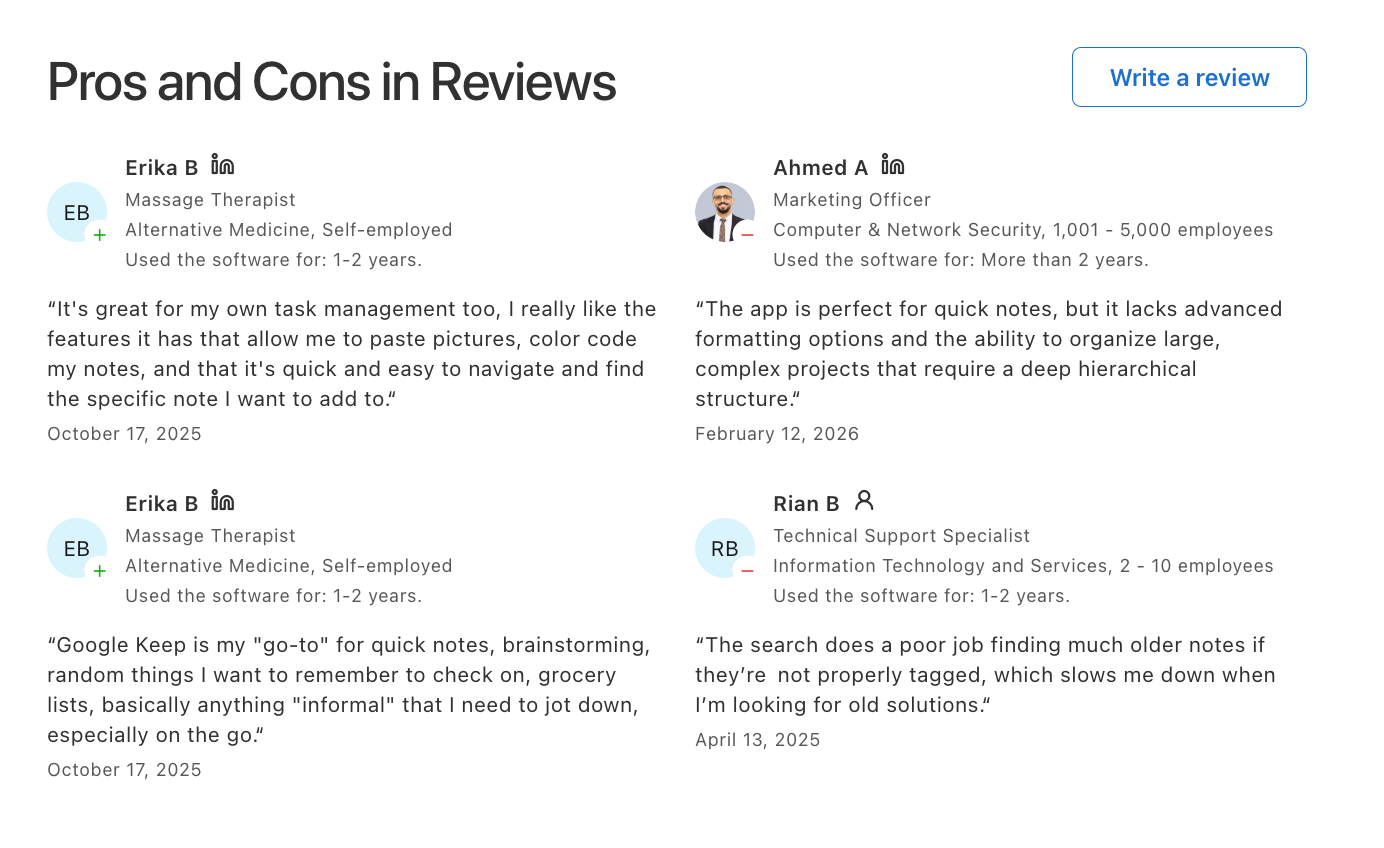
- "The search does a poor job finding much older notes if they're not properly tagged, which slows me down when I'm looking for old solutions" — verified review
Pricing
- Free to use (with a Google account)
Who it’s best for
- People who need a simple, fast way to capture notes and ideas
- Users already in the Google ecosystem
- Anyone who prefers lightweight organization over complex systems
- People managing quick tasks, reminders, or personal notes
Google Keep reviews (source)
"Excellent features are marred by lack of search/find capability inside a note. Makes it a showstopper sometimes. I am starting to use it more and more as a place to help me work on other things." - Anthony Vovers (Tony)
"Ever since I updated this app, it's been intensely freezing and abruptly shutting down. I can't use this for even a minute before something goes wrong." - Miss Dazzling
How to get started
- Go to Google Keep or download the app
- Sign in with your Google account
- Start capturing notes, lists, or reminders instantly
Conclusion: Choosing the Best Organization Apps in 2026
There’s no single “best organization tool” in 2026, because every person is different. What actually matters isn’t how powerful a tool is, but how naturally it fits into your workflow and reduces your mental load.
Here’s what we recommend:
✨ Combine 2–3 tools across categories (tasks, time, notes)
🧪 Use them in real scenarios - planning your week, capturing ideas, tracking work
🧠 Notice which tool makes you feel less overwhelmed, not just more “organized”
If you want a calm, AI assistant that helps you capture, organize, and plan, without overthinking, you can try Saner.AI
Get organized, instantly
FAQs: Best Organization Apps in 2026
1. What are organizational Apps?
Organization apps are apps designed to help you manage tasks, time, notes, and information in one structured way.
They reduce mental clutter by turning scattered ideas into clear actions—whether that’s to-do lists, calendar events, or saved notes.
In 2026, most modern organization tools combine AI, automation, and simple input (like typing or voice) to make planning faster and more intuitive.
2. What are the best organization apps in 2026?
The best organization apps today fall into three main categories:
- Task management: Saner.AI, Asana, Todoist, Structured
- Time management: Google Calendar, TimeCamp
- Note & file management: Notion, Evernote, Google Keep, Microsoft OneNote
3. What makes a good organization tool?
A good organization tool should help you:
- Capture ideas quickly (without friction)
- Turn notes into actionable tasks
- Find information instantly
- Stay on track without constant manual setup
Tools like Saner.AI stand out because they combine all of these into one workflow instead of splitting them across multiple apps.
4. Are there free organization tools available?
Yes, most popular organization tools offer free plans:
- Saner.AI – AI task capture, reminders, and note search
- Todoist – Basic task lists and scheduling
- Google Calendar – Free time planning
- Notion / OneNote – Free note-taking systems
Free versions are usually enough for personal use or simple workflows.
5. Which organization tool is best for task management?
For task management, it depends on how you work:
- Todoist – Simple, clean task lists
- Asana – Project and team workflows
- Structured – Visual daily timelines
- Saner.AI – Turns messy thoughts into tasks automatically
If you often forget tasks or think in fragments, AI-driven tools like Saner can feel more natural.
6. Which organization tool is best for time management,?
Top tools for managing time include:
- Google Calendar – Scheduling and reminders
- TimeCamp – Time tracking and productivity insights
Some newer tools like Saner.AI also suggest priorities and help plan your day based on your workload, not just fixed time blocks.
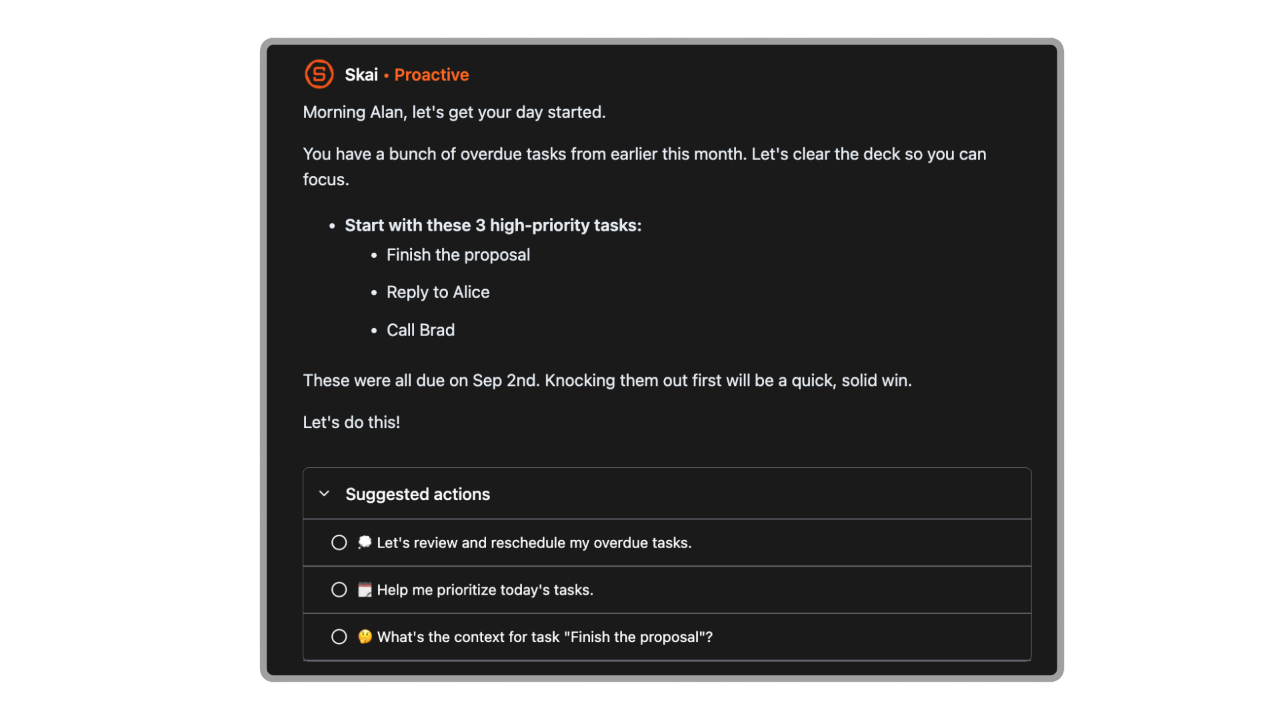
7. Which tools are best for note-taking and file organization?
Popular note and knowledge tools include:
- Notion – Flexible workspace for docs and databases
- Saner.AI – AI note storage
- Google Keep – Quick capture notes
- Microsoft OneNote – Free-form digital notebook
These tools are great for storing information, but often require manual organization, except for Saner.AI
8. What is an AI-powered organization tool?
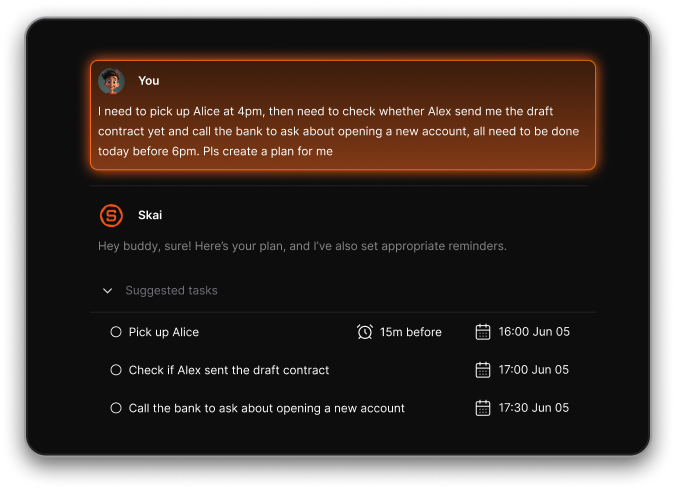
An AI organization tool helps you manage work through natural input instead of manual sorting.
For example, you can type:
- “Follow up with client tomorrow”
- “Summarize this meeting”
Tools like Saner.AI automatically turn that into tasks, reminders, or structured notes, without needing tags or folders.
9. Do organization tools actually improve productivity?
Yes - especially when they reduce:
- App switching
- Manual sorting
- Decision fatigue
Instead of managing systems, you focus on doing the work. AI-first tools like Saner.AI are particularly effective because they handle organization for you.
10. What is the best organization tool for ADHD?
For ADHD users, the best organization apps are simple and low-friction. Saner.AI is often a strong fit because it:
- Captures thoughts instantly
- Turns ideas into tasks automatically
- Suggest day plan proactively
The goal is to minimize effort, not add more structure to maintain.
11. Which organization tool is best for work and productivity?
For professional use:
- Asana – Team collaboration and projects
- Notion – Documentation and workflows
- Google Calendar – Scheduling
- Saner.AI – Personal execution and follow-through
Saner is especially useful for individuals managing multiple priorities across tools.
12. How do I choose the right organization tool?
Start with your biggest pain point:
- Forgetting tasks → Task manager
- Poor time planning → Calendar tool
- Scattered notes → Note-taking app
- Everything feels messy → All-in-one tool like Saner.AI
The best tool is the one you’ll actually use consistently.
13. How are modern organization apps different from older ones?
Traditional tools require you to organize everything manually. Modern tools (especially AI-powered ones):
- Understand natural language
- Suggest what to do next
- Automatically structure your input
This shift makes organization feel less like admin work and more like a natural extension of thinking.
14. What is the future of organization tools?
Organization tools in 2026 are moving toward:
- AI-first workflows (less clicking, more thinking)
- Unified systems (tasks + notes + calendar together)
- Context-aware planning (tools that understand your priorities)
Tools like Saner.AI represent this direction, where you simply write things down, and the system organizes your work for you.
Stay on top of your work and life, effortlessly