Task Management Software: We Tested the Best 10 Tools

If you’re a busy founder, professional, or creative juggling too many tabs, you know the feeling - tasks scattered across notebooks, chats, and reminders that never ping on time.
In this guide, I’ve tested and ranked the 10 best task management tools - from minimal to-do apps to AI planners that think ahead for you.
Quick guide: What are the best task management software?
2. Todoist: Best overall for fast, friction-free daily task management and natural language input.
3. TickTick: Best for built-in time management, featuring integrated habit tracking and Pomodoro timers.
4. Things 3: Best for Apple ecosystem power users who want an elegant, minimalist task design.
5. Microsoft To-Do: Best free option for seamless integration with Outlook and Microsoft 365 workflows.
6. Trello: Best for visual managers who prefer simple drag-and-drop Kanban boards.
7. ClickUp: Best all-in-one platform for power users and teams needing deep customization and feature breadth.
8. Any.do: Best for daily planning rituals and cross-device sync between tasks and personal calendars.
9. Asana: Best for growing teams needing structured project tracking and cross-department collaboration.
10. Notion: Best for system builders who want to combine task management with custom databases and documentation.
How we chose these tools
When choosing the “best task management software”, we considered more than just feature lists. Here’s how we evaluated each tool:
- Ease of Use: How quickly can a new user capture tasks, set priorities, and stay organised without fighting the UI?
- Automation & AI: Does the tool reduce busywork (automatic task creation, smart prioritisation, auto scheduling) or simply add more clicks?
- Collaboration & Workflows: For team use: assignments, comments, views (list/board/calendar), dependencies, integrations.
- Mobile & Multi-Platform Experience: Many of us work across devices - desktop, phone, tablet - so sync and UI quality matter.
- Integrations & Ecosystem: Does it play nicely with email, calendar, Slack, files, and notes? Does it centralise or fragment?
- Fit for Real Use Cases: Solopreneurs, remote teams, ADHD-prone users, creatives
- Pricing & Value: Free tier availability, scaling, and realistic cost for what you get.
Now, let's dive in!
What are The Best Task Management Software?
The Best Task Management Softwares are Saner.AI, Todoist, TickTick, Things 3, Microsoft To-Do, Trello, ClickUp, Any.do, Asana, and Notion
1. Saner.AI
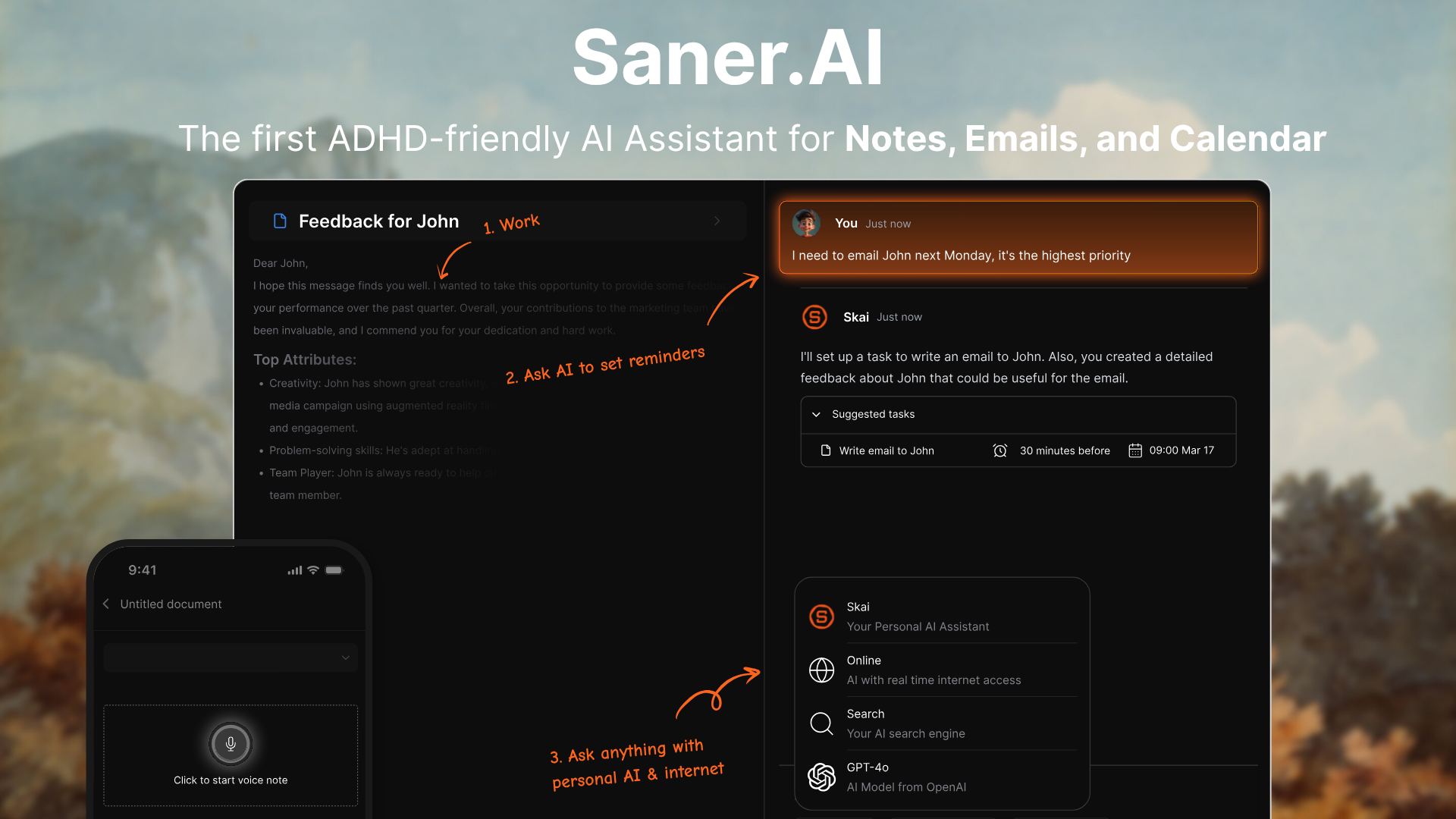
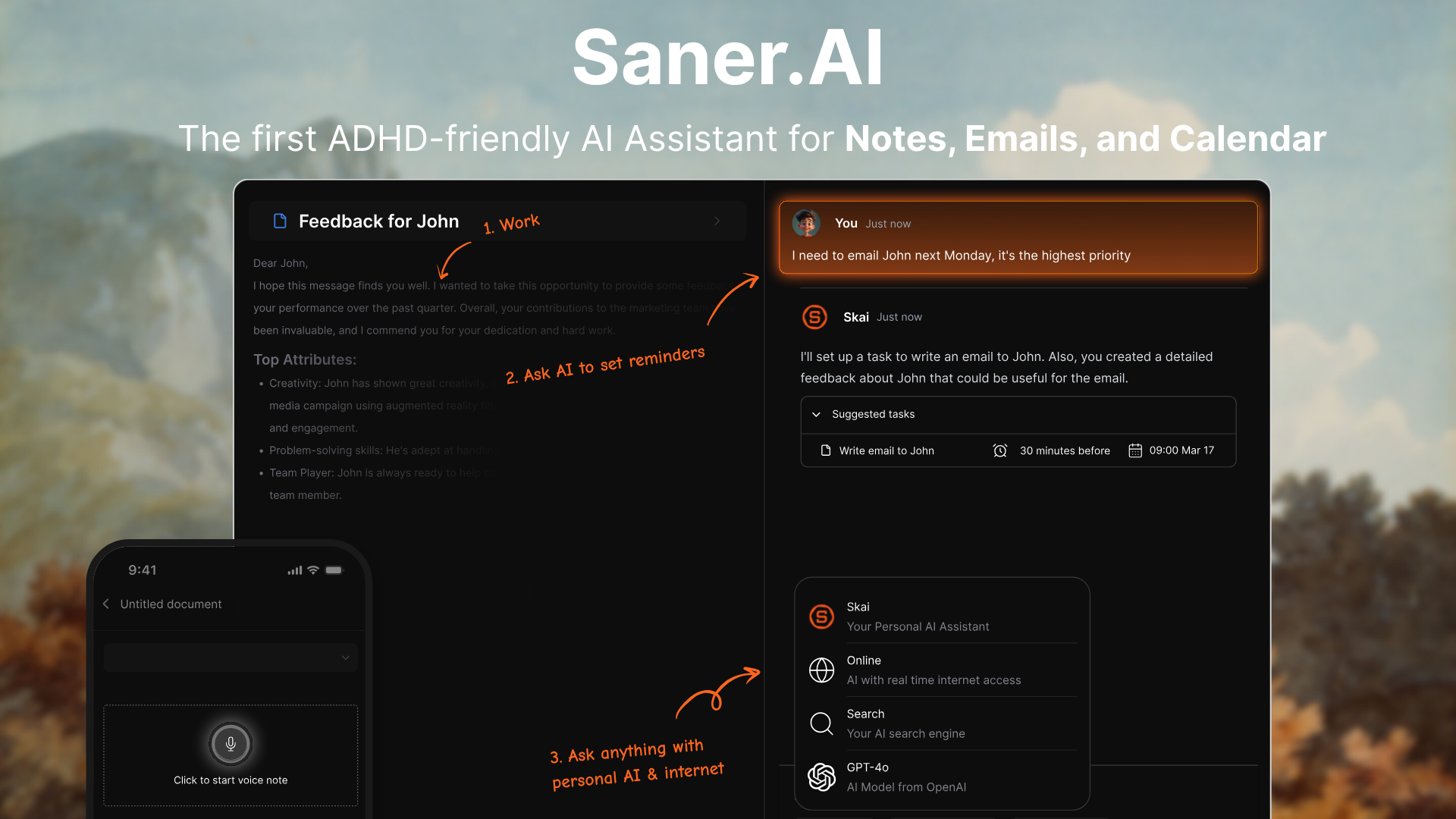
Saner.AI is an AI to-do list that combines notes, tasks, and your connected tools like Gmail, Google Drive, and Calendar into one place. Unlike traditional task apps, it doesn’t just help you list tasks - it helps you think, plan, and follow through.
Key features
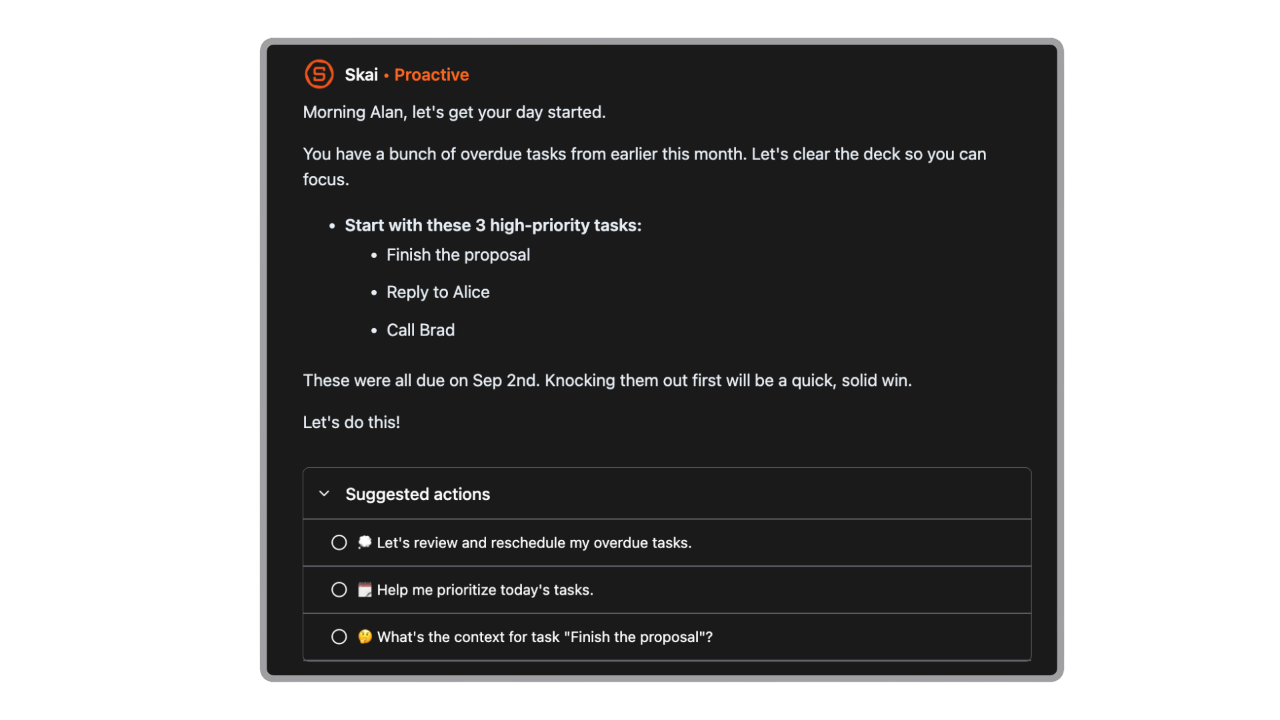
- AI task extraction and proactive daily planning
When I tried dumping my messy meeting notes and voice into the AI, the tool automatically identified clear action items
- Semantic search with Skai personal AI
I used the natural language search to pull up specific project details from weeks ago, avoiding the need to remember exact keyword titles or manual tags.
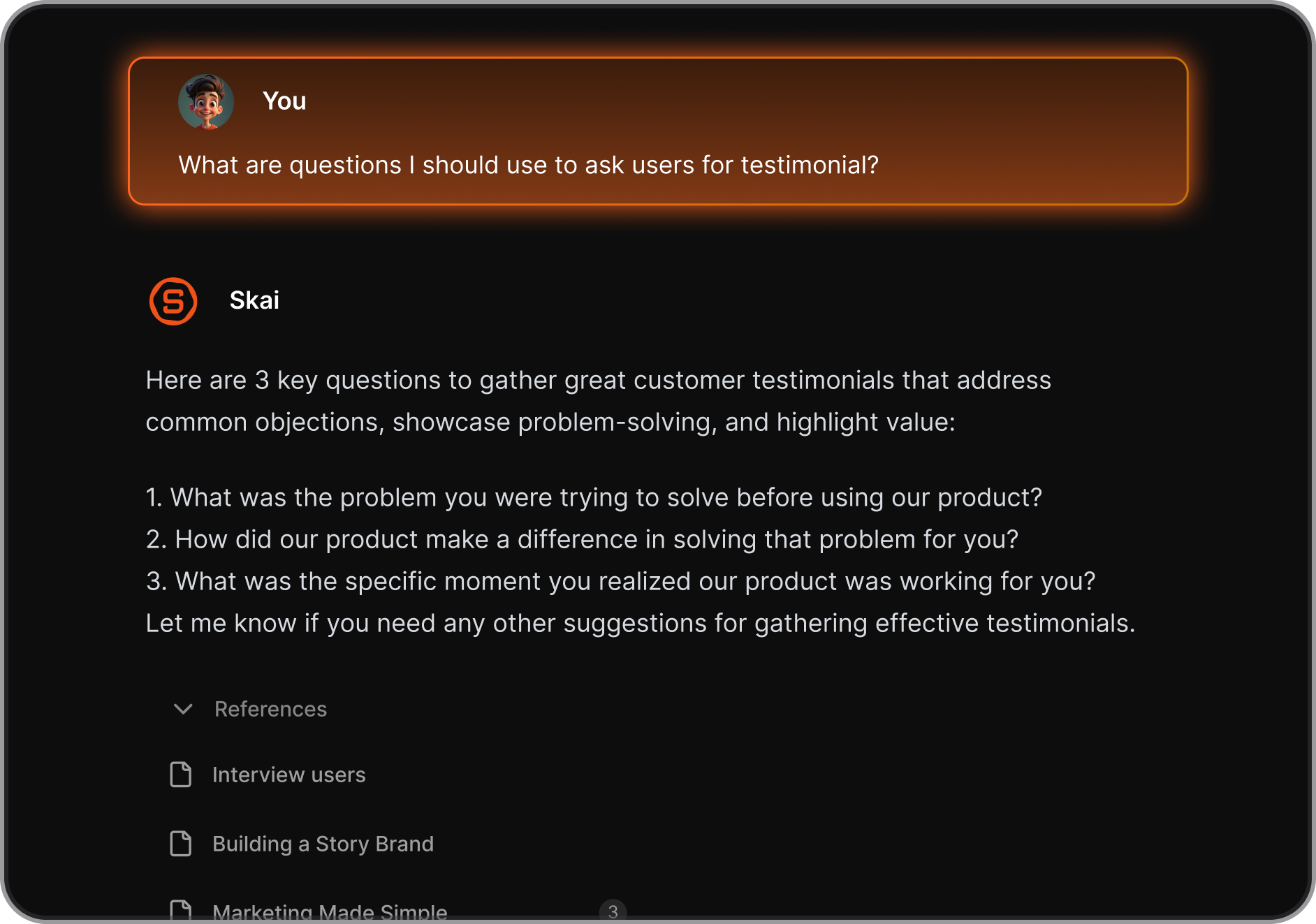
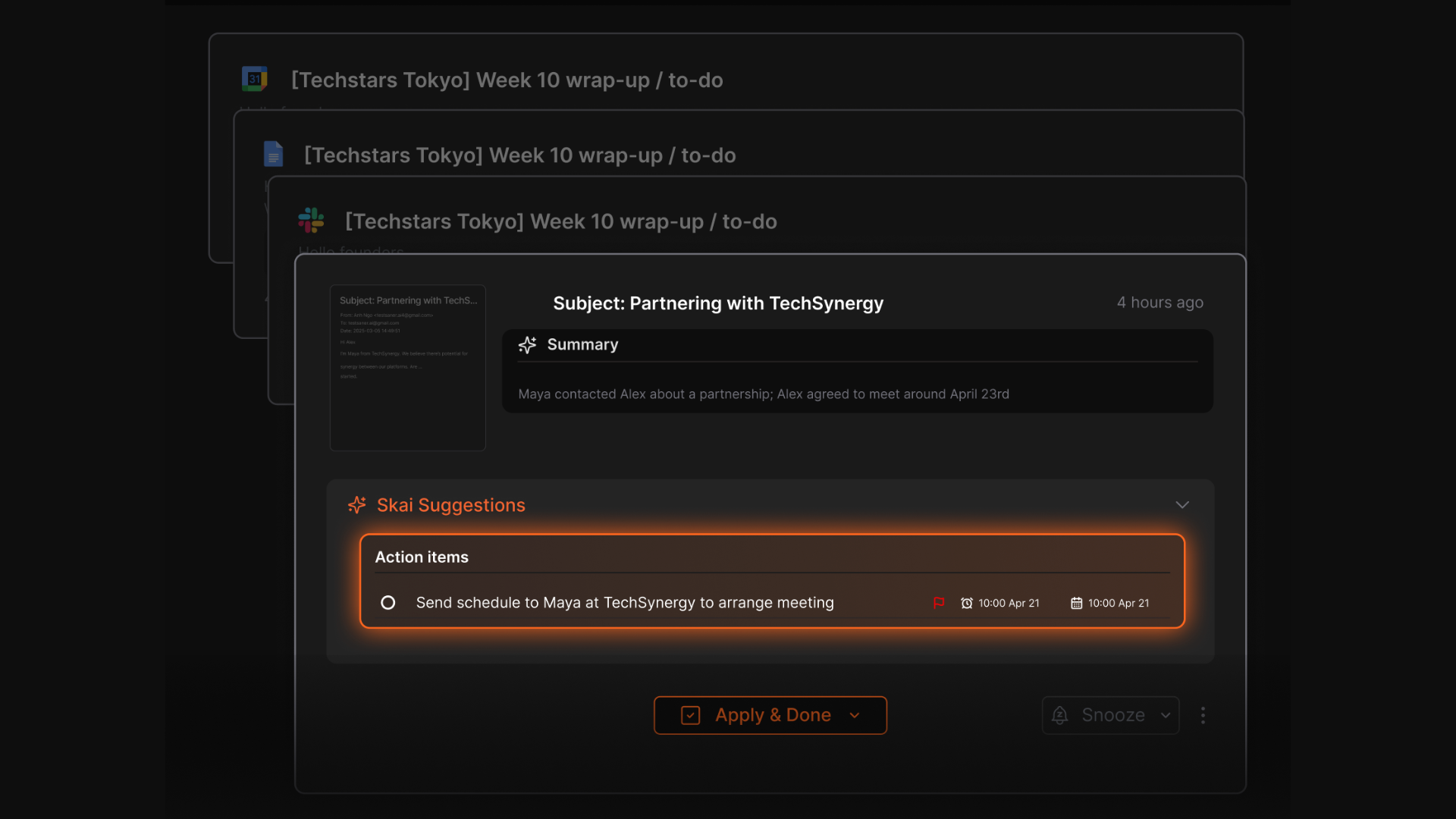
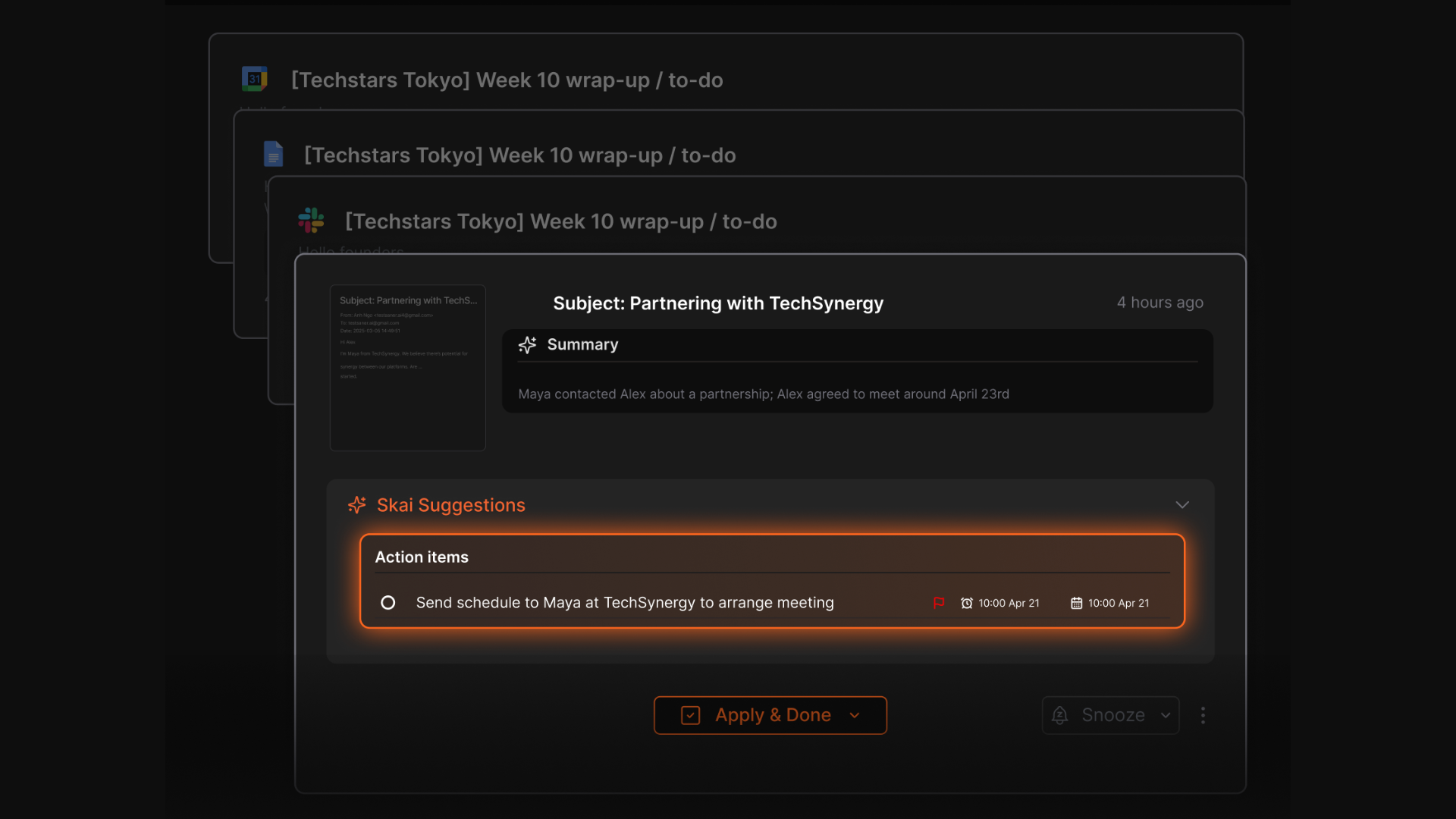
- AI Task Assistant: Converts your brain dumps, emails, and notes into actionable tasks automatically.
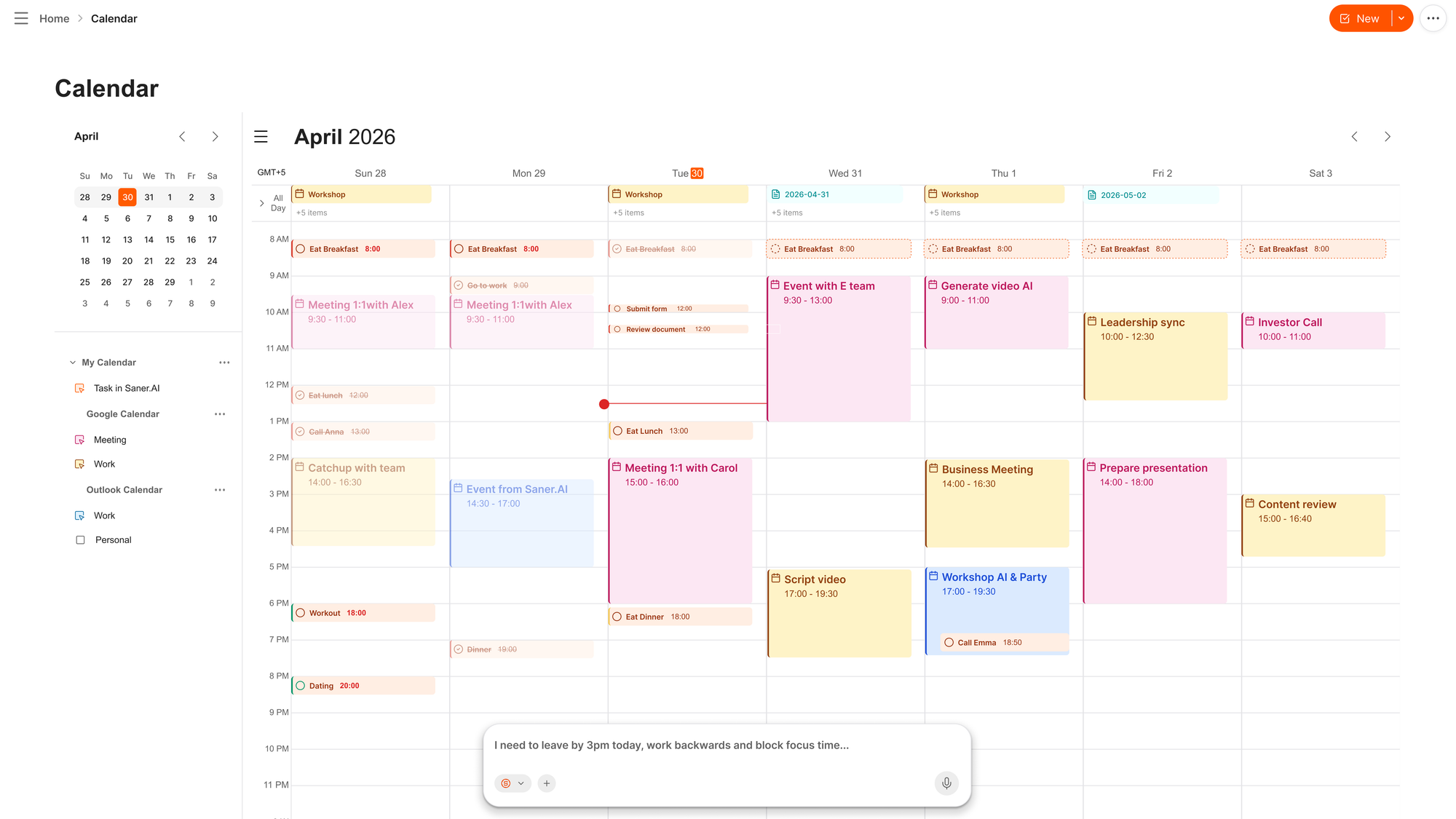
- AI calendar to reschedule my day automatically
- Unified Workspace: Brings together notes, todos, calendar, email, and Slack messages into a single interface.
- Cross-App Search: Lets you find information across your files, messages, and notes instantly.
What I liked
- I enjoy using the distraction-free UI designed to keep me from getting overwhelmed by too many visible settings.
Cons
- Not ideal for large teams or project timelines — no Gantt charts or complex task dependencies.
Pricing
- Free
- Starter: Monthly at $8/month (yearly)
- Standard: Monthly at $16/month (yearly)
Who is it suitable for?
- Entrepreneurs, managers, and researchers juggling many projects or tools.
- People with ADHD or those who get overwhelmed managing scattered information.
- Anyone who wants an AI assistant that not only tracks tasks but also connects them with the right context.
Saner.AI review
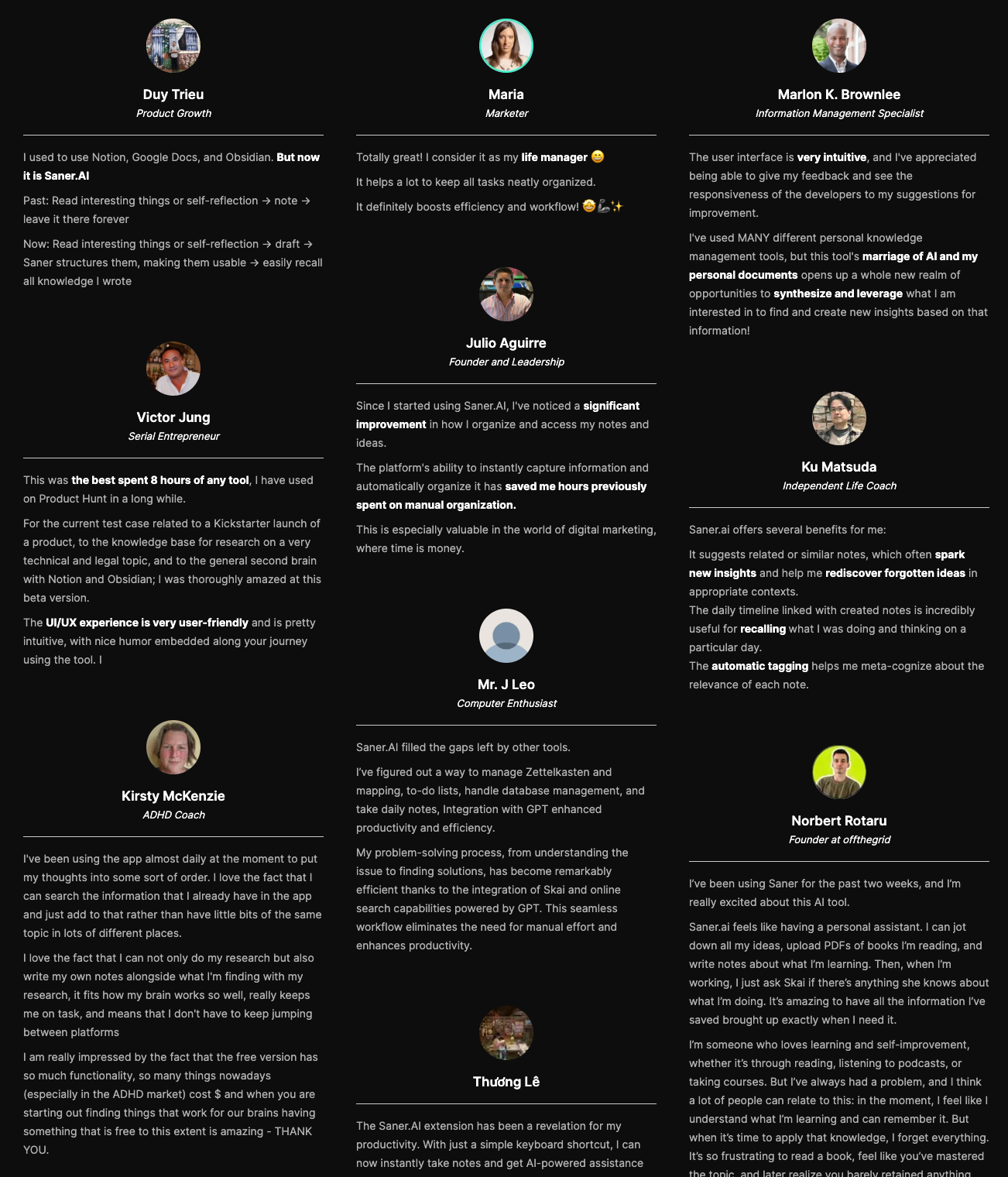
"I've used MANY different personal knowledge management tools, but this tool's marriage of AI and my personal documents opens up a whole new realm of opportunities..." — Verified Review
How to start using it?
- Go to Saner.AI, create a free account, and connect your email, calendar, and drive.
- Start by dumping your thoughts or uploading notes.
- Let the AI organize, tag, and suggest your next actions automatically.
The AI Task Management Software that works with you
2. Todoist
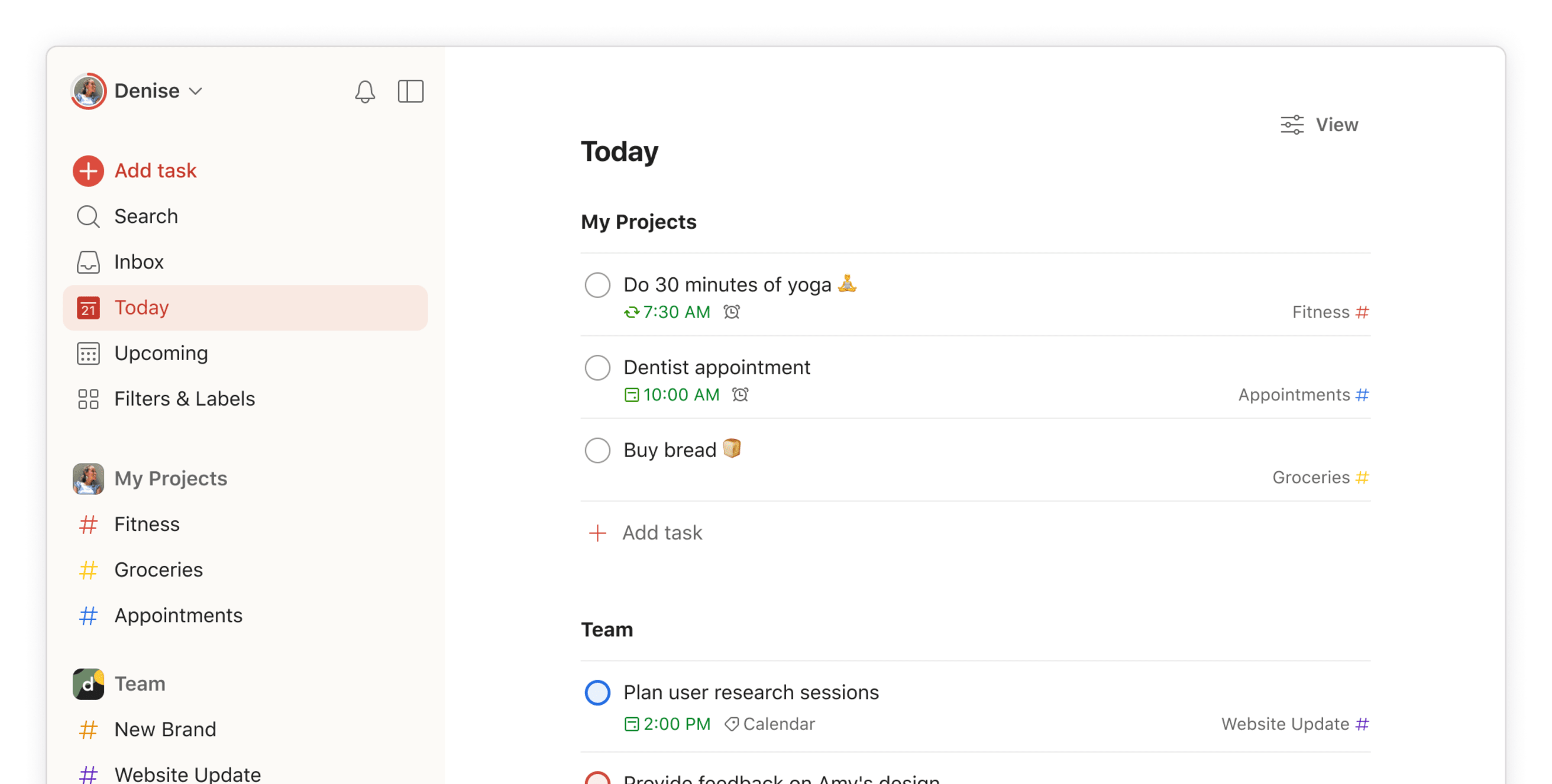
Todoist relies on rapid-fire task capture and minimal design rather than complex project management structures. Type "Call doctor tomorrow at 2 PM #Personal p1" into the task box, and it immediately parses the date, tags the project, and sets the priority without forcing you to click through dates or menus.
What it does well
- Fast natural language parsing: Adding deadlines or recurring dates happens while you type.
- Cross-platform ubiquity: The app keeps state effortlessly across every operating system, smartwatch, and browser extension.
- Flexible views for different workflows: You can toggle between traditional list layouts, Kanban boards, and calendar views depending on how you like to work.
What it doesn't do well
- Essential features locked behind paid tiers: The free version limits you to five active projects and restricts custom reminder timing.
- No native time-tracking: You cannot track hours directly inside a task card without setting up external integrations.
- Overly simple for complex projects: It struggles to replace dedicated software for heavy, multi-layered project dependencies or complex Gantt chart planning.
Who it's actually for: People who want to get tasks out of their heads instantly and need a reliable, cross-platform system without getting bogged down in complicated project management setups.
Pricing
- Free plan with up to 5 projects
- Pro plan at $5/month for advanced features like reminders and labels
- Business plan at $8/user/month with team tools and admin control
How to start
- Go to todoist.com, create a free account, and start adding your tasks right away.
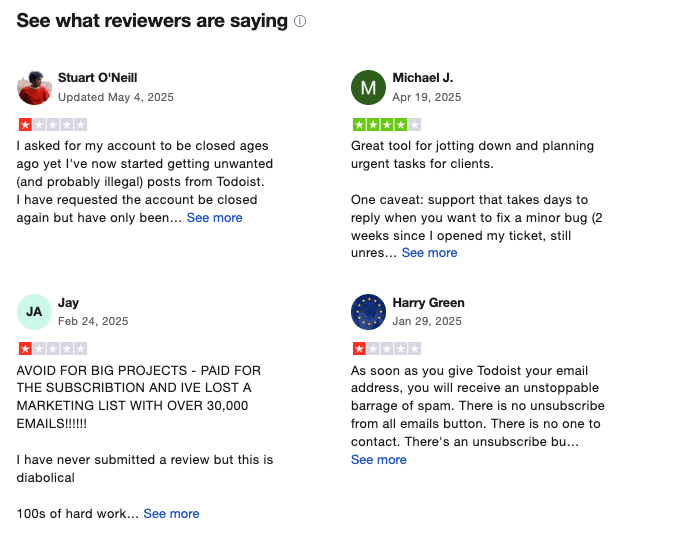
Todoist Reviews (source)
3. Microsoft To Do
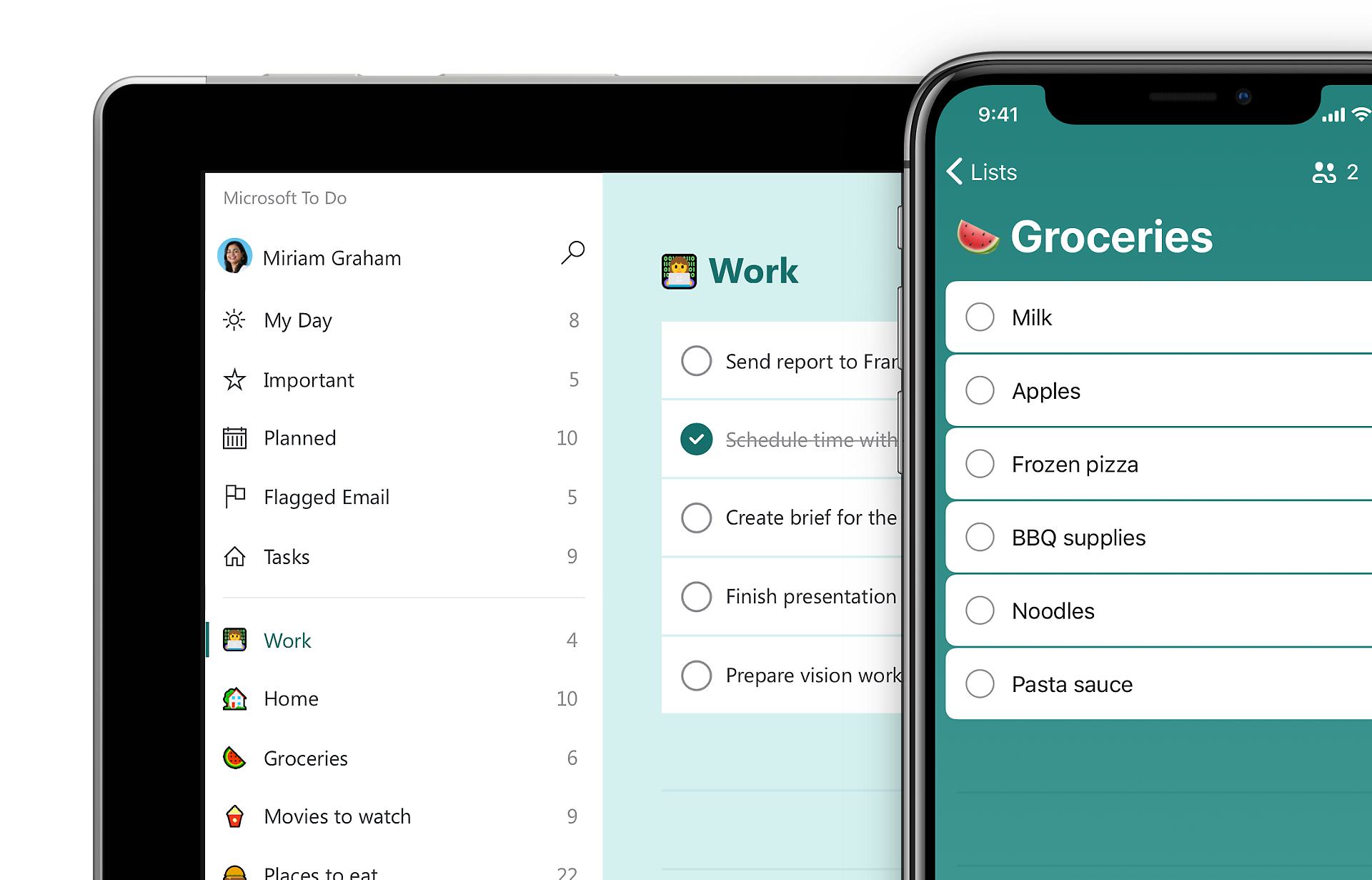
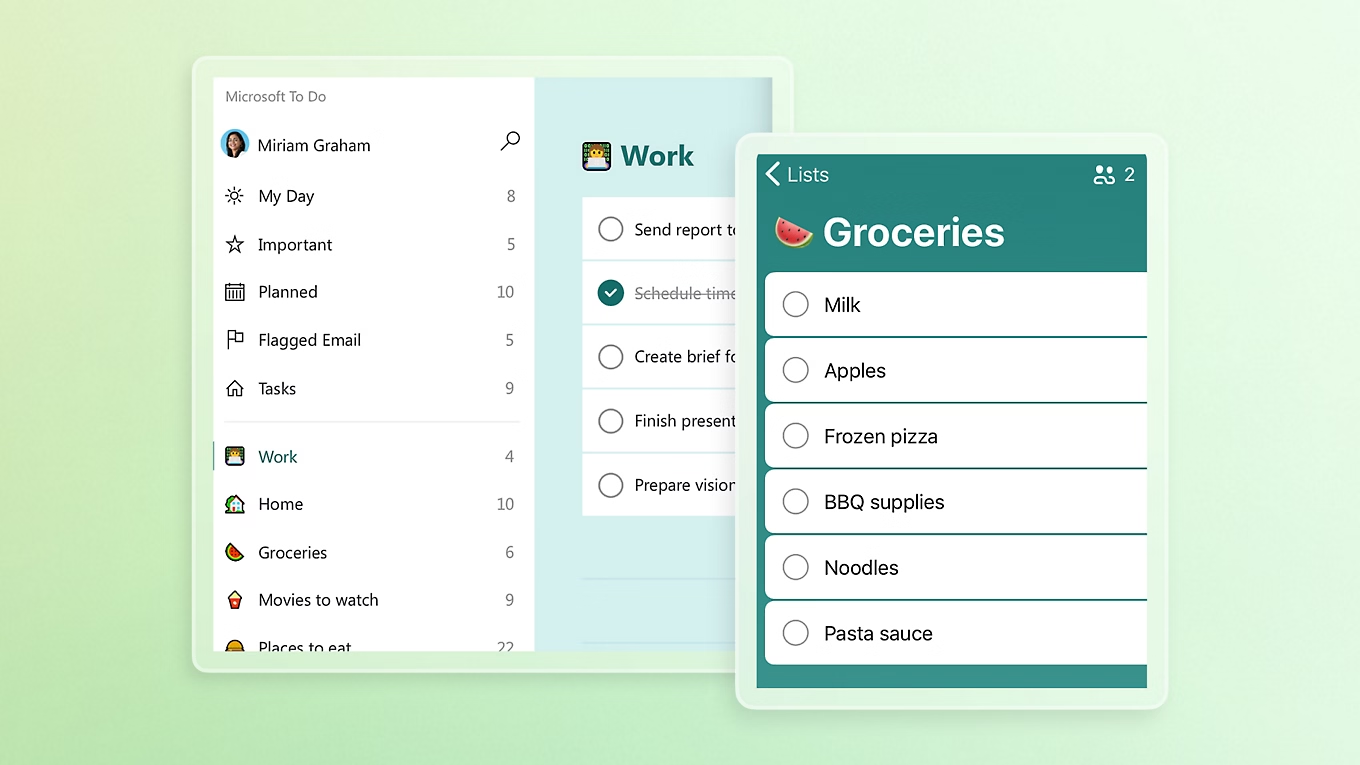
Organize your daily workload without drowning in project management bloat. It pulls your flagged Outlook emails straight into your task list and gives you a fresh, clean slate to prioritize every morning.
What it does well
- Built right into Microsoft 365: It connects automatically with Outlook and Teams.
- Daily reset with My Day: The My Day view forces you to pick only what you actually plan to finish before tonight.
- Completely free: You get every feature without hitting a paywall or needing a paid subscription upgrade.
- Simple multi-device sync: You can quickly add a thought on your desktop and check it off on your phone mid-transit without lag.
What it doesn't do well
- No complex project views: It skips Gantt charts, time tracking, and heavy data views, so you can't use it to run large, complex team projects.
- Minimal visual customization: You can pick basic background colors, but you can't build custom workflows or complicated Kanban boards.
- Clunky sync outside the Microsoft ecosystem: If you rely heavily on non-Microsoft apps, connecting your workflows takes extra effort.
Who it's for: Anyone already using Outlook who needs a simple, zero-cost way to track daily personal and work lists without extra noise.
Pricing
- Free with a Microsoft account
How to start
- Go to todo.microsoft.com or download the app on any device.
- Sign in with your Microsoft account.
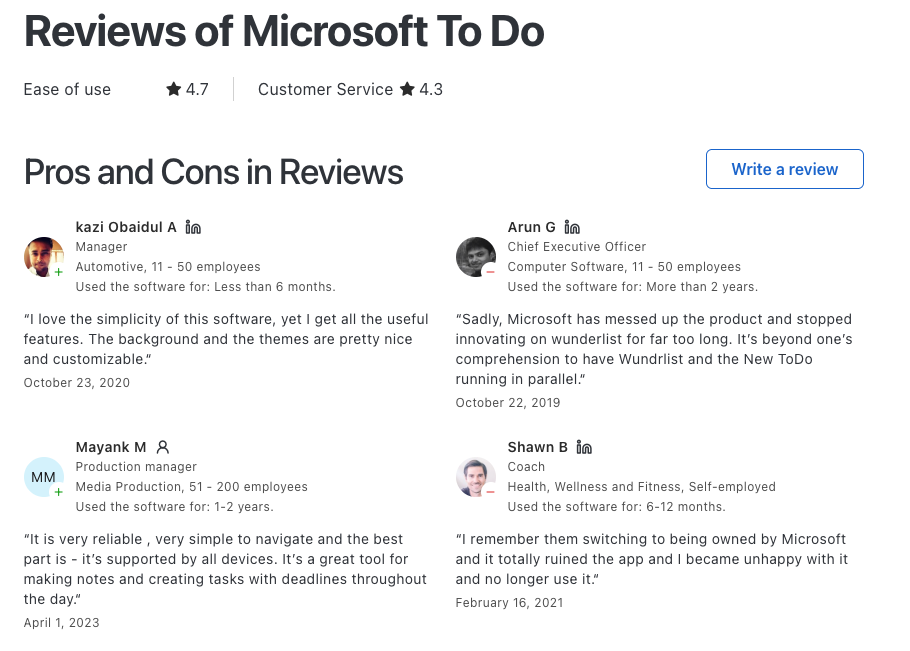
Microsoft To Do Reviews (source)
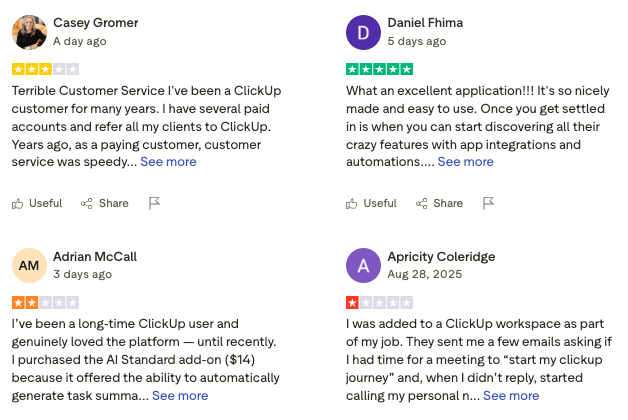
4. ClickUp
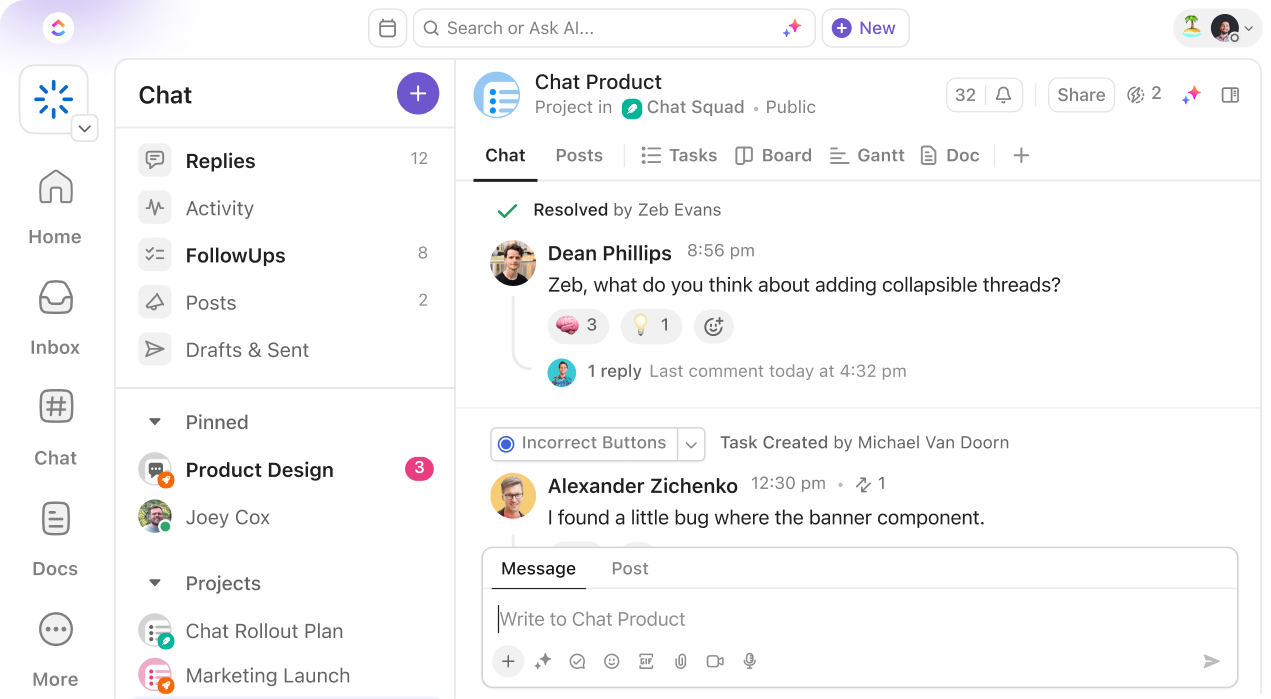
ClickUp attempts to replace your entire software stack by combining tasks, docs, goals, and team chat into one workspace. It gives teams total freedom over how they visualize work, letting you shift between lists, Gantt charts, and Kanban boards on the fly.
What it does well
- Hyper-customizable views: You can view the same dataset as a list, board, calendar, or timeline without duplicating any data.
- Built-in docs and team collaboration: You can write internal wikis, assign action items inside documents, and comment directly on tasks.
- Native time tracking and goal monitoring: Built-in timers and progress targets remove the need for extra add-ons like Toggl.
What it doesn't do well
- Overwhelming feature sprawl: The sheer volume of settings, menus, and customizable fields creates a steep learning curve for new users.
- Performance dips on heavy boards: Navigating massive workspaces with thousands of tasks can lead to occasional lag.
- Clunky mobile experience: The desktop app is feature-rich, but the mobile version lacks parity and feels stripped down for deep administrative tasks.
Who it's for: Mid-sized teams, agencies, and power users who want a single customizable hub to manage complex projects and are willing to spend time on initial setup.
Pricing
- Free Forever: $0 per user, includes unlimited tasks and users but limited storage and features
- Unlimited Plan: $7 per user/month (annual billing)
How to start
- Sign up at clickup.com
- Create your first workspace and explore different views and templates
ClickUp Review (source)
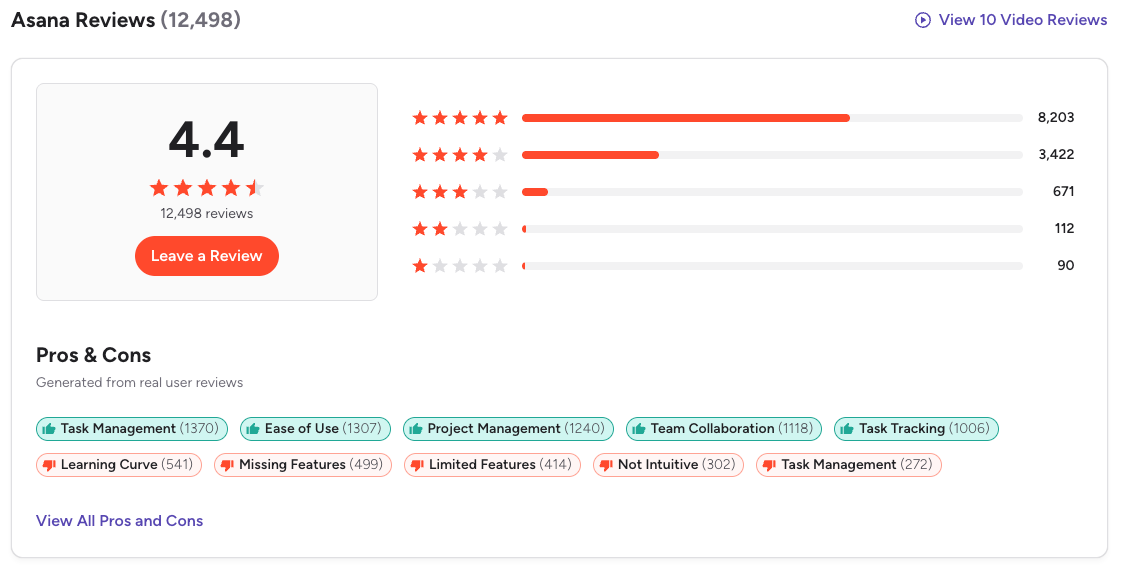
5. Asana
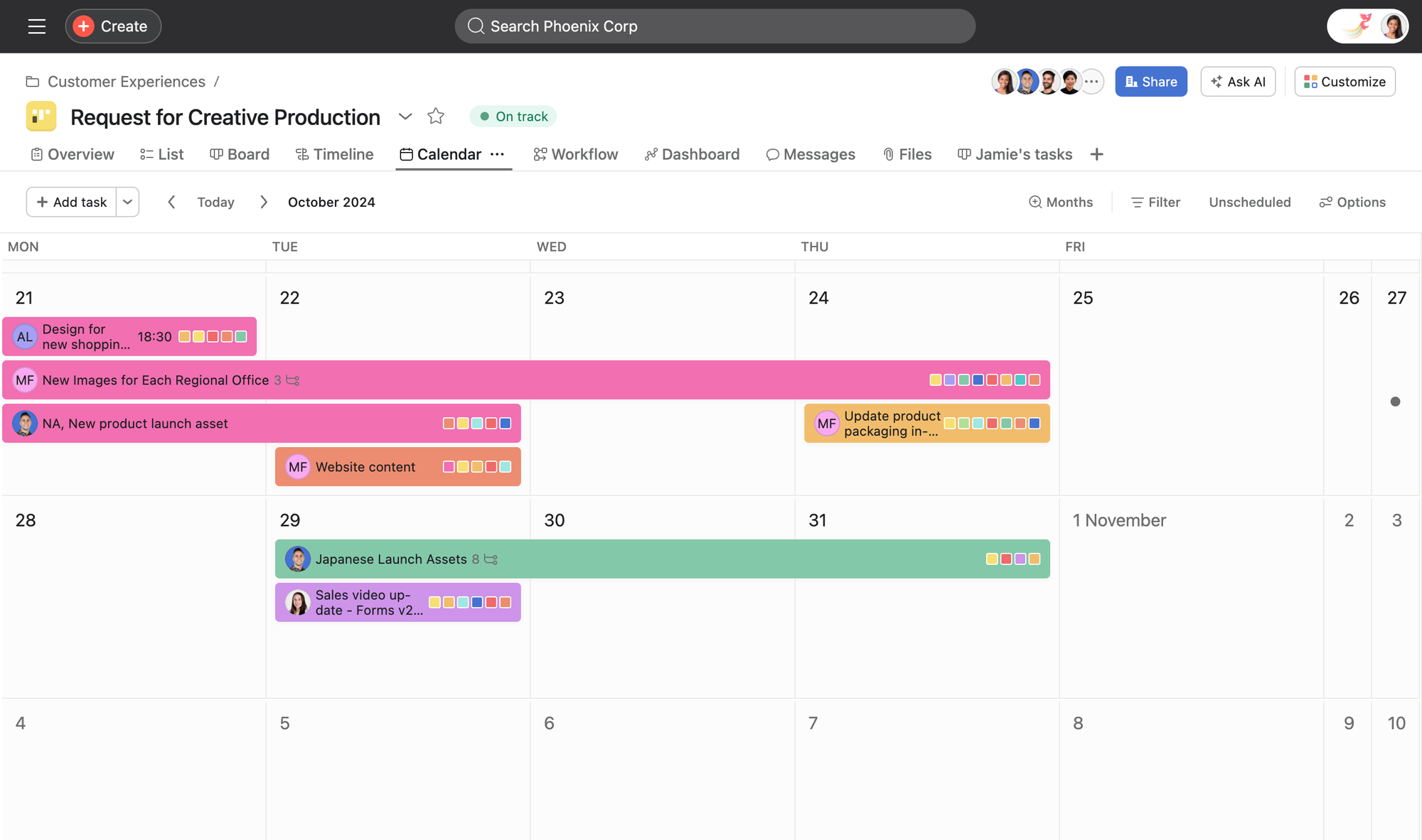
Organize cross-functional team projects with clear ownership. Asana links daily tasks straight to bigger company goals, giving everyone visibility on who is doing what and when.
What it does well:
- Flexible project views: Switch instantly between list, board, calendar, and timeline views depending on how you prefer to visualize deadlines.
- Custom workflow rules: Built-in triggers automatically move tasks, send alerts, or assign team members as work moves through your pipeline.
- Multi-homing tasks: You can place one task across multiple project boards at once without duplicating it.
What it doesn't do well:
- Feature paywalls: Essential features like native time tracking and advanced automation rules are locked behind expensive higher tiers.
- Setup visual clutter: It is easy to over-engineer your workspace with too many subtasks, folders, and custom fields.
- Single assignee limit: Tasks only allow one main owner. If two people share responsibility for a deliverable, you have to create separate tasks or tag them as collaborators.
Who it's actually for: Mid-sized teams and cross-functional groups who need clear accountability across multi-step projects.
Pricing:
- Free plan available for individuals or small teams
- Starter plan from around $10.99 per user/month (billed annually)
How to start:
- Head to asana.com, create a free account, and set up your first project using one of their templates.
Asana Review (source)
6. TickTick
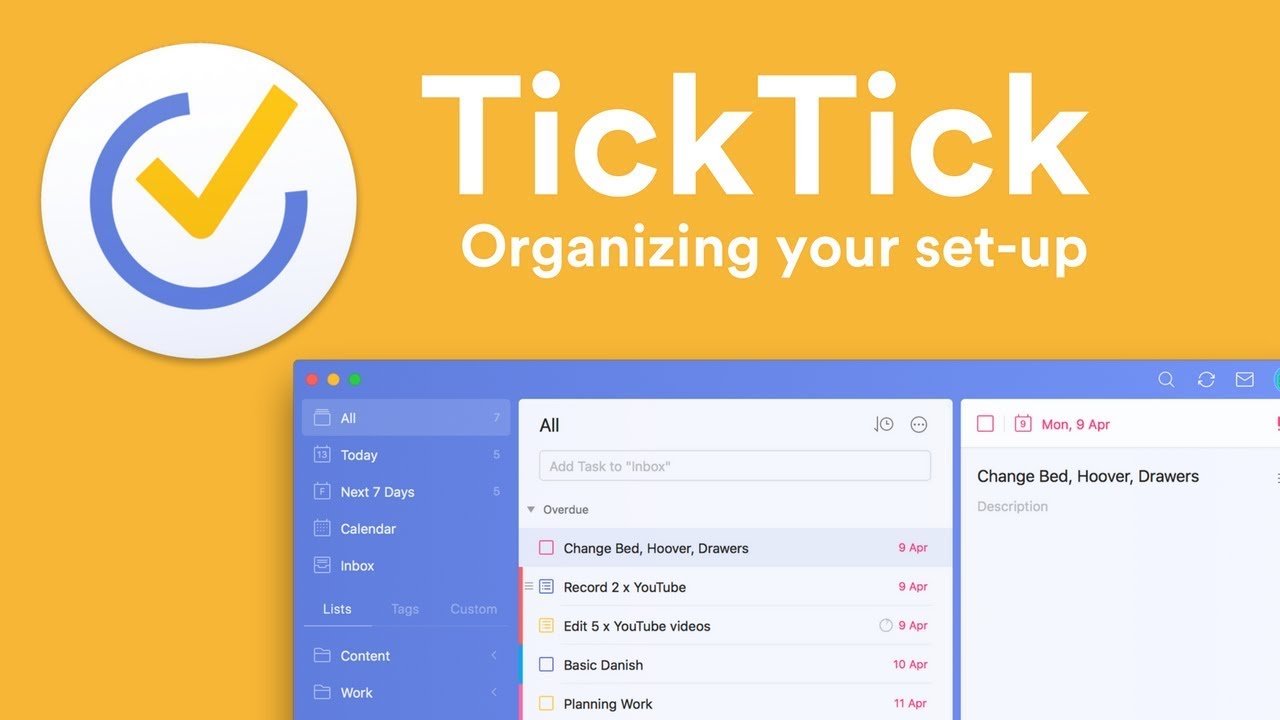
TickTick is an all-in-one task manager that combines traditional to-do lists, time-blocking calendars, habit tracking, and a built-in Pomodoro timer into a single app.
What it does well
- Affordable pricing: Its paid tier is noticeably cheaper than competitors like Todoist Pro or Any.do while offering similar or broader capabilities.
- Cross-platform sync: It runs reliably across iOS, Android, Mac, Windows, and web browsers, keeping your lists consistent across devices.
- Natural language task entry: The app picks up dates, times, and recurring details automatically as you type, making it fast to capture ideas on the go.
What it doesn't do well
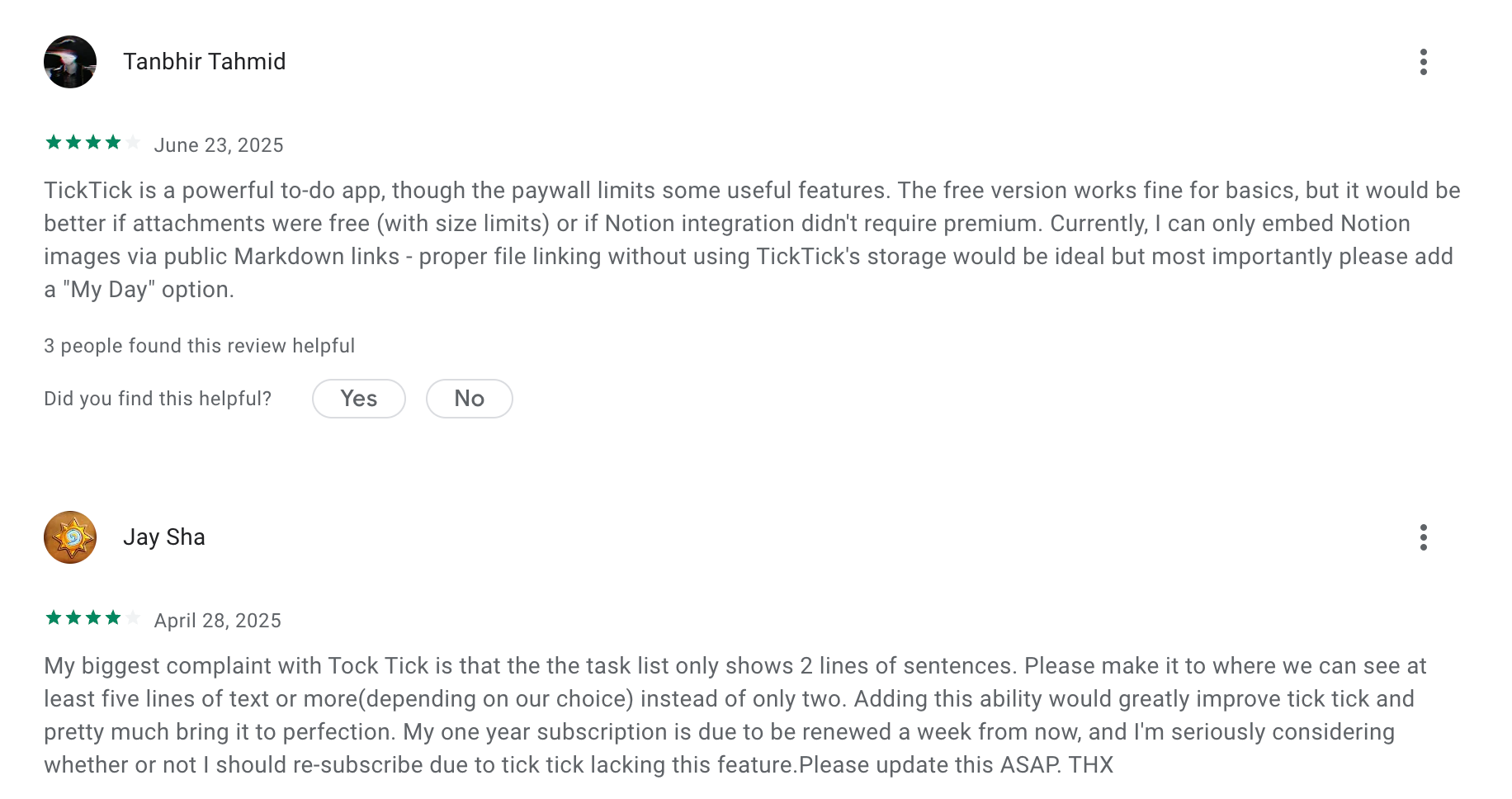
- Feature gating on free tier: Key tools like full two-way calendar sync, custom smart views, and unlimited habit tracking are locked behind the paid plan.
- Limited collaboration features: Its list-sharing options lack the granular permissions and workflow controls that larger project management teams need.
- Functional, utilitarian design: The interface prioritizes density and utility over a sleek, modern visual design.
Who it's for: Solo professionals, students, and power users who want an affordable, single hub to manage their daily tasks, schedules, focus sessions, and personal habits without switching between multiple apps.
Pricing:
- Free plan available
- Premium plan costs around $3.99/month
How to start:
- Go to ticktick.com or download the app from your app store, sign up for a free account, and start by creating your first lists (Inbox, Work, Personal)
TickTick review (source)
7. Trello
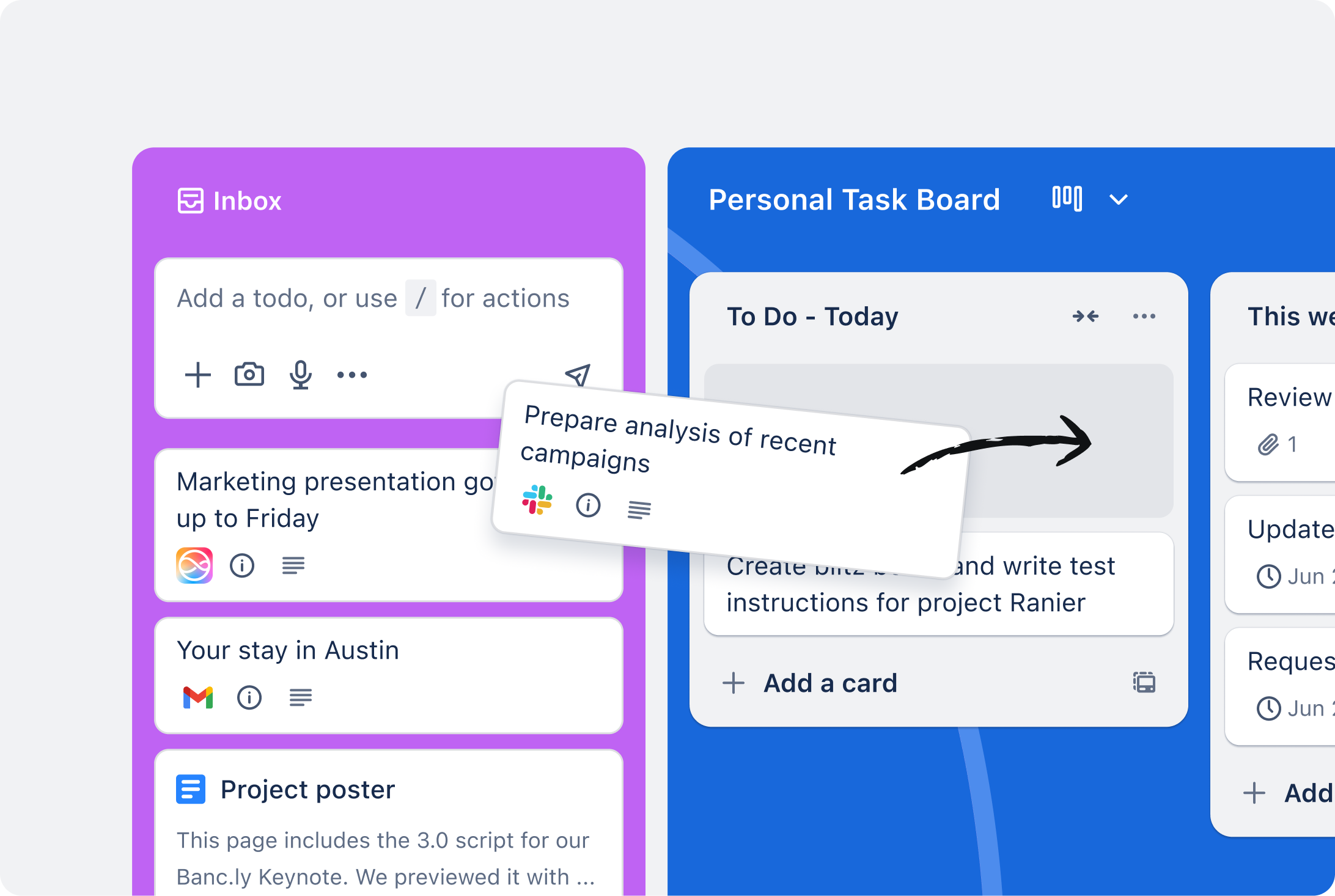
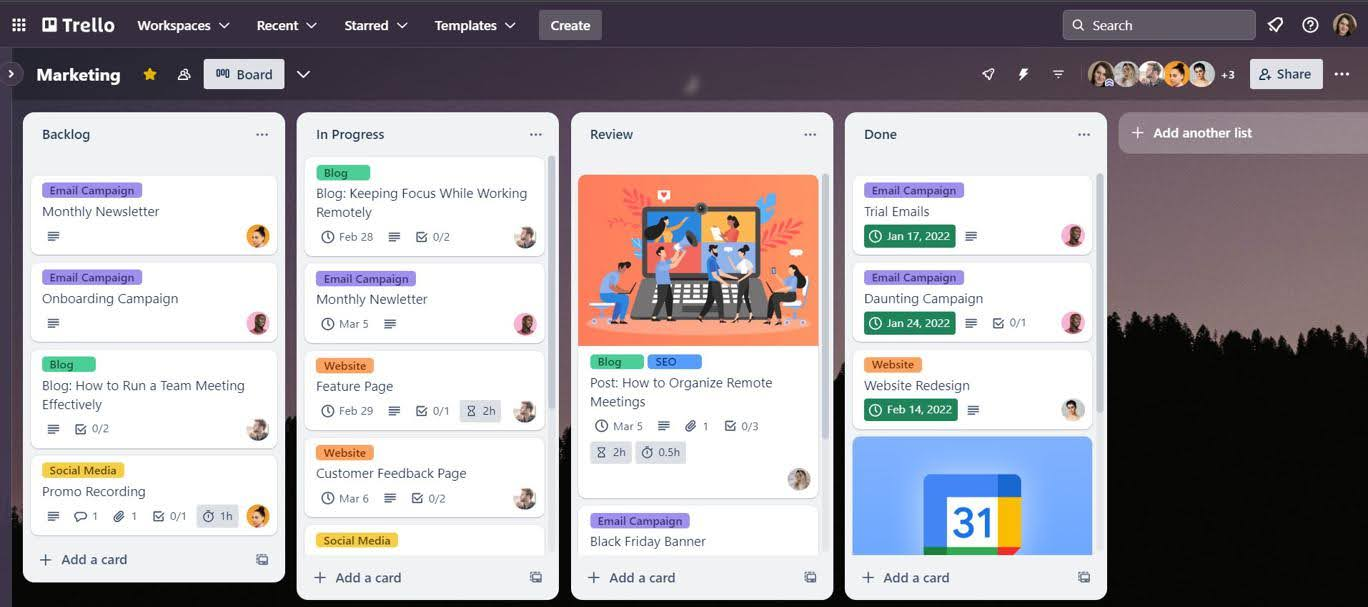
Trello is a flexible, board-based task and project organizer designed for individuals, freelancers, and teams who prefer visual task management. It uses a simple drag-and-drop interface to move tasks through stages
What works
- Low barrier to entry: The basic tier gives small teams enough features, file attachments, and workspace boards to run daily operations without paying right away.
- Extensible Power-Ups: You can expand simple boards with extra functionality by plugging in native integrations like Google Drive, Slack
- Visual Kanban simplicity: Building boards and dragging cards across stages takes zero learning curve, making it easy for non-technical teams to jump in right away.
What falls short
- Basic task dependency tracking: Linking dependent steps together requires add-ons or workarounds rather than built-in workflow rules.
- Clutter on massive projects: When a board accumulates dozens of columns and hundreds of active cards, tracking down specific tasks gets messy fast.
Who it's actually for: Teams and individuals who want a flexible, highly visual way to move work through clear stages without getting bogged down in complex project management features.
Pricing
- Free plan
- Standard plan: $5/user/month billed annually
- Premium plan: $10/user/month billed annually
How to start
- Go to trello.com, sign up for a free account, and create your first board.
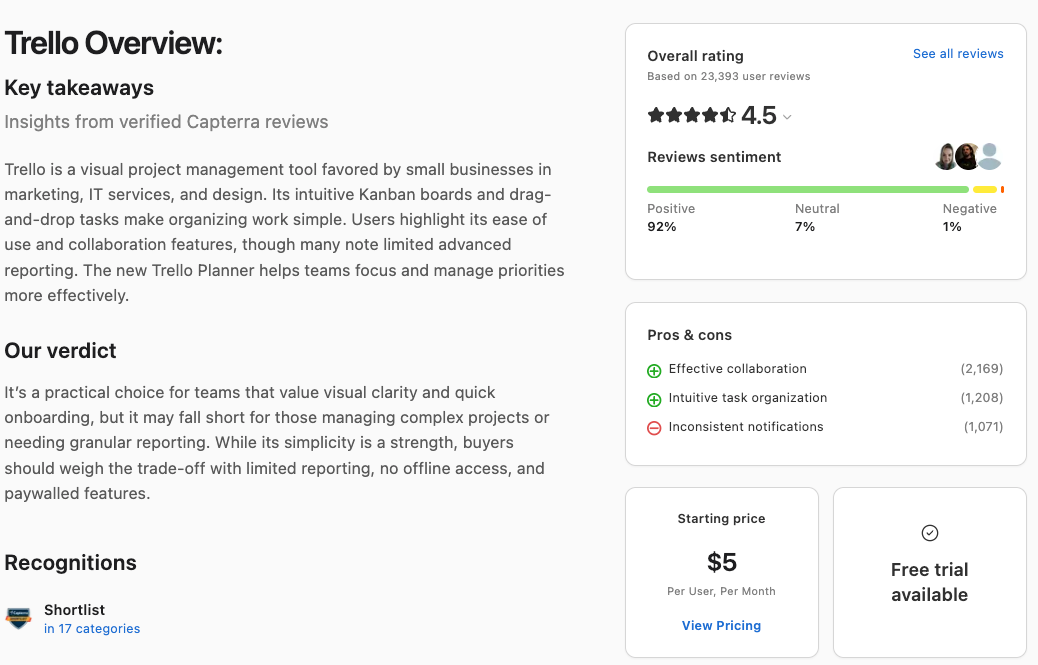
Trello reviews (source)
8. Things3

Declutter your head with a design-first to-do list. Organizes your day-to-day work, long-term personal projects, and random ideas through a clean Apple-native interface.
What it does well:
- Frictionless task capture: A global keyboard shortcut lets you drop a task into your inbox from anywhere on your Mac without breaking your focus.
- No monthly subscription: You pay a flat rate upfront for each app instead of adding another recurring software fee to your monthly budget.
- Thoughtful task hierarchy: Breaks down complex goals using Areas, Projects, Headings, and Checklists so large workloads don't feel overwhelming.
- Fast device sync: Custom Cloud sync keeps your lists aligned across iPhone, iPad, Mac, and Apple Watch instantly.
What it doesn't do well:
- Strictly Apple-only: There is no web app or native software for Windows and Android, locking you into Apple's ecosystem.
- Zero team collaboration: You can't share lists, assign subtasks to coworkers, or comment on project threads.
- No built-in time blocking: You have to manually drag items into a calendar app if you want to visually schedule your daily hours.
Who it's actually for: Apple-centric freelancers, creators, and professionals looking for an elegant, single-user system to handle their personal and work life.
Pricing:
- Mac app: $49.99 (one-time)
- Free trial available
How to start:
- Download Things 3 from the App Store on your iPhone, iPad, or Mac.
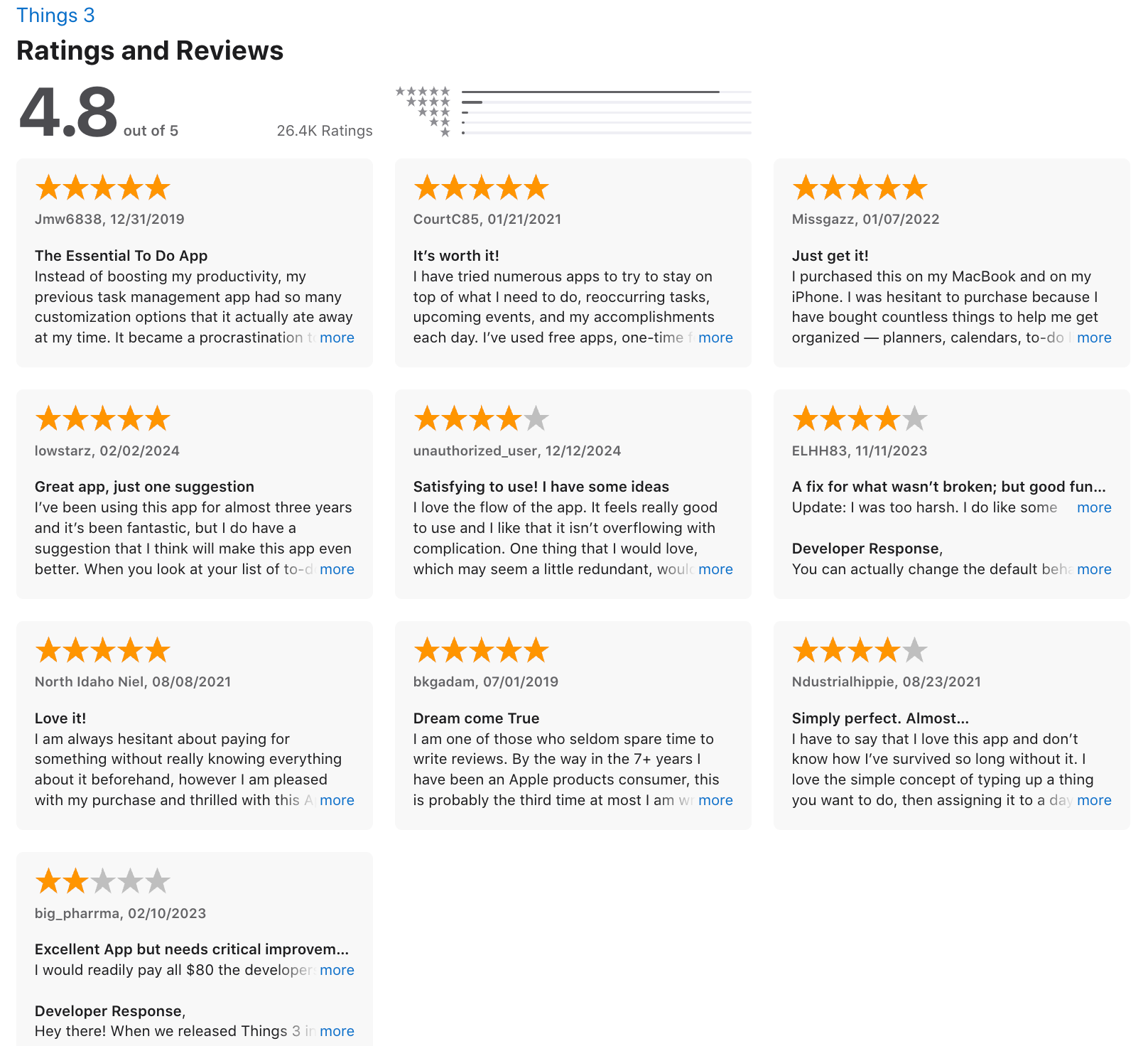
Things 3 review (source)
9. Any.do
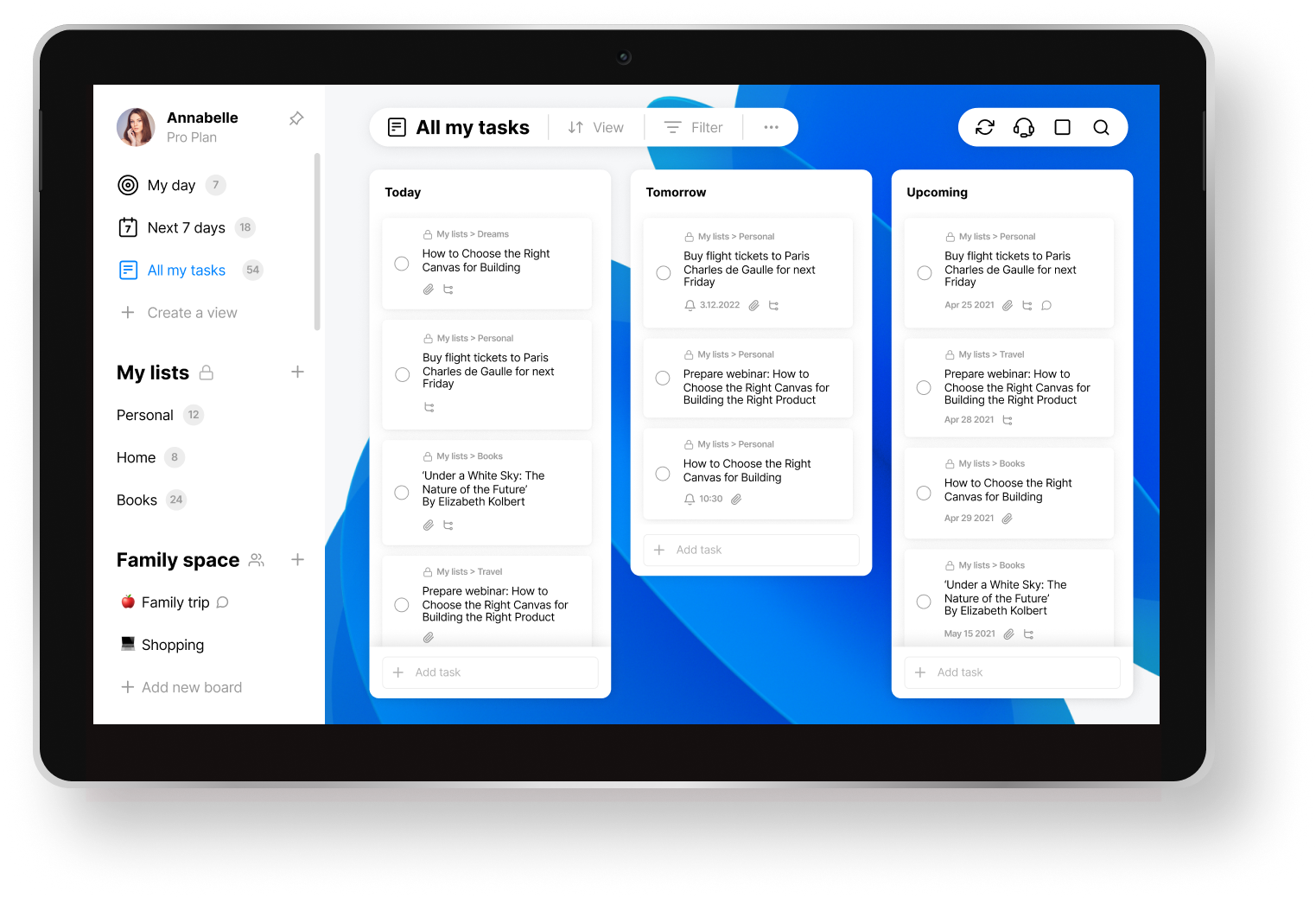
Organize your everyday work without getting lost in complex project management boards. Any.do pairs your task lists, calendar events, and team reminders into a minimalist dashboard that syncs instantly across your devices.
What it does well:
- Simple daily planning: The "Any.do Moment" feature walks you through your daily tasks alongside your calendar events
- Cross-platform access: Your reminders, tasks, and lists sync smoothly whether you are checking your desktop browser, tablet, or phone.
- Clean, clutter-free design: The user interface stays minimal so you can focus on getting things done rather than managing your app.
What it doesn't do well:
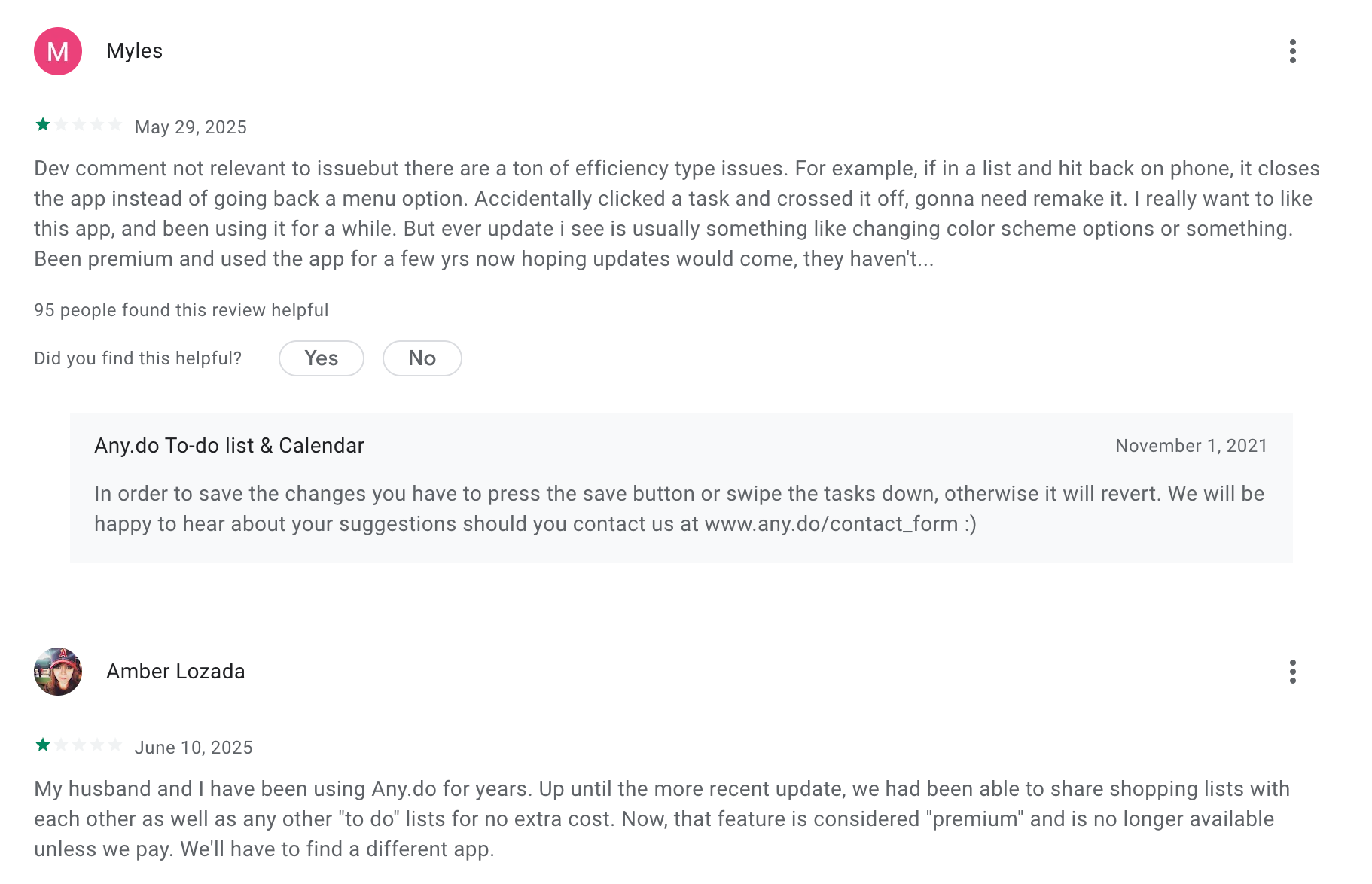
- Lacks deep project customization: Power users who need complex workflow automation, intricate dependencies, or advanced data tracking may find the features too basic
- Free tier limitations: Basic features like recurring reminders, location-based alerts, and full color-coding are locked behind paid subscriptions.
Who it's actually for: Individuals, small teams, and freelancers who want a clean to-do app and calendar in one place without spending hours setting it up.
Pricing:
- Premium plan starts around $7.99 per user per month with advanced reminders, tags, and themes.
- Family plan costs around $9.99 per month for up to four users.
How to start:
- Go to any.do, create a free account, connect your calendar, and start adding your tasks.
Any.do reviews (source)
10. Notion
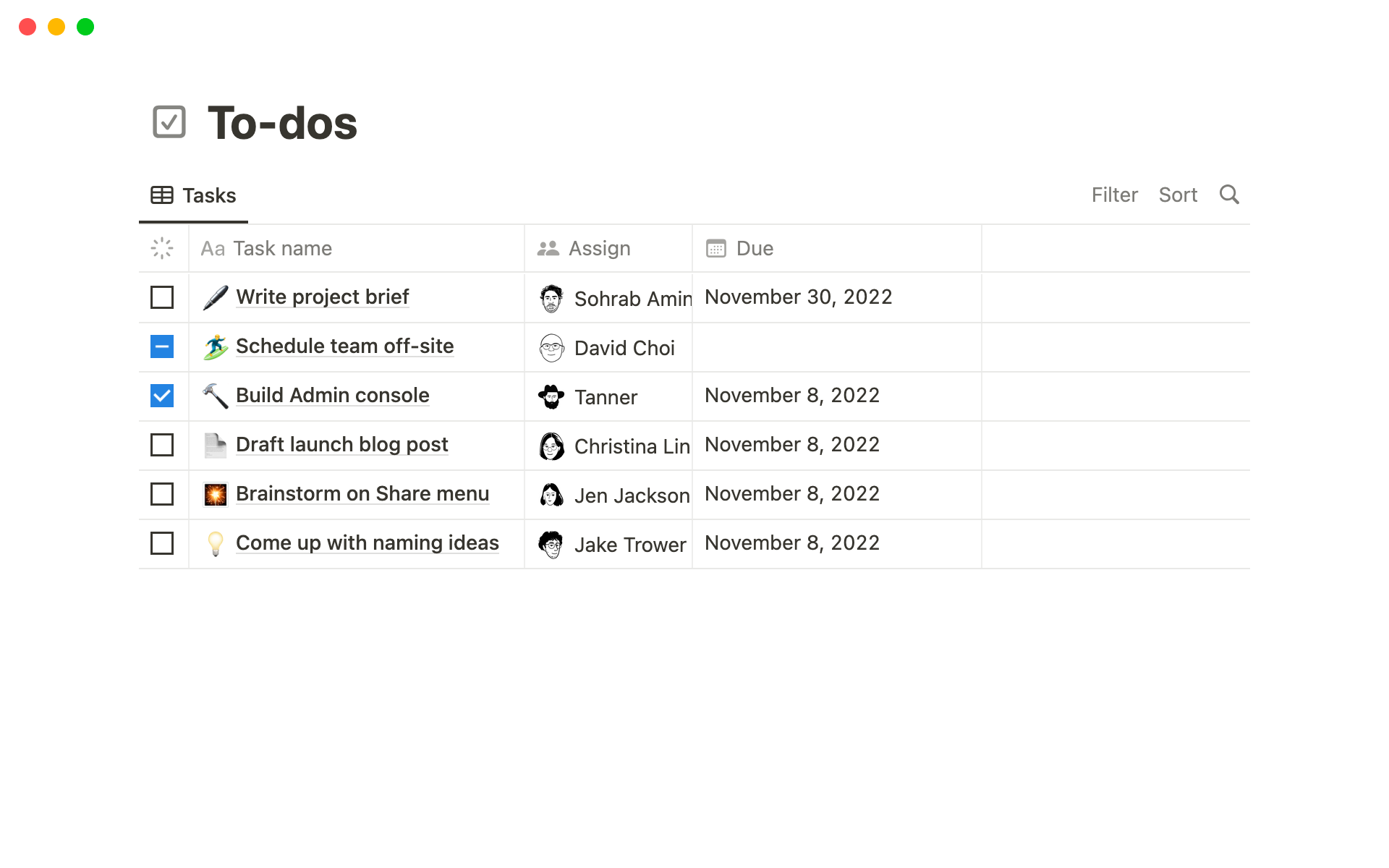
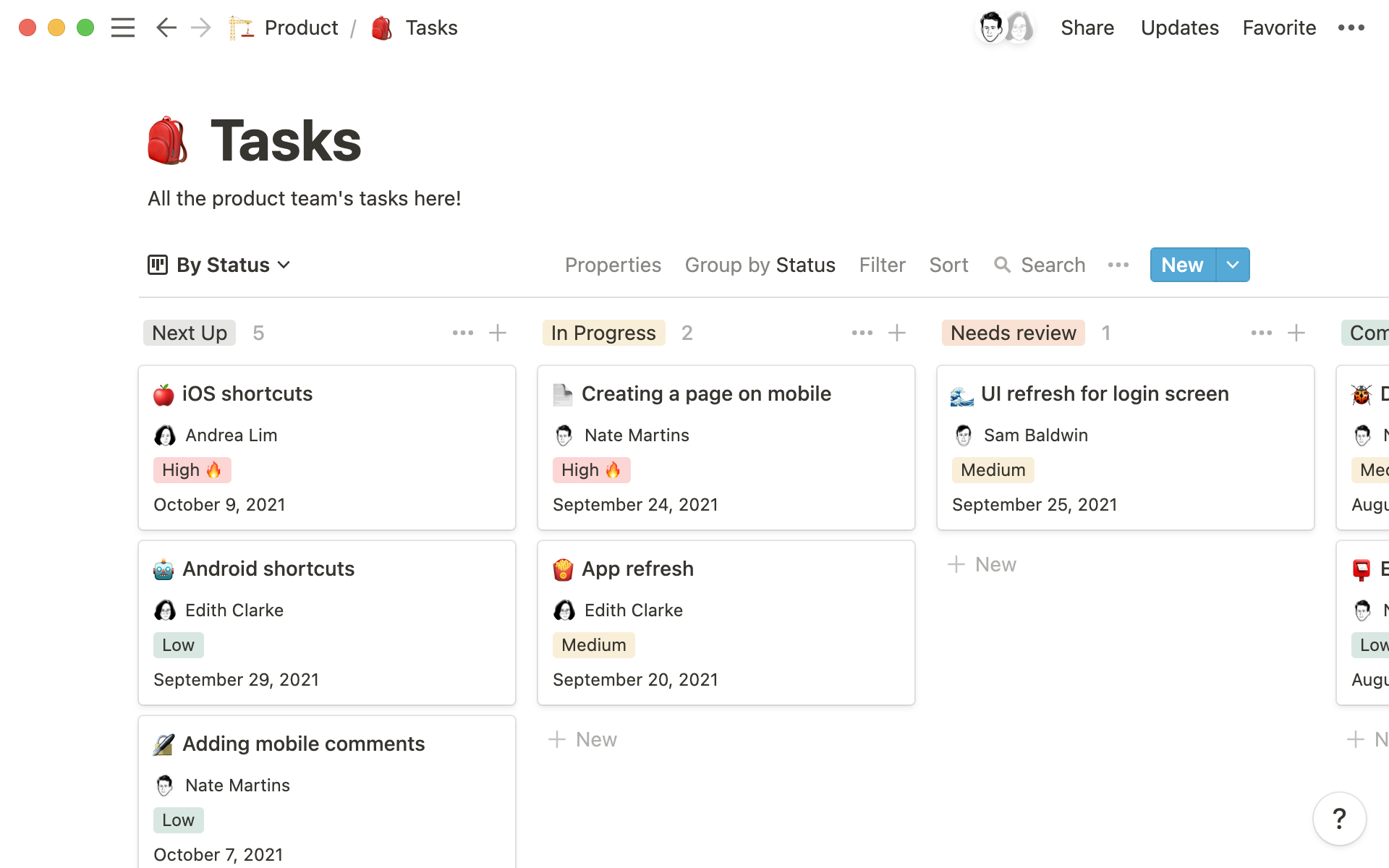
Notion links your tasks, docs, and databases together so your work doesn't live in isolated silos.
What it does well:
- Flexible relational databases: Notion lets you turn simple task lists into connected tables, boards, and timelines that adapt to how you work.
- All-in-one content hub: You can drop notes, wikis, project briefs, and task boards right next to each other on the same page.
- Extensive template library: The huge selection of community and built-in setups means you rarely have to start your systems from a blank screen.
What it doesn't do well:
- Heavy performance drops: Pages loaded with massive databases or complex relations can get laggy quickly.
- Weak built-in task automation: It doesn't handle native dependency tracking or recurring tasks out of the box as smoothly as dedicated project management software.
- Steep setup curve: Building a clean, reliable system requires time and planning up front; otherwise, your workspace devolves into a messy junk drawer.
Who it's actually for: People and teams who want a customizable space to manage projects, docs, and knowledge all in one place instead of juggling separate single-purpose tools.
Pricing
- Free plan: $0/month
- Plus plan: $10 per user/month (annual billing)
- Business plan: $20 per user/month
How to start:
- Head to Notion’s website, create a free account, and explore templates to set up your first workspace
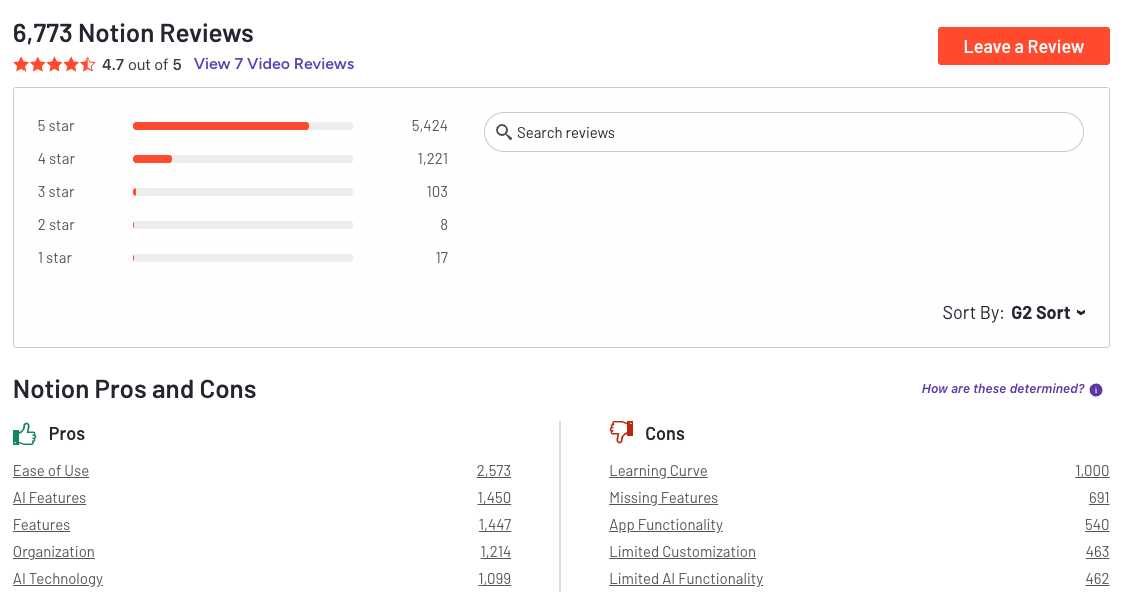
Notion Reviews (source)
Conclusion
At the end of the day, the best task management software isn’t the one with the most features - it’s the one that gives you peace of mind.
In 2026, the line between productivity and burnout is thinner than ever. We don’t need more tools; we need better-thinking ones.
Apps like Saner.AI, ClickUp, and Notion are leading a shift toward smarter AI planning - helping you focus on what matters instead of manually sorting chaos.
If you’re a founder, remote professional, or ADHD-prone creative, the right task app should lighten your brain’s load. It should quietly capture what you forget, remind you at the right time, and guide your attention to the next best action. Whether that means Saner.AI’s calm daily plan, ClickUp’s project management, or Todoist’s simplicity - the best one is the one that helps you feel in control again.
So take a moment, explore a few options, and ask yourself:
“Which tool makes my day feel lighter?”
That’s your answer.
Stay on top of your life with an AI Task Management Software
FAQ: Best Task Management Software
1. What is task management software?
Task management software helps you organize, prioritize, and complete your work efficiently. It’s more than a to-do list - it’s a system that helps you turn ideas into action, collaborate with teams, and track progress in one place.
Modern tools like Saner.AI, Todoist, and ClickUp go beyond checklists by automating reminders, scheduling tasks, and connecting your notes, calendar, and projects together.
2. What is the best task management software?
It depends on your workflow and personality:
- Saner.AI – Best for professionals who want AI to manage notes, tasks, and calendar automatically.
- Todoist – Best for minimalist to-do lists and goal tracking.
- TickTick – Best for productivity lovers who enjoy built-in Pomodoro timers and habit tracking.
- Things 3 – Best for Apple users who love beautiful, distraction-free design.
- Microsoft To-Do – Best for Outlook users wanting basic task sync.
- Trello – Best for visual thinkers and teams using boards.
- ClickUp – Best for teams managing complex projects and workflows.
- Any.do – Best for personal productivity with voice input.
- Asana – Best for larger teams that need project tracking and reporting.
- Notion – Best for users who want to combine tasks, docs, and databases.
3. What makes Saner.AI different from other task management tools?
Unlike traditional tools, Saner.AI doesn’t just store tasks - it helps think with you.
It connects your notes, calendar, and to-dos in one calm workspace.
You can type or talk naturally:
“Plan my week,”
“Remind me to email Jack tomorrow,” or
“Summarize my investor notes.”
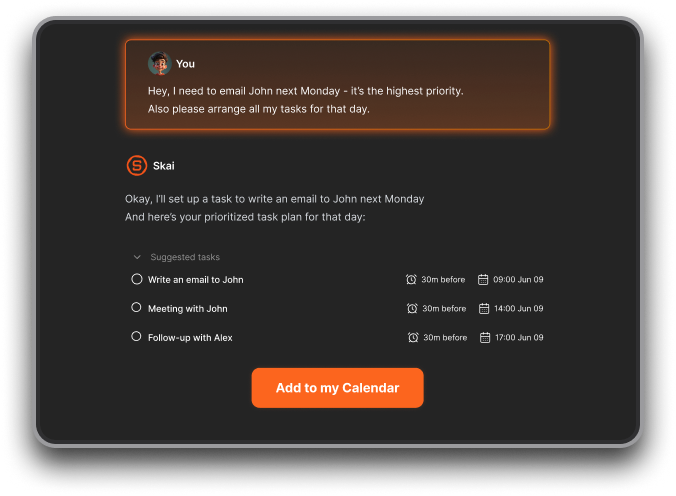
Saner turns those into actionable tasks, schedules them, and reminds you at the right time - ideal for ADHD minds and busy professionals.
4. How is task management software different from a simple to-do list?
A basic to-do list keeps track of what to do.
A task management tool helps you decide when, how, and why to do it.
It can:
- Prioritize automatically based on deadlines or energy levels
- Group related projects
- Sync across devices and calendars
- Collaborate with teammates
- Track progress or analytics
5. What are the most important features to look for in task management software?
When choosing the best task management software, look for:
- Smart reminders that adapt to your habits (like Saner.AI or Todoist)
- Calendar integration for scheduling (Saner.AI, TickTick, ClickUp)
- AI assistance to plan or summarize (Saner.AI, Notion AI)
- Cross-platform access across desktop, mobile, and web
- Collaboration tools for teams (ClickUp, Asana, Trello)
- Ease of use — the fewer clicks, the better
6. Which task management tools have AI features?
AI features are becoming the norm. Here are task management tools that have AI features
- Saner.AI – Converts emails and brain dumps into tasks, plans your day, and finds related info
- ClickUp AI – Generates summaries and task descriptions
- Notion AI – Helps write and organize pages
- Asana AI – Suggests deadlines and automates updates
- TickTick / Todoist – Basic natural-language task input
7. Which is the best free task management software?
Many tools offer free versions that work well for individuals:
- Saner.AI (Free) – AI daily planner, smart reminders, calendar sync
- Todoist (Free) – Task lists, labels, due dates
- Trello (Free) – Kanban boards
- Microsoft To-Do (Free) – Basic sync with Outlook
- Any.do (Free) – Daily planning and voice input
8. What’s the best task management software for teams?
- ClickUp – All-in-one team workspace with docs, tasks, and dashboards
- Asana – Great for project timelines and tracking dependencies
- Trello – Ideal for visual boards and small teams
- Saner.AI – Useful for managers who want personal clarity + team alignment
9. Which task management software works best for ADHD?
For ADHD users, simplicity and automation matter most. Here is task management software that works best for ADHD
- Saner.AI – Reduces context switching, turns ideas into tasks, reminds you naturally
- TickTick – Combines focus timer with task lists
- Things 3 – Clean design helps avoid clutter
- Todoist – Great for quick capture and dopamine-boosting streaks
10. Can AI really improve task management?
Yes. AI reduces decision fatigue by:
- Suggesting what to do next based on your workload
- Turning meeting notes or emails into follow-up tasks
- Auto-scheduling your day
- Keeping everything searchable with natural language
Saner.AI and ClickUp AI are among the top examples in 2026.
11. What’s the best task management app for iPhone and Mac?
- Things 3 – The gold standard for Apple users
- Saner.AI – Cloud-based, works seamlessly across Apple and web
- Todoist – Excellent iOS widget and Siri integration
- TickTick – Cross-platform, fast sync
12. Which task management tools integrate with calendars and email?
If your workflow revolves around meetings and follow-ups:
- Saner.AI – Syncs Google Calendar + Gmail + Outlook; turns emails into tasks
- Microsoft To-Do – Syncs with Outlook Calendar
- ClickUp – Two-way sync with Google Calendar
- Any.do – Simple integration with mobile calendar
13. How do I choose the right task management software for me?
Ask yourself:
- Do I work solo or with a team?
- Do I prefer visual boards (Trello) or simple lists (Todoist)?
- Do I want automation and AI planning (Saner.AI, ClickUp)?
- Do I use Apple or Windows?
- Do I want free or enterprise-level features?
Your best choice is the one you’ll actually use daily.
14. What’s the easiest task management software to start with?
If you’re new to task management tools:
- Todoist – Minimal setup, clear interface
- Microsoft To-Do – Straightforward for Outlook users
- Saner.AI – No learning curve; just chat naturally to add tasks
15. What’s next for task management software?
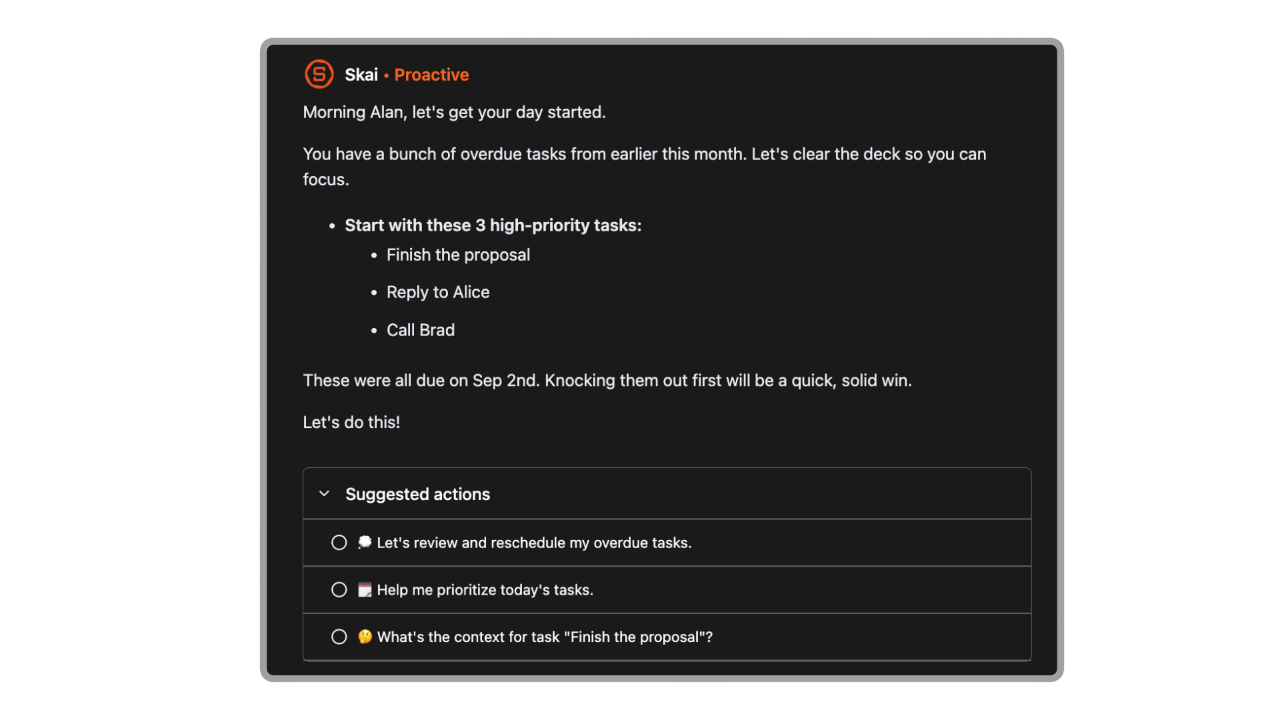
AI is transforming how we plan and work. The best task management software is becoming proactive, not reactive:
- Auto-planning based on your schedule
- Predictive reminders
- Context-aware task surfacing
- Voice and chat-based input
Saner.AI is leading this shift - helping users spend less time organizing and more time doing.
Stay on top of your work and life