Google Docs Alternatives: We tested the best 10 [2026 Updated]
The best Google Docs Alternatives in 2026 are: Saner.AI, Word, Notion, Coda, Zoho Writer, Slite, OnlyOffice, and WPS Office

The 10 Best Google Docs Alternatives
If you’re searching for the best Google Docs alternatives, you’re probably not doing it out of curiosity. Something about Google Docs is starting to get in the way - performance slows down, collaboration feels chaotic, privacy feels fuzzy, or the document just isn’t helping you think clearly anymore.
This guide breaks down the best apps like Google Docs - not just by features, but by how people actually work.
You’ll see where Google Docs still shines, why many teams outgrow it, and which Google Docs competitors make sense depending on your workflow, collaboration style, and need for AI, structure, or offline access.
Why People Look for Google Docs Alternatives
As work gets more complex, many users start hitting limits. Common reasons people search for alternatives include:
- Performance issues in long or media-heavy documents
- Document bloat with comments, suggestions, and endless revisions
- Weak structure for long-term knowledge or thinking
- Limited AI assistance beyond basic writing help
- Privacy and data ownership concerns
- Offline or cross-tool workflow gaps
- Collaboration overload instead of clarity
If your documents are becoming harder to manage instead of easier, it’s usually a sign that the tool no longer matches how you work.
Now, let's dive in!
What are the best Google Docs Alternatives?
The best Google Docs Alternatives in 2026 are: Saner.AI, Word, Notion, Coda and Slite.
Google Docs Alternatives - High-Level Comparison Table
| 🧰 Tool | 🎯 Best for | 🤖 AI features | 💡 Primary strength vs Google Docs |
|---|---|---|---|
| Saner.AI | Founders, professionals, ADHD-prone thinkers | Strong: summaries, insights, task extraction | Turns documents into actionable knowledge, not static files |
| Microsoft Word | Formal writing, reports, academia | Moderate (Copilot for drafting/editing) | Superior formatting & layout control |
| Notion | Knowledge bases, teams, systems | Medium: AI writing & summarization | Combines docs with databases & structure |
| Coda | Operational docs, workflows | Medium: AI assistance + logic | Docs that behave like apps & tools |
| Zoho Writer | Small teams, business writing | Light: grammar & writing help (Zia) | Clean, focused writing with better privacy posture |
| Slite | Team documentation, async work | Light: AI summaries/search | Reduces documentation chaos for teams |
| OnlyOffice | Privacy-focused orgs | Minimal native AI | Google Docs-style editor with more control & ownership |
| LibreOffice Writer | Offline, privacy-first users | None | Full ownership, no cloud dependency |
| WPS Office | Budget-conscious individuals | Very limited | Fast, lightweight traditional word processing |
| Dropbox Paper | Simple team notes | None | Minimalist docs with low cognitive load |
1. Saner.AI
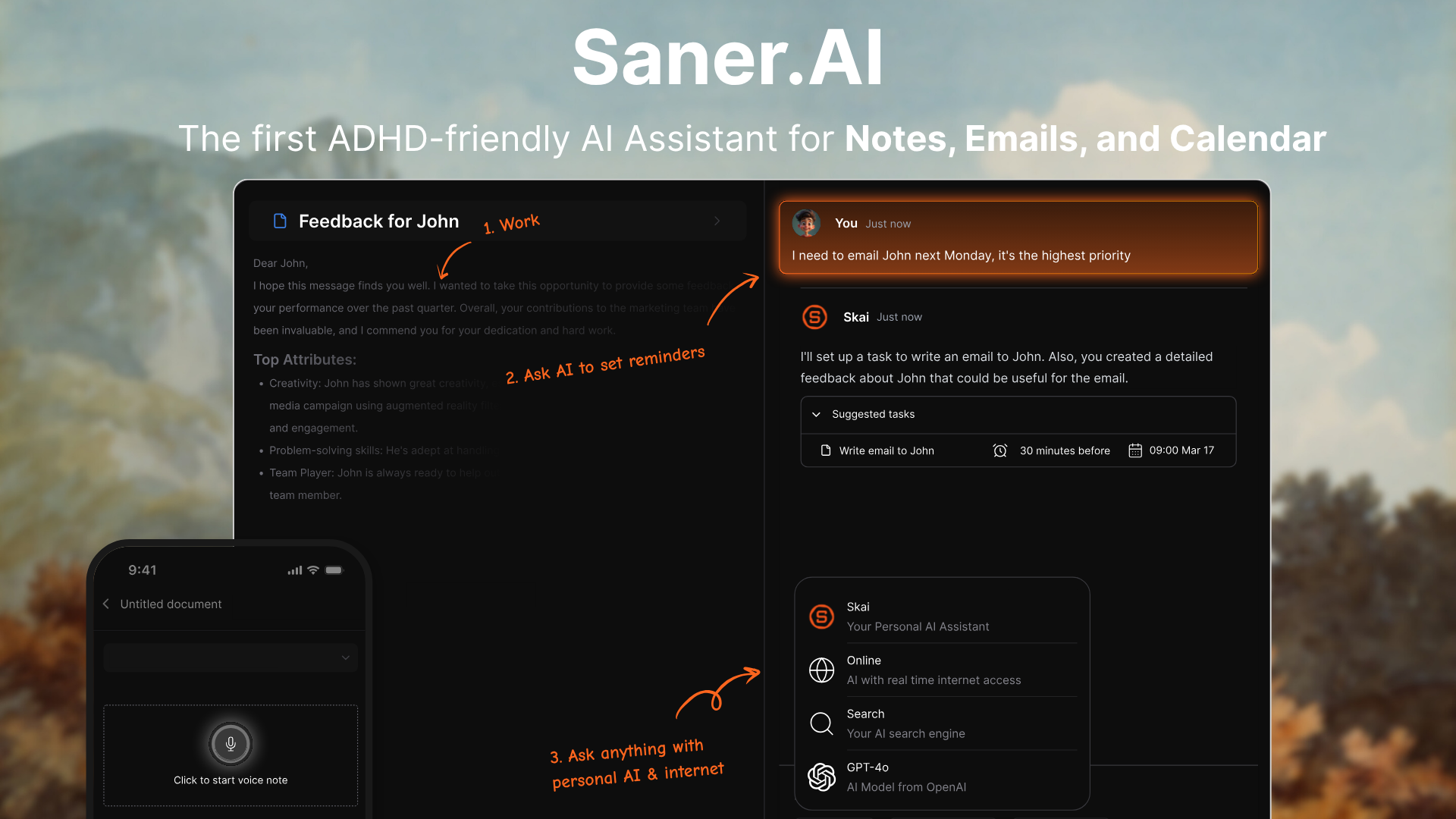
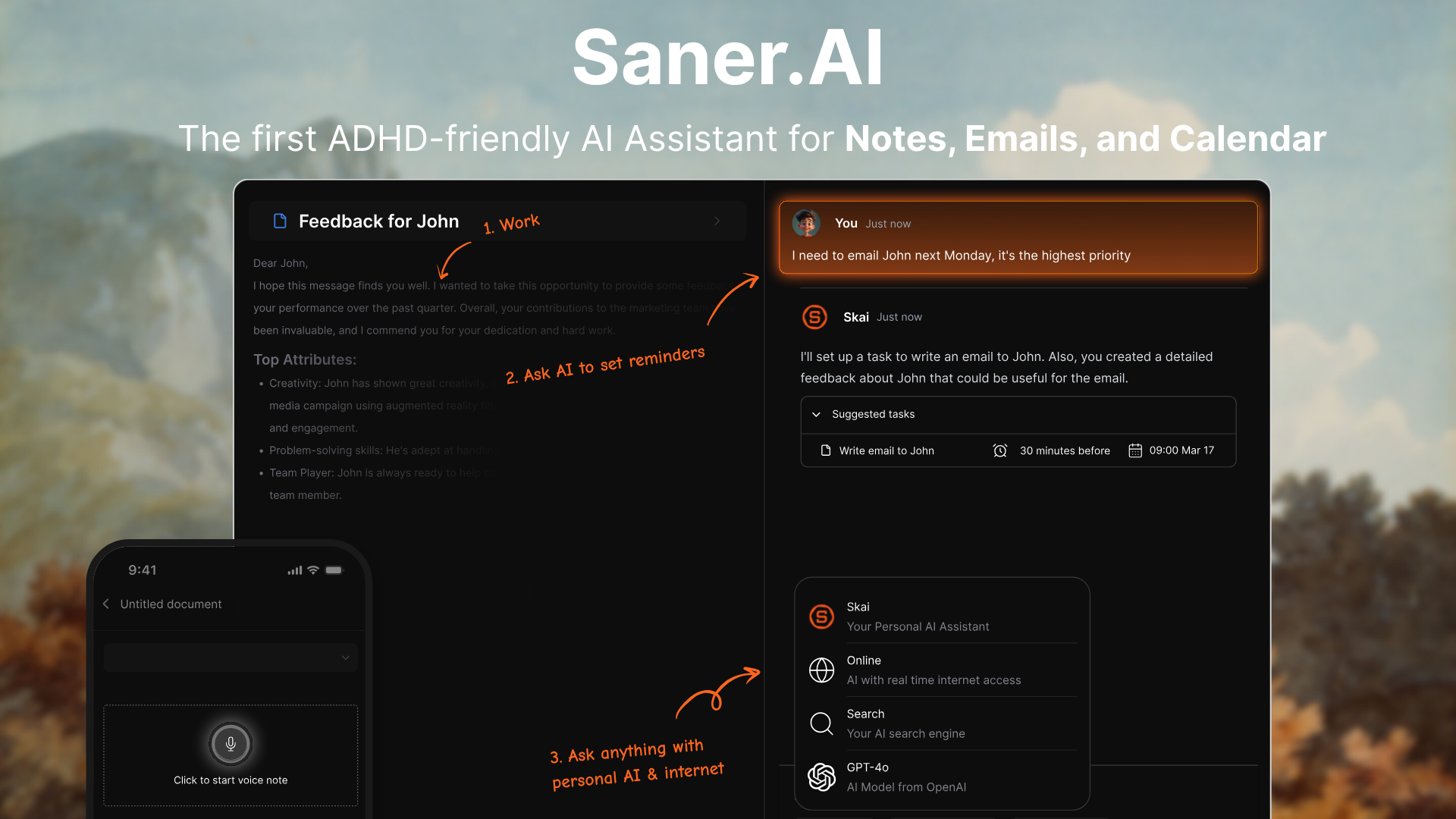
Saner.AI is an AI-powered workspace designed for thinking, writing, and organizing knowledge - making it a strong alternative to Google Docs for people who want AI-native documents instead of static files.
It’s built for capturing ideas, drafting content, turning notes into insights, and retrieving information later using natural language - not just typing and formatting documents.
Key features
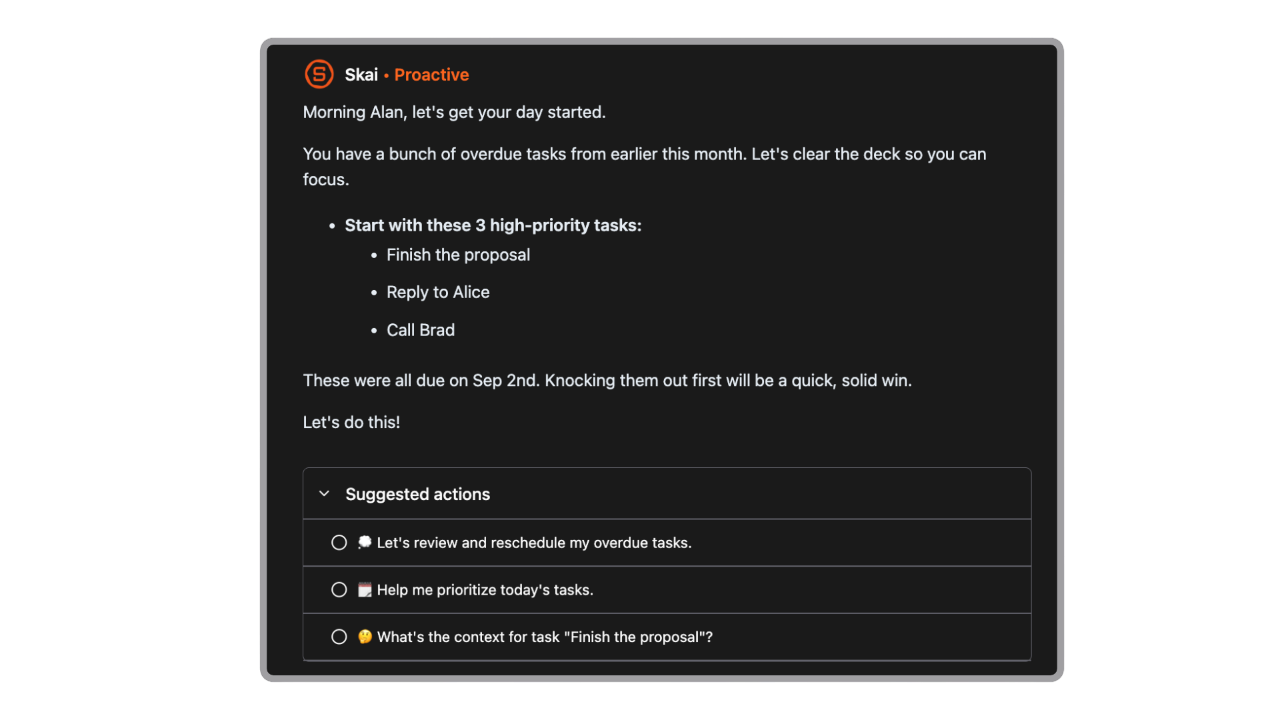
- Day Planning: The internal AI automatically goes through your emails, todos, and calendar, and gives you an optimal day plan
- Semantic search that lets you find information by meaning, not file names
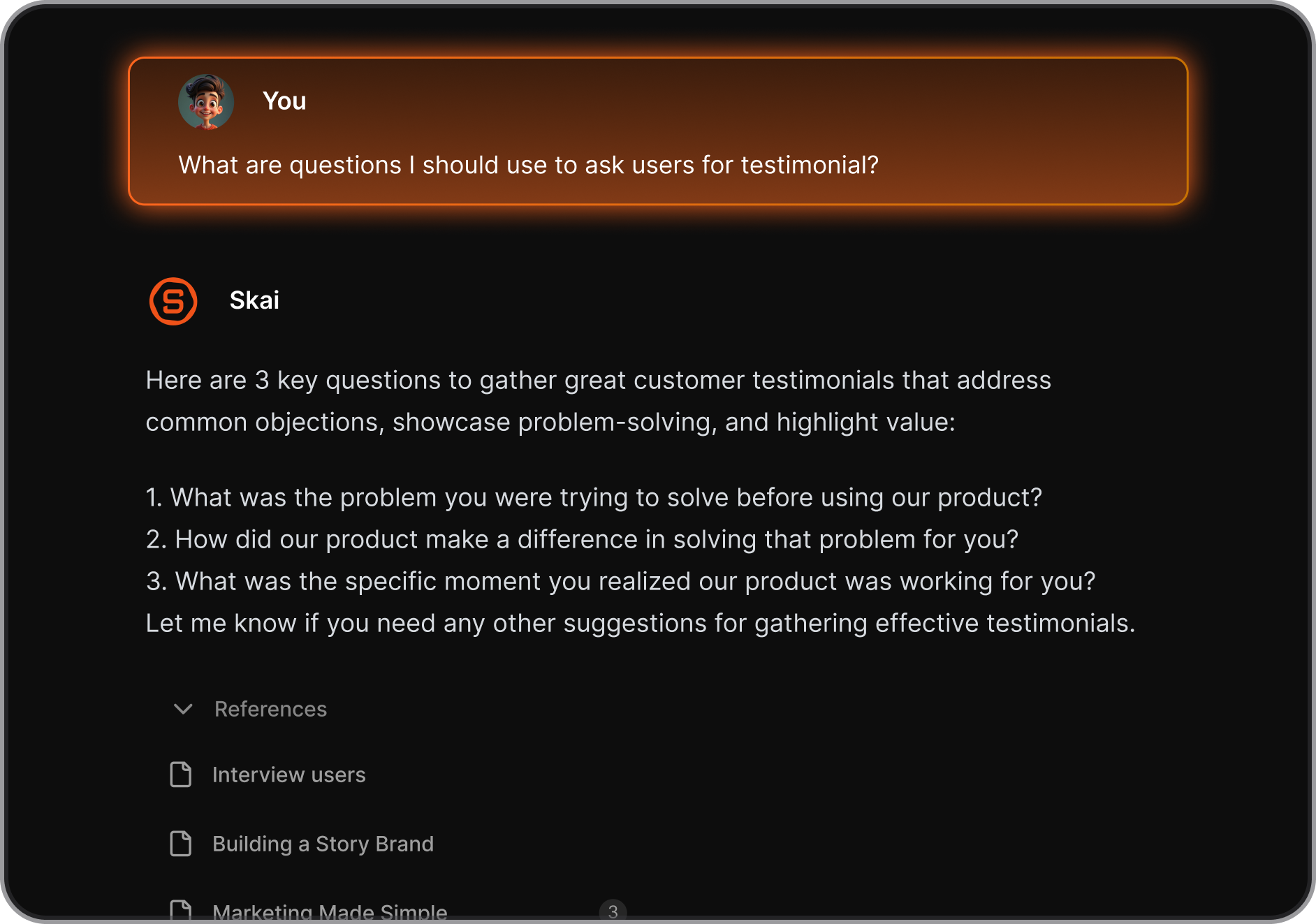
- Unified workspace for notes, tasks, calendar, and email
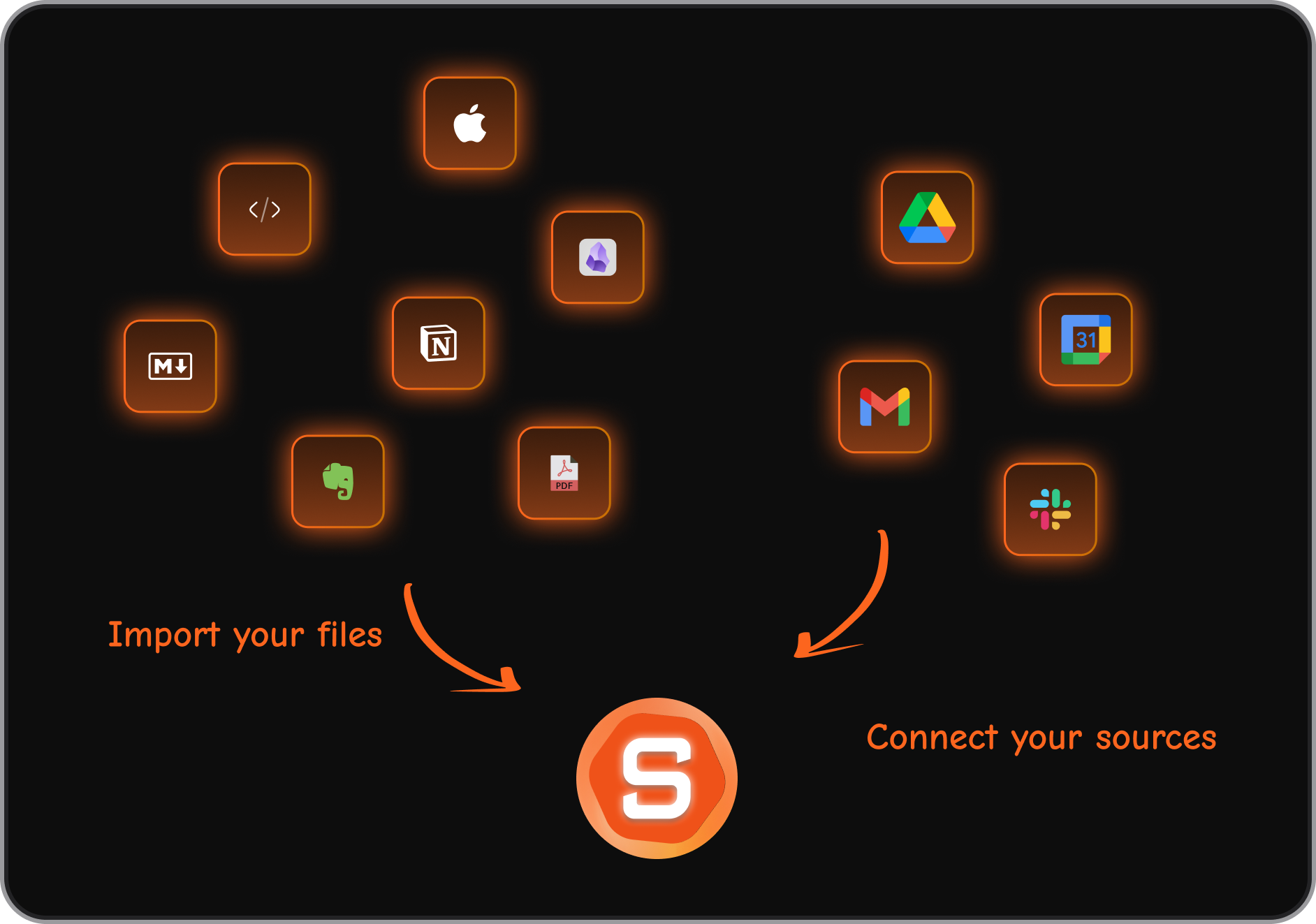
- Quick capture via web, browser extension, and mobile
What I liked
- Brain dump to tasks - convert your random thoughts into structured to-dos automatically
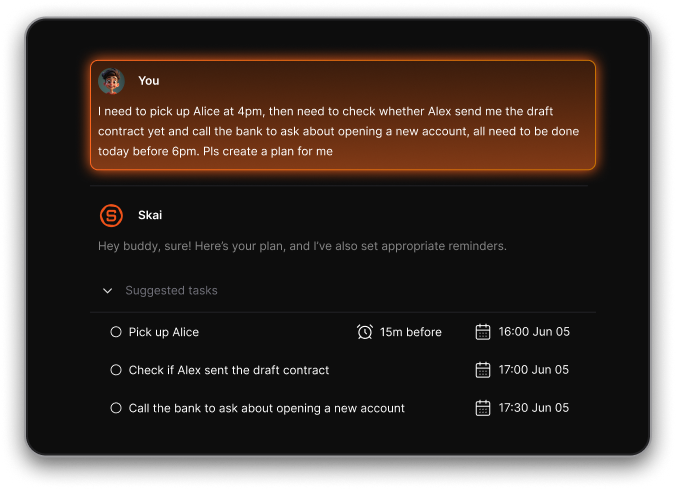
- Cross-platform support via web, iOS, Android, and Chrome extension
- Quick capture for text, voice, and imported content
Cons
- Not ideal for large teams or project timelines - no Gantt charts or complex task dependencies.
Pricing
- Free
- Starter: Monthly at $8/month, Annually at $6/month (with early user discount)
- Standard: Monthly at $16/month, Annually at $12/month (with early user discount)
Who is it suitable for?
- Knowledge workers, writers, founders, and researchers who outgrow Google Docs
- People who want AI to understand, organize, and resurface their content
- Users building a personal or professional “second brain”
- Anyone who writes frequently and wants their past work to stay useful
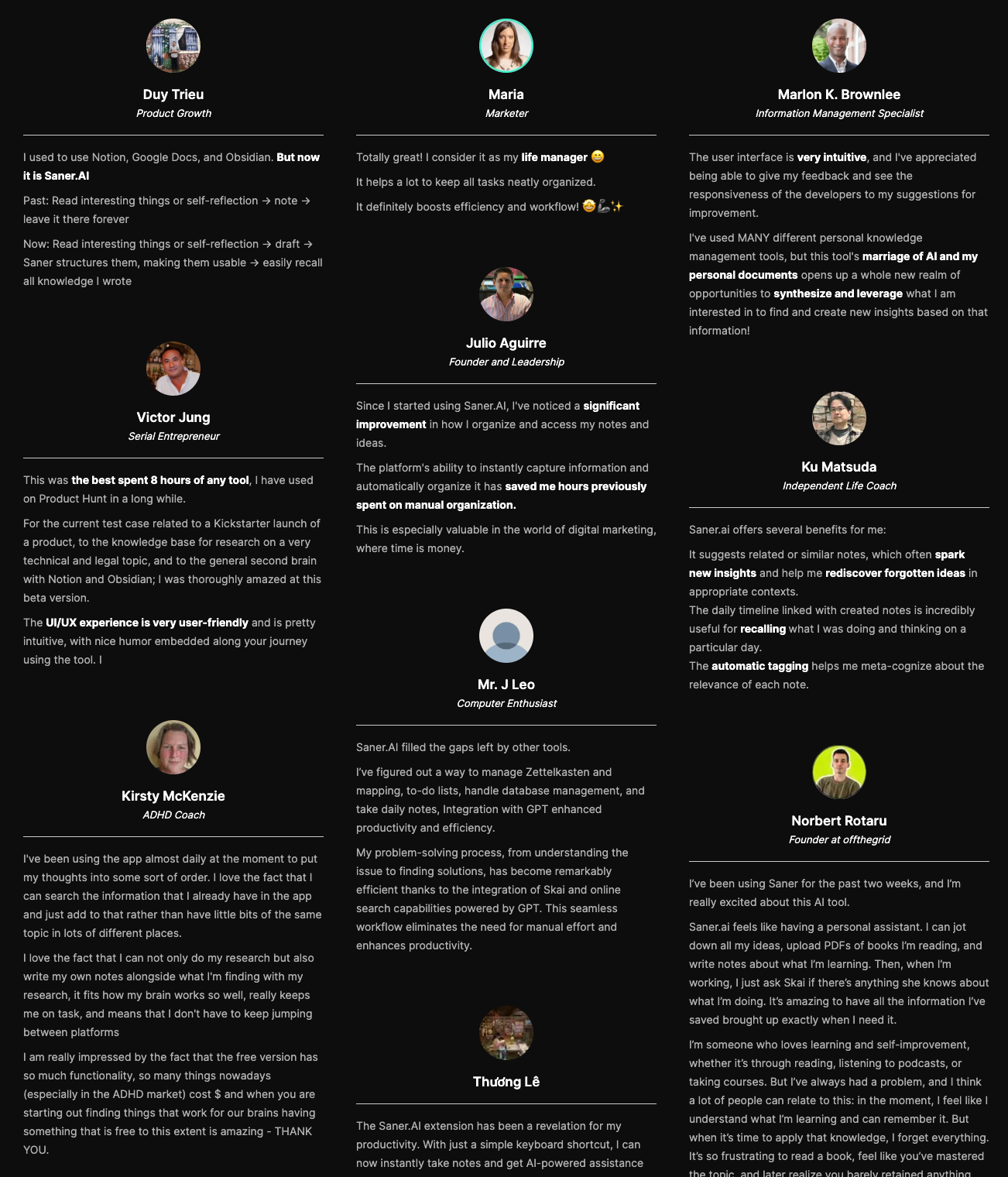
Saner.AI review
How to start using it?
- Go to Saner.AI
- Create a free account
- Start writing or importing notes and let the AI organize and connect them automatically
Stay on top of your life with Top Google Docs Alternative
2. Microsoft Word Online

Microsoft Word Online is the browser-based version of Microsoft Word that lets you create, edit, and share documents online. It’s commonly used as a Google Docs alternative, especially by teams already in the Microsoft ecosystem.
Key features
- Browser-based word editor with the familiar Microsoft Word interface
- Real-time collaboration with comments and track changes
- Automatic cloud saving via OneDrive
- Built-in templates and strong formatting options
What I liked
- Feels instantly familiar if you’ve used desktop Word before
- Formatting and layout control is stronger than Google Docs
- Works smoothly with OneDrive and Microsoft 365 tools
What I disliked
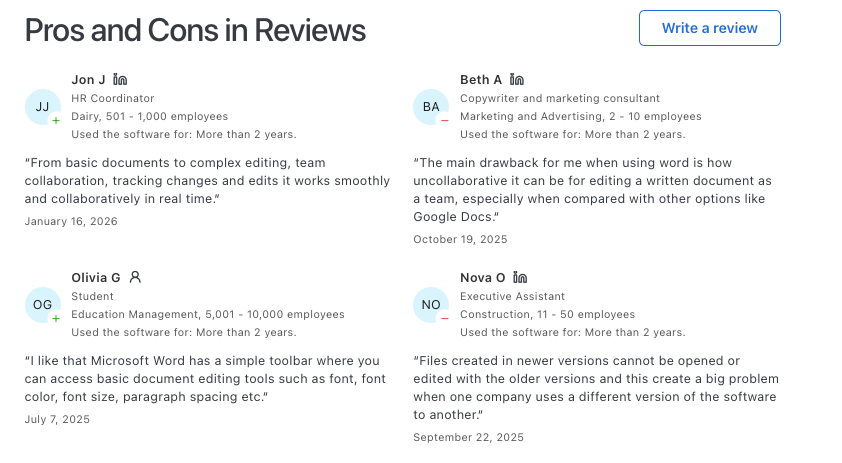
- Collaboration feels slightly less fluid than Google Docs
- Some advanced Word features are missing compared to the desktop app
- Can feel heavy for quick, lightweight document edits
Pricing
- Free to use with a Microsoft account
- Included with Microsoft 365 plans for business and advanced features
Suitable for
- Teams already using Microsoft 365 and OneDrive
- Users who care more about formatting control than ultra-fast collaboration
- Businesses that want documents tightly integrated with Outlook and Teams
How to start
- Go to Microsoft Word Online via office.com
- Sign in with your Microsoft account
- Create a new document or upload an existing one
Microsoft Word review (source)
3. Notion

Notion is a workspace that many people use as a Google Docs alternative for writing, organizing, and managing documents. Instead of standalone docs, Notion lets you create connected pages that can function as notes, specs, wikis, or internal documentation.
Key features
- Block-based editor where text, images, embeds, tables, and lists all live in the same document
- Pages and sub-pages for organizing documents instead of folders full of separate files
- Built-in templates for docs, meeting notes, project briefs, and knowledge bases
- Sharing, comments, and basic real-time collaboration
What I liked
- It’s more flexible than Google Docs. You’re not limited to linear text - documents can become structured knowledge pages.
- Pages stay connected. Notes, specs, and references don’t get lost across dozens of separate docs.
- Templates help you start fast instead of staring at a blank document.
What I disliked
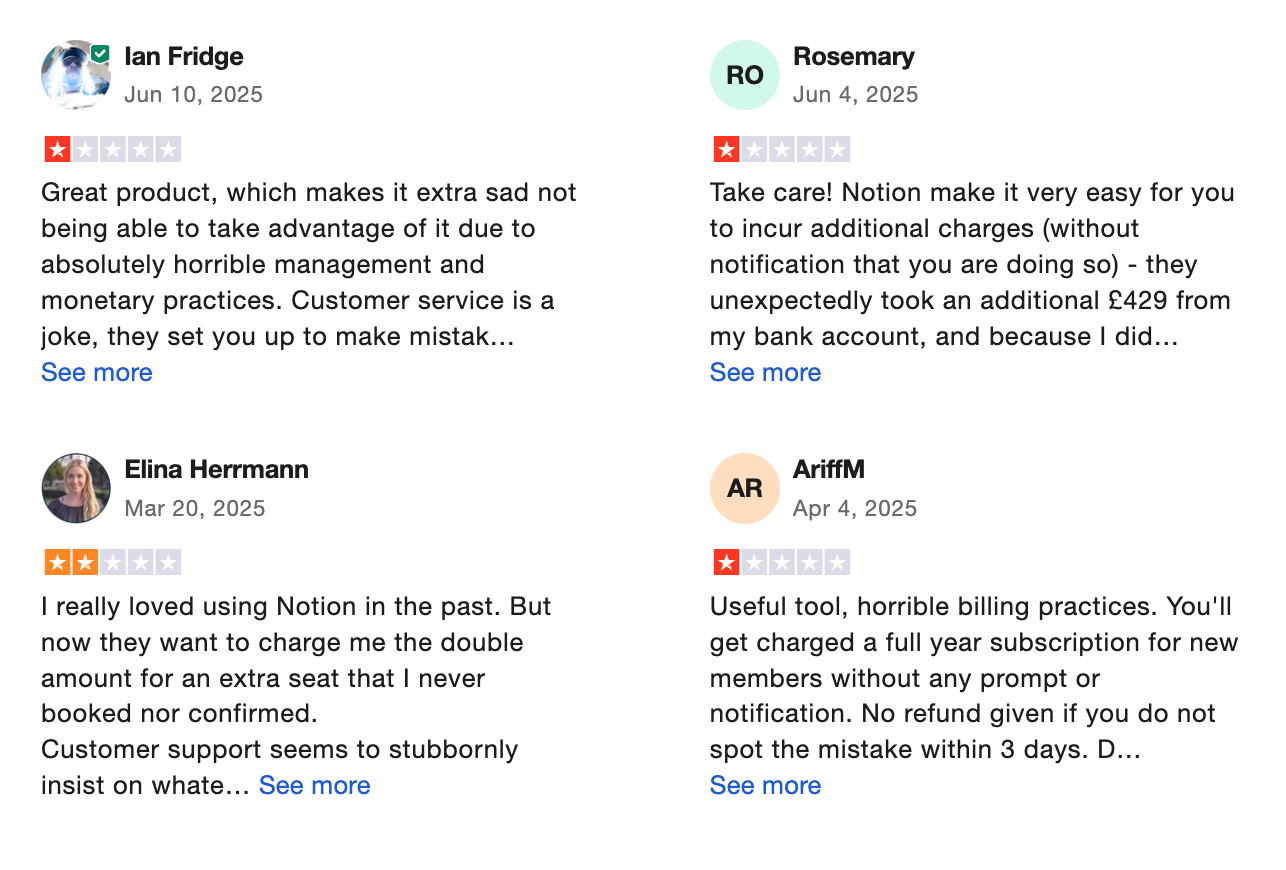
- It’s not as smooth as Google Docs for real-time co-editing. Suggestions, track changes, and comments are more limited.
- The flexibility comes with a learning curve, especially for people who just want a simple word processor.
- Offline editing and advanced text formatting aren’t as strong as Google Docs for long-form writing.
Pricing
- Free plan with unlimited pages for personal use
- Paid plans start around $12 per user/month for teams and advanced collaboration
Suitable for
- People who want documents to double as wikis, notes, or internal knowledge bases
- Teams that prefer structured, connected docs instead of isolated Google Docs files
- Users who want one workspace for writing, organizing, and referencing information
How to start
- Go to Notion
- Create a free account and start with a document or template
Notion reviews (source)
4. Zoho Writer
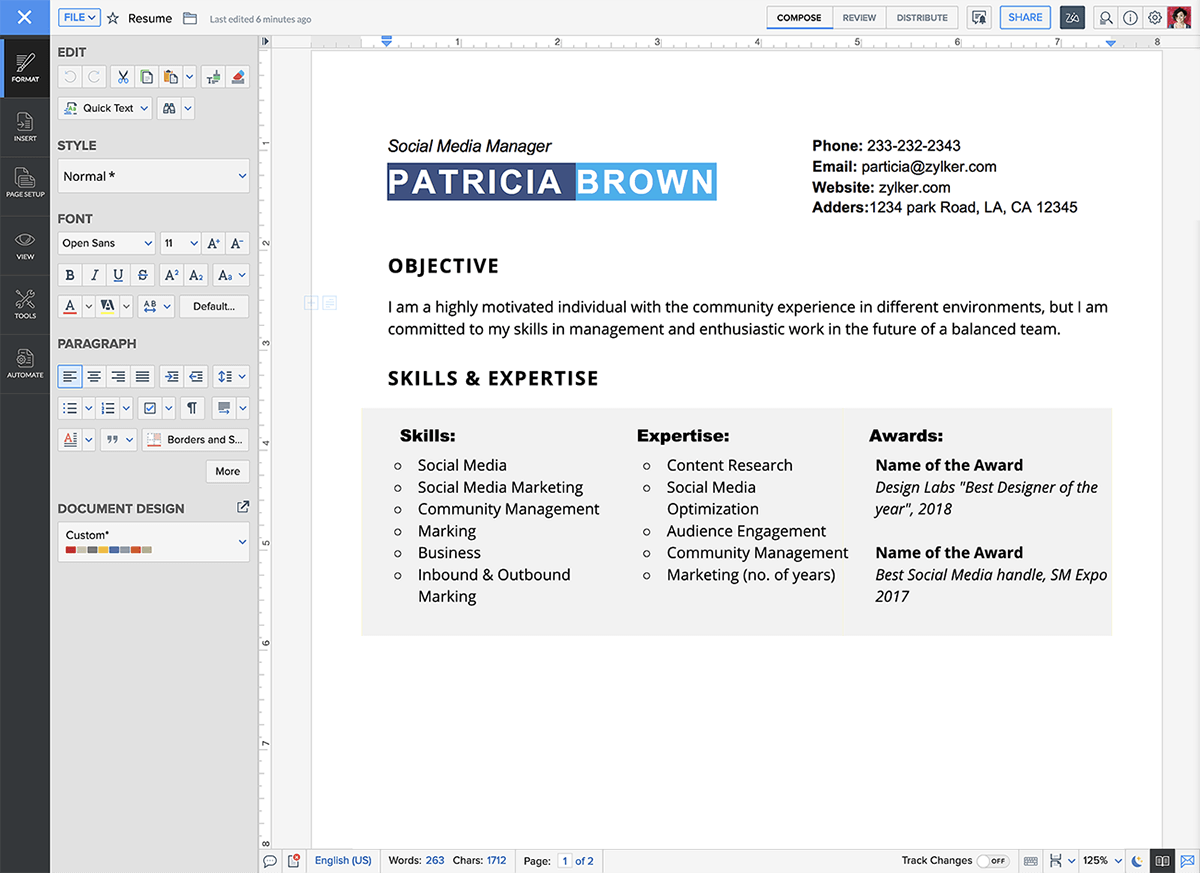
Zoho Writer is a cloud-based word processor and Google Docs alternative that lets you create, edit, collaborate on, and publish documents online, with strong formatting tools, offline access, and tight integration across the Zoho ecosystem.
Key features
- Real-time collaboration with comments, track changes, and version history
- Offline editing that syncs automatically when you reconnect
- Advanced formatting tools, templates, and document automation (e.g. mail merge)
- Supports Microsoft Word and Google Docs file formats for easy import/export
What I liked
- Covers most everyday Google Docs use cases: writing, commenting, sharing, and collaboration
- File compatibility makes switching from Google Docs or Word relatively painless
What I disliked
- The interface isn’t as familiar or polished as Google Docs for first-time users
- Collaboration ecosystem is smaller compared to Google Workspace
- Mobile experience can feel less smooth than Google Docs for some users
Pricing
- Free for individuals and teams with a Zoho account
- Advanced automation features may require paid add-ons
Suitable for
- Users looking for a free Google Docs alternative with solid formatting and export options
- Small teams or businesses already using Zoho apps
- People who need offline document editing without losing cloud collaboration
How to start
- Go to Zoho Writer
- Create a free Zoho account
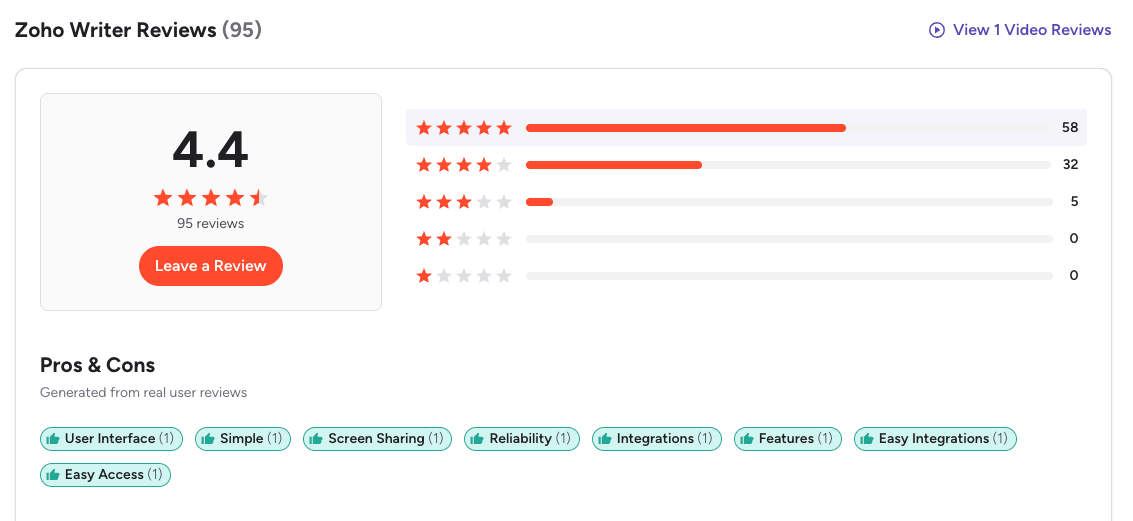
Zoho Writer reviews (source)
5. OnlyOffice
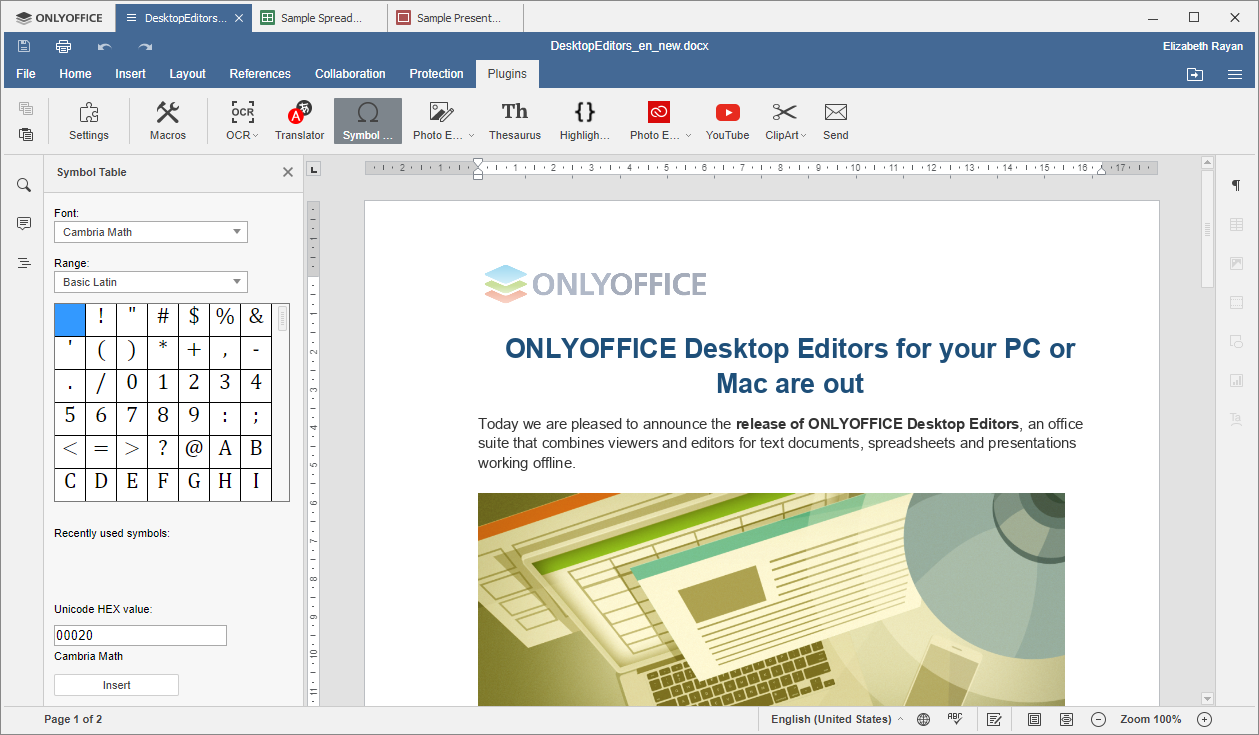
ONLYOFFICE is an online office suite that works as a Google Docs alternative for creating and collaborating on documents, spreadsheets, presentations, forms, and PDFs. It’s designed for teams that want real-time editing like Google Docs, but with stronger file compatibility and more control over where their data lives.
Key features
- Online document, spreadsheet, and presentation editors with real-time collaboration
- Strong compatibility with Microsoft Office formats (.docx, .xlsx, .pptx)
- Available as a cloud service, self-hosted solution, and desktop apps (Windows, macOS, Linux)
- Real-time co-editing, comments, version history, and built-in chat
What I liked
- File compatibility is excellent. Complex Word or Excel files usually open and behave better than in Google Docs.
- Flexible deployment options. You can use it like Google Docs in the cloud or self-host it for more privacy and control.
What I disliked
- Real-time collaboration feels less polished than Google Docs, especially for quick edits and suggestions.
- Pricing and licensing can be confusing, particularly for self-hosted and enterprise setups.
- The interface isn’t as instantly intuitive as Google Docs for casual or first-time users.
Pricing
- Free options available for personal use and basic editing
- Paid plans for cloud and self-hosted versions, with pricing varying by deployment and scale
Suitable for
- Teams looking for a serious Google Docs alternative with better Microsoft Office compatibility
- Organizations that care about data privacy or want self-hosted document collaboration
- Businesses that need both online collaboration and offline desktop editing
How to start
- Go to ONLYOFFICE
- Choose cloud, self-hosted, or desktop version
- Create an account or install the app and start editing
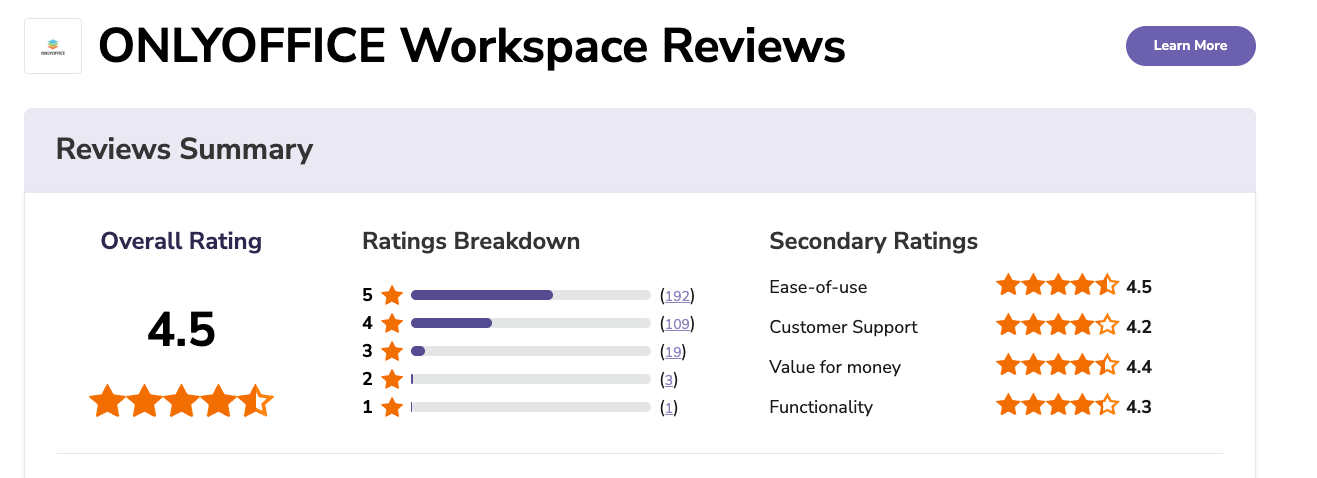
ONLYOFFICE reviews (source)
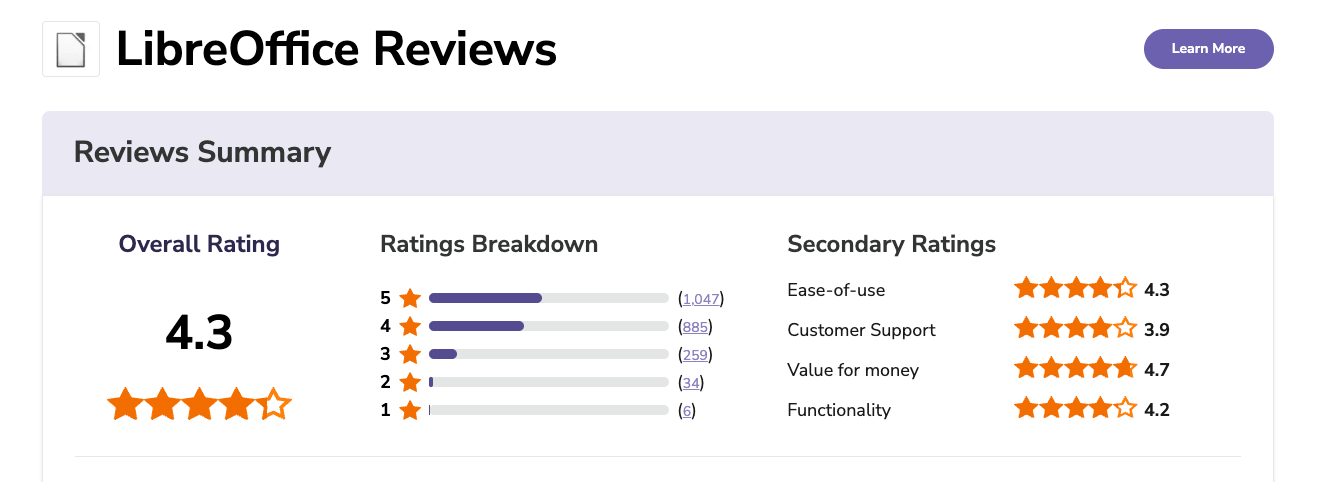
6. LibreOffice Writer
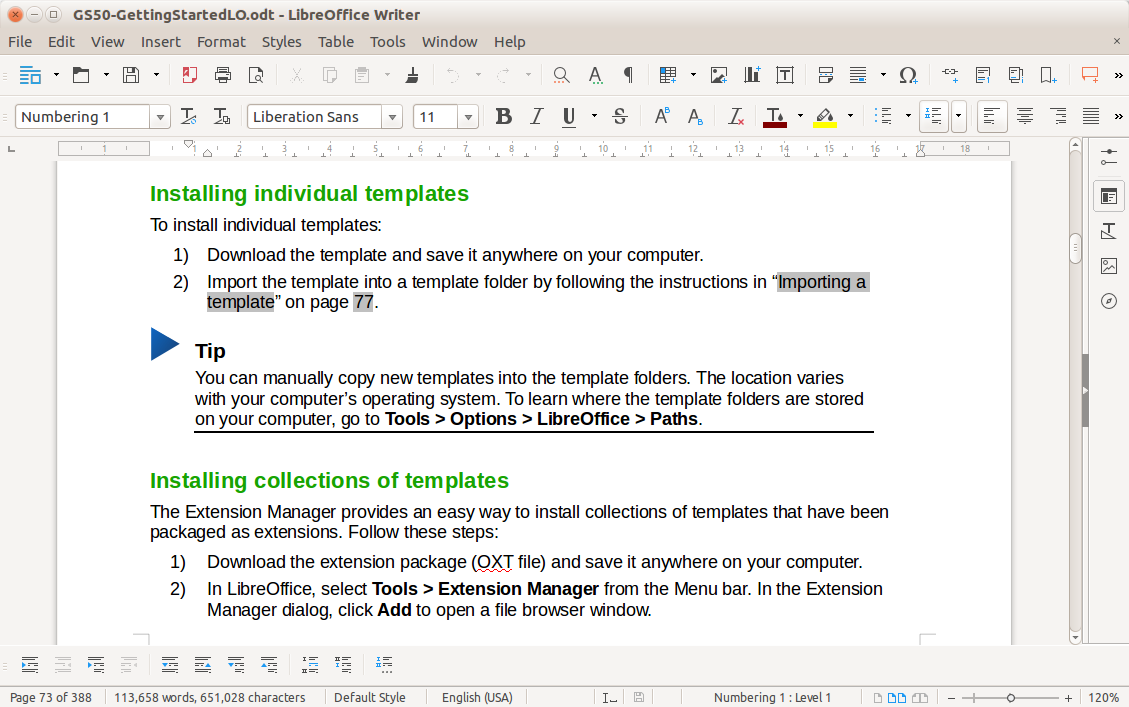
LibreOffice Writer is a free, open-source word processor that works as a Google Docs alternative for writing, editing, and exporting documents - especially if you prefer offline work and full file control.
Key features
- Full-featured word processor with rich text formatting, styles, templates, and page layout tools
- Strong compatibility with common formats (ODT, DOC, DOCX, RTF, PDF export)
- Built-in spelling and grammar checks, auto-complete, and change tracking
- Desktop app available on Windows, macOS, and Linux
What I liked
- Completely free and open source
- Works fully offline, which is great for privacy and uninterrupted writing
- Excellent format support, making it easy to open and export Google Docs or Word files
- Powerful formatting and styling tools for long or structured documents
What I disliked
- No native real-time collaboration like Google Docs
- Cloud syncing isn’t built in and requires external services
- Interface can feel dated compared to modern browser-based editors
- Sharing and version control take more manual effort
Pricing
- Free forever
- No paid plans or feature restrictions
Suitable for
- Users who want a Google Docs alternative without cloud dependency
- Writers, students, and professionals working on long-form documents
- Privacy-focused individuals or teams avoiding subscription tools
How to start
- Download LibreOffice from the official website
- Install it and open Writer to start creating documents
LibreOffice Writer reviews (source)
7. WPS Office
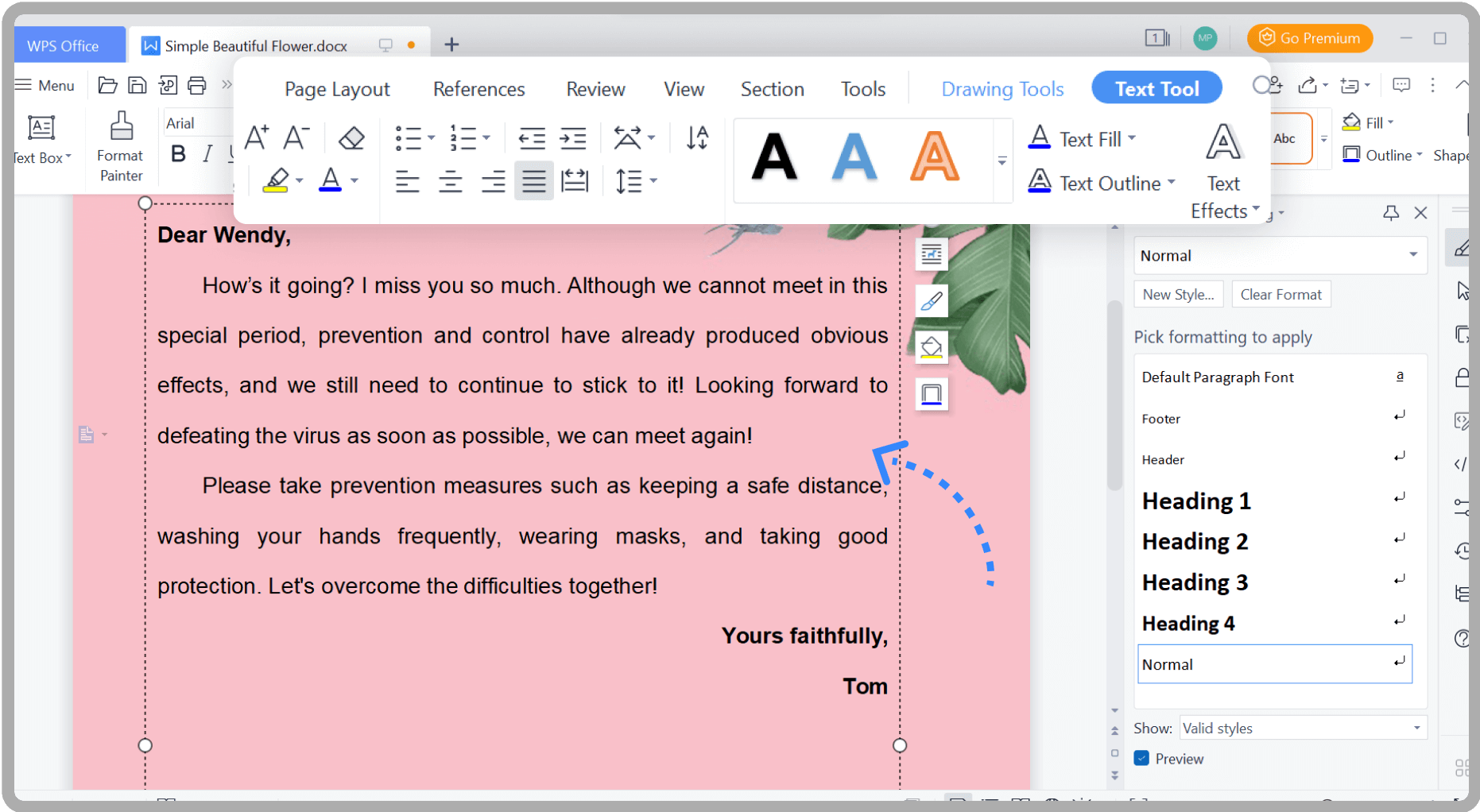
WPS Office is a full productivity suite that lets you create, edit, and manage documents, spreadsheets, and presentations. It serves as a practical alternative to Google Docs, particularly for users seeking enhanced offline capabilities and improved compatibility with Microsoft Office files.
Key features
- Includes Writer (documents), Spreadsheets, and Presentation tools in one suite
- Strong compatibility with Microsoft Office formats (.docx, .xlsx, .pptx)
- Works across Windows, macOS, Linux, iOS, Android, and web
- Offline-first desktop apps with optional cloud sync
What I liked
- Works offline, so you’re not dependent on an internet connection like with Google Docs
- Handles Microsoft Office files very well, with fewer formatting issues
- Interface feels familiar if you’ve used Word or Excel before
What I disliked
- Real-time collaboration isn’t as smooth or central as Google Docs’ live editing
- Free plan includes ads and limited cloud storage
- Desktop-first setup can feel heavier compared to a purely browser-based tool
Pricing
- Free plan with core document, spreadsheet, and presentation features
- Premium plan around $30/year
Suitable for
- Users who want a Google Docs alternative with strong offline support
- People who frequently work with Microsoft Office files
How to start
- Go to WPS Office
- Download the app for your device
- Open WPS Writer and start creating or importing documents
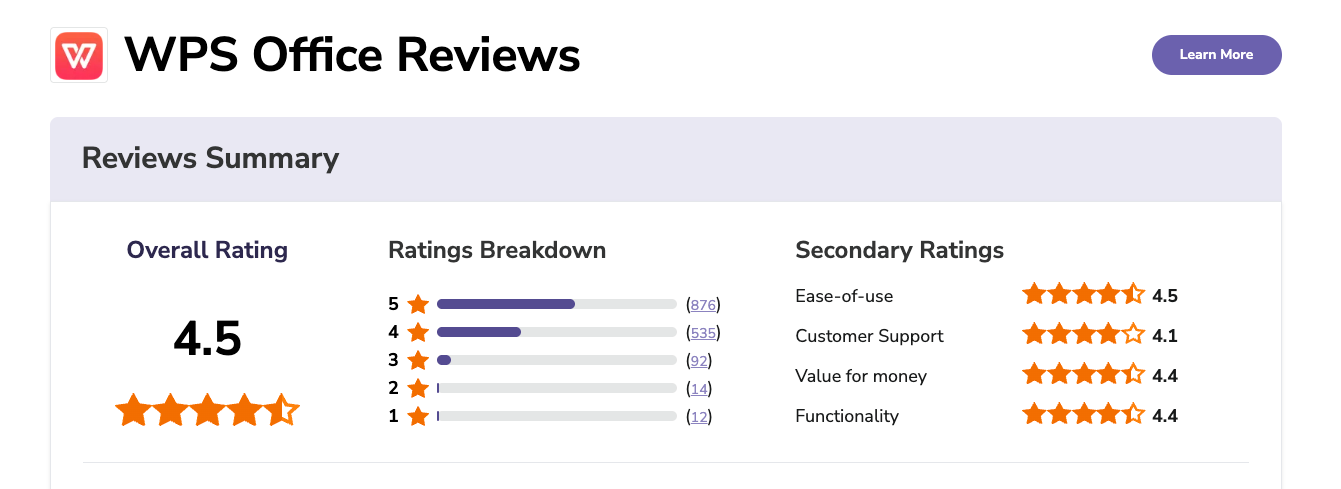
WPS Office reviews (source)
8. Slite

Slite is a team knowledge base and documentation tool that many teams use as a more structured alternative to Google Docs for internal docs, playbooks, and shared company knowledge. Instead of acting like a general-purpose document editor, it’s built to help teams organize information and find answers quickly.
Key features
- Clean, distraction-free editor focused on long-form writing
- Channel-based structure instead of folders, making docs easier to organize and discover
- An AI Assistant feature that lets you query your docs in natural language
- Built-in templates for common team docs (handbooks, meeting notes, processes)
What I liked:
- Feels more organized than Google Docs for team knowledge. Channels help avoid messy Drive folders.
- Designed for teams, not individuals writing random documents.
- Encourages documentation hygiene with verification and review workflows.
What I disliked:
- Not a perfect replacement for Google Docs if you mainly need quick, one-off documents.
- Free plan is limited and can feel restrictive once your team grows.
- Fewer advanced document features compared to Google’s full ecosystem (e.g. spreadsheets, rich embeds).
- Less flexible for highly custom or creative document layouts.
Pricing:
- Free plan with limited number of documents and AI usage
- Standard plan around $8 per user/month (billed annually)
- Higher-tier plans around $16–20 per user/month with expanded AI and knowledge features
Suitable for:
- Teams that want a central knowledge base, not just shared documents
- Remote or distributed teams that rely on written documentation
- Companies replacing Google Docs for internal wikis, handbooks, and processes
How to start:
- Go to Slite
- Create a free account
- Set up channels for key areas (e.g. Product, Ops, HR)
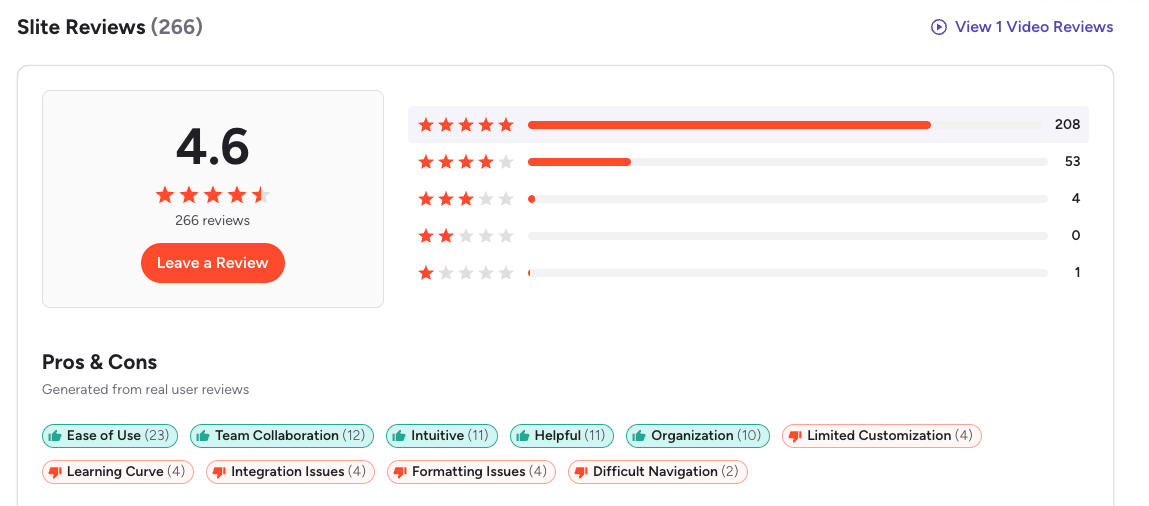
Slite reviews (source)
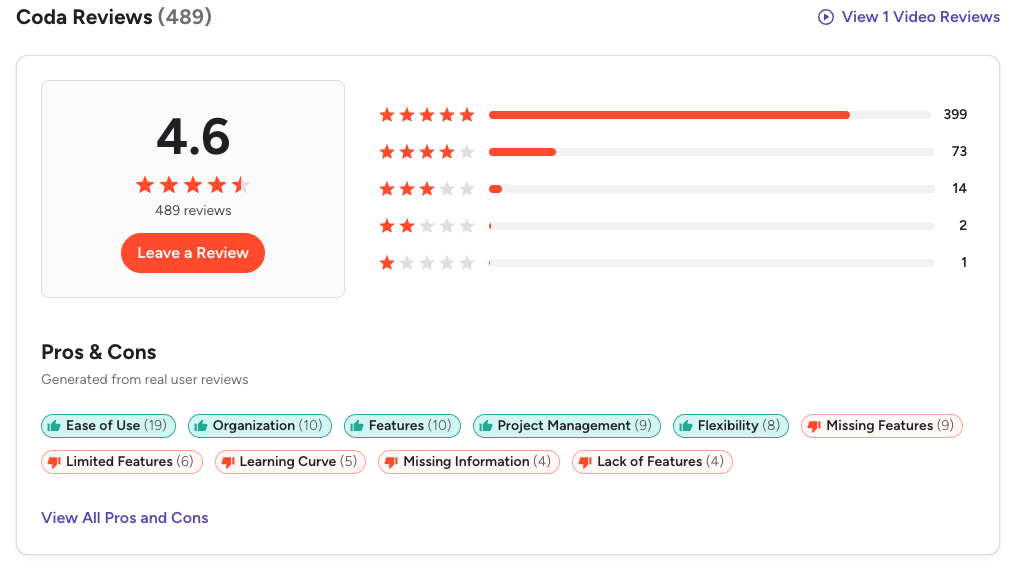
9. Coda

Coda is an all-in-one document and workspace tool that works as a more powerful alternative to Google Docs. Instead of just writing text, Coda lets you build documents that include tables, databases, automations, and lightweight apps
Key features
- Docs that combine text, tables, databases, and interactive elements
- Real-time collaboration with comments, mentions, and version history
- Advanced formulas that work across tables (more like a spreadsheet inside a doc)
- Automations to trigger actions, reminders, or updates
What I liked:
- Tables are powerful and flexible
- Templates reduce setup time and make it easier to get started.
- Good collaboration features, similar to Google Docs but with more structure.
What I disliked:
- The learning curve is steeper than Google Docs.
- Can feel overkill if you just need simple writing or note-taking.
- Complex docs with many tables or automations can feel heavy.
- Not always the fastest option for quick, lightweight documents.
Pricing
- Free plan
- Paid plans from 12$/month
Suitable for:
- Teams that want more than a traditional word processor
- Projects that mix writing with data, tracking, and workflows
- Knowledge bases, planning docs, meeting systems, and internal tools
How to start:
- Go to Coda.io
- Create a free account
- Start from a template or a blank doc
Coda Reviews (source)
10. Dropbox Paper
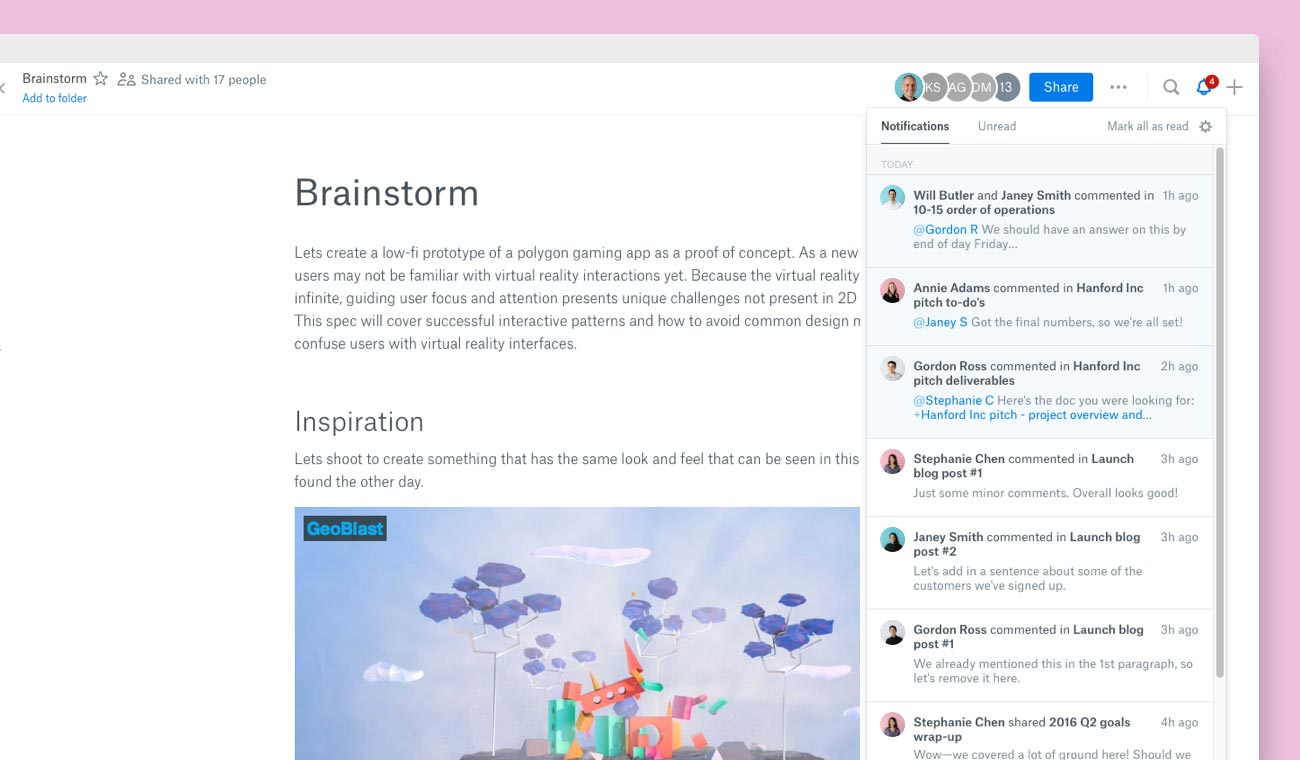
Dropbox Paper is a collaborative document tool from Dropbox that works as a lightweight Google Docs alternative. It’s designed for real-time writing, brainstorming, and team collaboration, with a strong focus on simplicity and clean formatting rather than advanced document layouts.
Key features
- Real-time collaborative editing with comments and @mentions
- Built-in task lists and simple project tracking inside documents
- Rich media embedding (images, videos, links, previews)
- Native integration with Dropbox file storage and sharing
What I liked
- Easy and pleasant to write in.
- Collaboration feels smooth and natural, especially for quick team docs and brainstorming.
- Embedding media and external content is simple and looks clean inside documents.
What I disliked
- Formatting options are limited compared to Google Docs (fonts, layouts, advanced styles).
- Not ideal for long, structured documents or formal reports.
- Organization and search can feel basic if you manage a large number of docs.
Pricing
- Free to use with a Dropbox account
- Storage limits depend on your Dropbox plan
Suitable for
- Teams that want a simple, low-friction alternative to Google Docs
- Users already relying on Dropbox for file storage and sharing
- Brainstorming, meeting notes, lightweight documentation, and collaborative drafts
How to start
- Go to Dropbox Paper
- Sign in with your Dropbox account
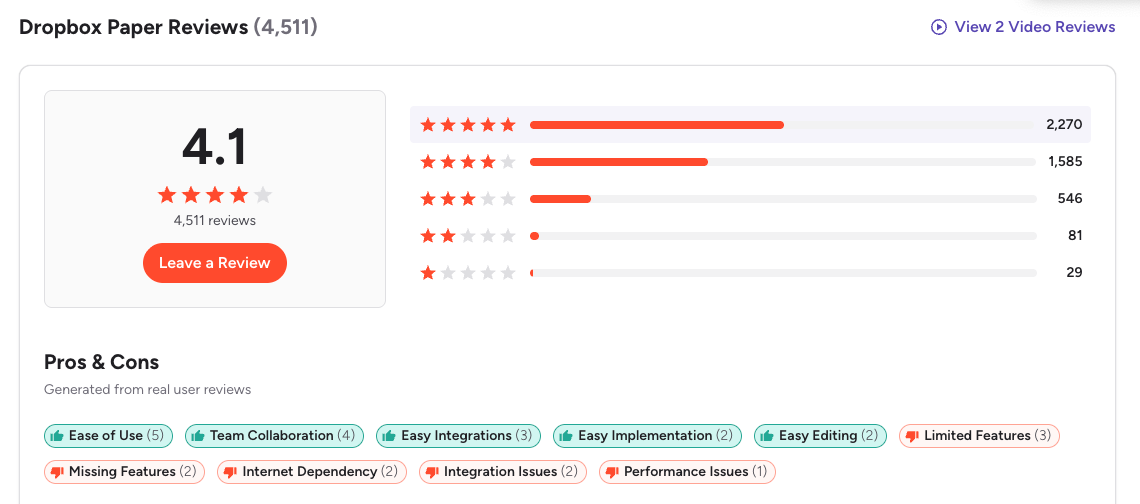
Dropbox Paper reviews (source)
Conclusion
Google Docs is still a solid default. It’s fast to start, easy to share, and familiar to almost everyone. But as your work becomes more complex, many people realize that “easy to edit” isn’t the same as “easy to think, manage, or scale.”
That’s why there’s no single best Google Docs alternative.
- If you care about clear thinking, AI-assisted insights, and turning documents into action, tools like Saner.AI stand out.
- If you need polished formatting and formal documents, Microsoft Word remains hard to beat.
- If your documents are really part of a larger system or knowledge base, Notion, Coda, or Slite make more sense.
- If privacy, control, or offline ownership matter most, options like LibreOffice Writer or OnlyOffice are better fits.
The key isn’t to switch tools impulsively - it’s to match the tool to how you actually work today.
The right alternative should reduce friction, not add complexity. It should help you think more clearly, collaborate with less noise, and spend less time managing documents - and more time using what you’ve written.
If Google Docs no longer supports that, switching isn’t a downgrade. It’s a natural next step.
Stay on top of your documents effortlessly
Best Google Docs Alternatives: FAQ
1. What is a Google Docs alternative?
A Google Docs alternative is a writing or document collaboration tool that lets you create, edit, and share documents without relying on Google Docs.
People usually look for alternatives because they want:
- Better privacy or data ownership
- Offline access
- Fewer distractions
- Stronger formatting or long-form writing support
- Built-in AI or structured thinking tools
- More control for teams or enterprises
Popular Google Docs alternatives include Saner.AI, Microsoft Word, Notion, Coda, Zoho Writer, Slite, OnlyOffice, LibreOffice Writer, WPS Office, and Dropbox Paper.
2. Why do people look for alternatives to Google Docs?
The most common reasons include:
- Offline reliability – Google Docs is limited without internet
- Distraction overload – Too many tabs, comments, and notifications
- Weak long-form writing experience – Especially for research or deep work
- Limited structure – Hard to connect notes, tasks, and context
Different tools solve different pain points, which is why there’s no single “best” alternative for everyone.
3. What is the best Google Docs alternative overall?
There’s no universal winner—it depends on how you work:
- For AI-assisted thinking, notes, and writing workflows → Saner.AI
- For traditional documents and enterprise compatibility → Microsoft Word
- For all-in-one knowledge bases → Notion or Coda
- For privacy and offline writing → LibreOffice Writer or OnlyOffice
- For lightweight team collaboration → Slite or Dropbox Paper
The “best” alternative is the one that reduces friction in your daily workflow.
4. What’s the best Google Docs alternative for writing and thinking?
If you mainly write to think, plan, or clarify ideas, Google Docs often feels flat.
Tools like Saner.AI focus on:
- Turning messy notes into structured documents
- Connecting writing with tasks and follow-ups
- Using AI to summarize, organize, and surface context
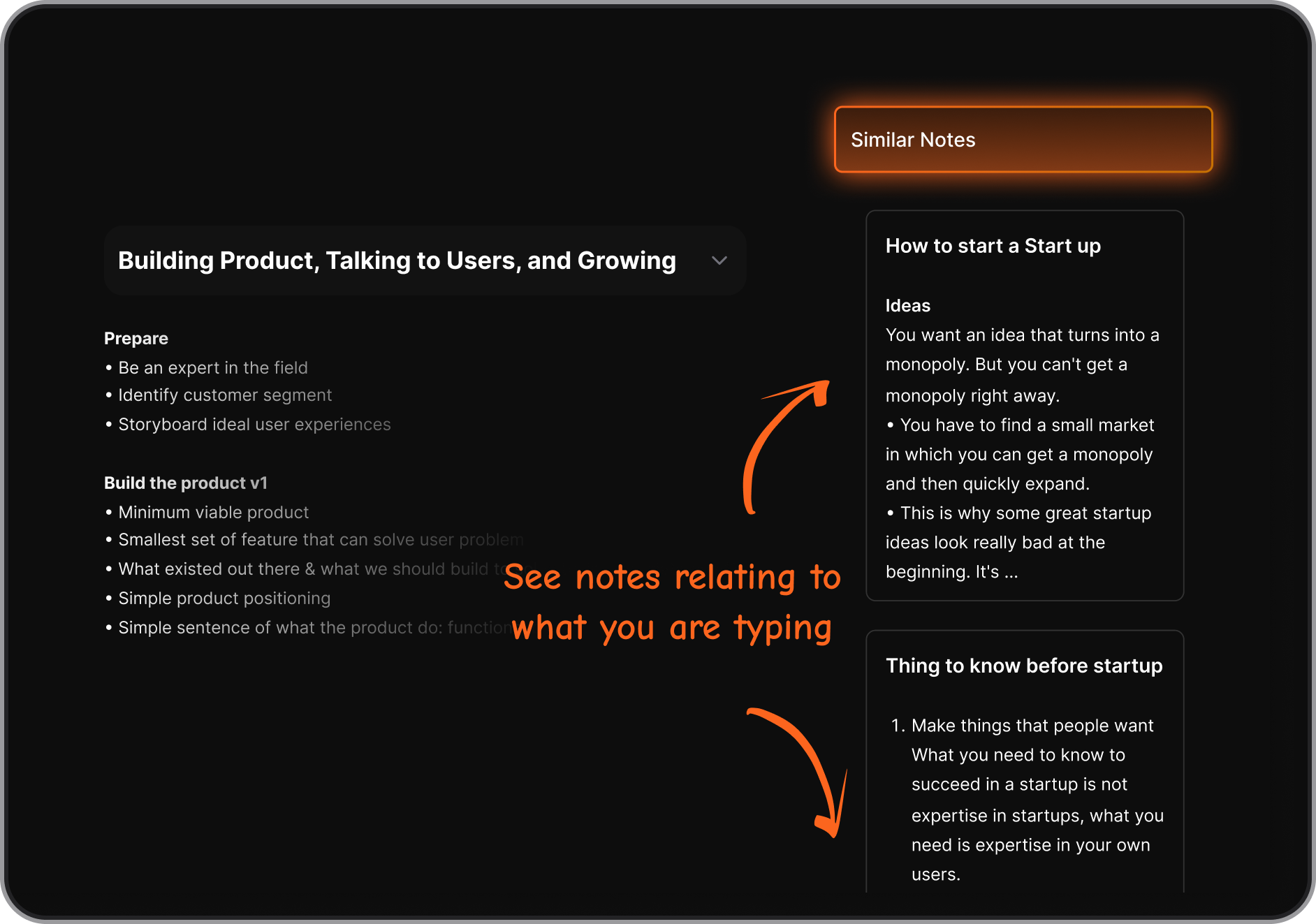
This makes it better suited for professionals, founders, and ADHD-prone users who don’t write in a straight line.
5. Which Google Docs alternative is best for teams?
For team collaboration, people usually care about:
- Clear ownership
- Version history
- Async documentation
- Less comment chaos
Good options include:
- Slite – Simple, opinionated team docs
- Notion – Flexible but can get complex
- Coda – Strong for operational docs and internal tools
- OnlyOffice – Familiar document experience with self-hosting options
Each trades flexibility for structure in different ways.
6. Are there free Google Docs alternatives?
Yes. Several tools offer strong free plans:
- LibreOffice Writer – Fully free, open source, offline
- WPS Office – Free tier with optional upgrades
- Saner.AI – Free plan available
- Zoho Writer – Free for individuals and small teams
- Dropbox Paper – Free with a Dropbox account
Free plans are usually enough for basic writing, but collaboration or AI features may be limited.
7. What’s the best Google Docs alternative for offline use?
If offline access matters, Google Docs is not ideal.
Strong offline alternatives include:
- Microsoft Word (desktop version)
- LibreOffice Writer
- WPS Office
These tools store files locally and sync later, which is useful for travel, unreliable internet, or privacy-focused users.
8. Which Google Docs alternative is best for privacy?
For users who want more control over data:
- LibreOffice Writer – Fully local, no cloud required
- OnlyOffice – Can be self-hosted
- Zoho Writer – Strong compliance options
These are often chosen by legal teams, researchers, or companies with strict data policies.
9. Are there Google Docs alternatives with built-in AI?
Yes, and this is where newer tools stand out.
Some tools use AI mainly for writing assistance, while others focus on understanding context.
For example:
- Saner.AI – AI that connects documents, notes, tasks, and calendar context
- Notion – AI for rewriting, summarizing, and outlining
- Word – AI copilots focused on drafting and editing
The difference is whether AI helps you write better sentences or think better overall.
10. What’s the best Google Docs alternative for ADHD or overwhelmed users?
People with ADHD often struggle with:
- Blank pages
- Over-structuring
- Losing track of ideas across docs
Tools like Saner.AI are designed to:
- Let you write naturally without strict formatting
- Organize content automatically
- Surface what matters later, instead of forcing structure upfront
This makes it easier to stay in flow without constantly reorganizing.
11. What’s the best Google Docs alternative for long documents?
For long-form writing (reports, research, books):
- Saner.AI – Better for thinking, outlining, and managing ideas before final formatting
- Microsoft Word – Still best for formatting and export control
- LibreOffice Writer – Strong open-source alternative
A common workflow is: think in one tool, finalize in another.
12. How do I choose the best Google Docs alternative?
Ask yourself:
- Do I write mostly alone or with a team?
- Do I need offline access?
- Do I care about AI helping me think, not just write?
- Do I want structure - or flexibility?
Once you answer those, the right alternative becomes obvious.
13. Is Google Docs still worth using?
Google Docs is still great for:
- Quick collaboration
- Simple documents
- Teams already deep in Google Workspace
But if you’ve outgrown it - or feel friction every time you write - it’s usually a sign that a better-fit alternative exists.
Finding a Google Doc Alternative?
[Last updated in 2026]