We Tested the 9 Best GTD Apps in 2026
The Best GTD Apps are Nirvana, Omnifocus 4, Saner.AI, Notion, Facile Things, Todoist, Notion, Asana, TickTick, Things 3

The best 9 GTD Apps in 2026
Most productivity problems don’t come from laziness. They come from too many things competing for your attention.
Tasks are scattered across email, sticky notes, messaging apps, and calendars. You remember half of them, forget the rest, and constantly feel like something important is slipping through the cracks.
The result is a familiar feeling: being busy all day but not actually finishing meaningful work.
One of the most influential solutions to this problem is the Getting Things Done (GTD) method created by productivity expert David Allen. Modern GTD apps help you capture tasks, organize projects, and review your commitments in a structured way.
In this guide, I’ll walk through the best apps for Getting Things Done in 2026, how they compare, and which ones actually help you stay organized without adding more complexity.
1. What is the Getting Things Done Method & What are GTD Apps?
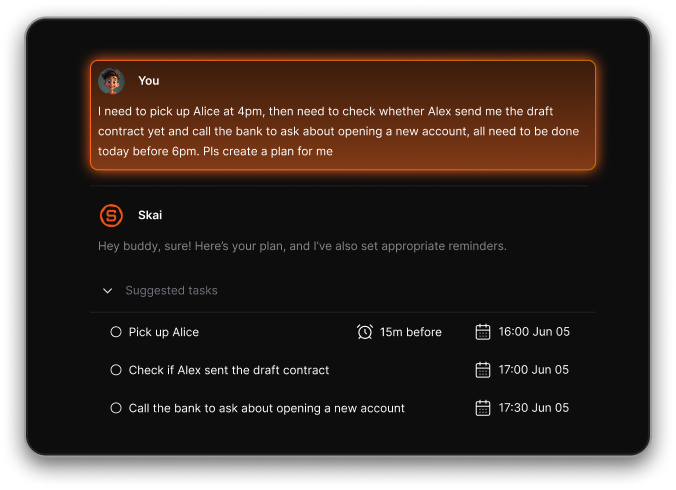
The idea behind Getting Things Done (GTD) comes from productivity consultant David Allen, who introduced the method in his book Getting Things Done. At its core, GTD solves a simple problem: our brains are terrible at remembering commitments.
Instead of trying to remember tasks, you capture them in a structured place where they can be clarified, organized, and reviewed later. Once your commitments live in a reliable system, your brain is free to focus on actually doing the work.
Modern GTD apps bring this philosophy into the digital world. They help you capture tasks quickly, organize projects, and review your commitments regularly, all of which support the five core stages of the GTD workflow:
- Capture — collect ideas, tasks, and commitments
- Clarify — decide what each item means and what action is required
- Organize — place tasks into projects, contexts, or categories
- Reflect — review your system regularly (especially during weekly reviews)
- Engage — execute the right task based on time, energy, and context
2. Key Features a Good GTD App Should Have
Not every productivity tool works well with the Getting Things Done (GTD) method. Some apps are simple to-do lists, while others support structured workflows with projects, contexts, and reviews.
That said, these are the key features I focused on:
- Projects — A good GTD app should allow you to group related tasks together and track the next actions needed to move a project forward.
- Contexts — Tasks should be organized by the environment or tools required to complete them (for example: At computer, Phone calls, or Errands).
- Availability — The best GTD apps help you quickly see which tasks are actionable based on your time, location, and energy level.
- UI Experience — A GTD system only works if it’s fast and frictionless.
- Integrations — Strong GTD tools connect with other parts of your workflow, such as calendars, email, note-taking apps, and automation tools.
3. How I Evaluated These GTD Apps
I tested these apps as part of my daily workflow. That included:
- managing real projects
- planning weekly reviews
- organizing tasks by context
- capturing ideas quickly
I also evaluated each tool based on:
- flexibility
- learning curve
- automation capability
- long-term usability
Some apps work best for beginners. Others are powerful systems for advanced workflows. I also intentionally included different types of tools, such as:
- AI assistant systems
- classic task managers
Based on those criteria, here are the best apps for Getting Things Done
What are the Best GTD Apps?
The Best GTD Apps are Nirvana, Omnifocus 4, Saner.AI, Notion, Facile Things, Todoist, Notion, Asana, TickTick, Things 3
🧠 Best Apps for Getting Things Done (GTD) in 2026 – Comparison Table
| App | 🎯 Best For | 🧩 GTD Features | 🤖 AI Features | 📱 Platforms | 💳 Pricing (Latest 2026) |
|---|---|---|---|---|---|
| Nirvana | Pure GTD workflow users | Native GTD structure (Next Actions, Waiting, Someday, Projects) | No AI | Web, iOS, Android | Free plan, Pro ~$5/month |
| OmniFocus 4 | Power users who follow GTD strictly | Perspectives, contexts, project hierarchy | No AI | macOS, iOS, Web | Subscription ~$10/month or ~$100/year |
| Saner.AI | AI-assisted GTD and knowledge capture | AI organizes tasks into projects and actionable items | AI task breakdown, auto-organizing tasks | Web, iOS, Android | From ~$8–15/month |
| Notion | Custom GTD workflows & databases | Custom dashboards, projects, and task databases | Notion AI for summaries & automation | Web, iOS, Android, Windows, Mac | Free plan, Plus ~$10/month, AI add-on extra |
| FacileThings | Dedicated GTD practitioners | Full GTD workflow including clarify, organize, review | No AI | Web, iOS, Android | ~$8–10/month |
| Todoist | Flexible GTD-style task management | Projects, labels (contexts), filters | AI task suggestions | Web, iOS, Android, Windows, Mac | Free plan, Pro ~$4/month |
| Asana | Team GTD-style project management | Projects, task dependencies, workflows | AI workflow assistance | Web, iOS, Android, Windows, Mac | Free plan, Starter ~$11/month |
| TickTick | Personal productivity + GTD hybrid | Lists, tags, priorities | Smart date recognition | Web, iOS, Android, Windows, Mac | Free plan, Premium ~$3/month |
| Things 3 | Minimalist GTD workflow for Apple users | Projects, areas, next actions | No AI | macOS, iPhone, iPad, Apple Watch | One-time: ~$10 (iPhone), ~$50 (Mac) |
1. Nirvana
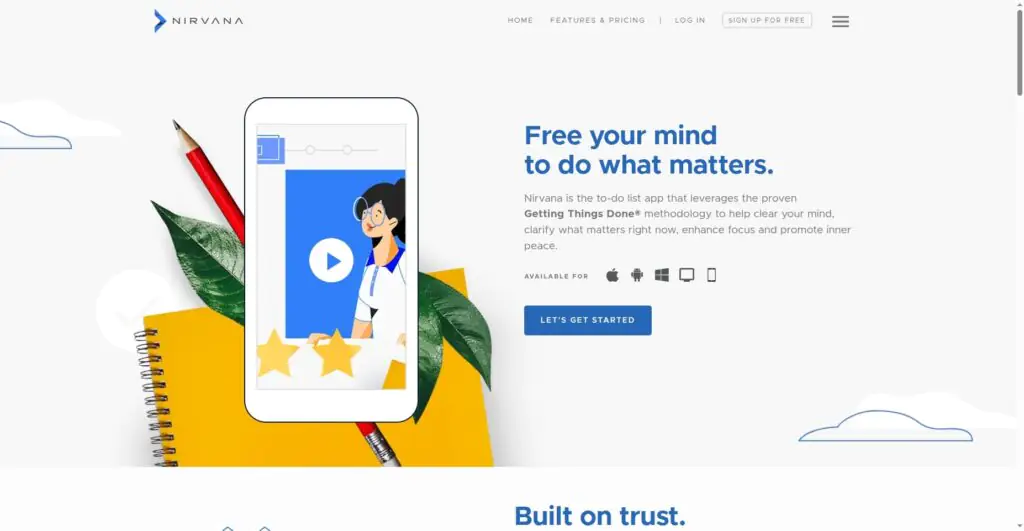
When I tested different GTD apps, Nirvana was one of the few tools that felt truly built around the original Getting Things Done method, described in David Allen’s book. You capture everything into an Inbox, then clarify tasks into projects, contexts, or scheduled actions.
Key features
- I could quickly dump ideas and tasks into the Inbox and process them later. From there, tasks can be organized into Projects, Areas of focus, or reference lists.
- Nirvana lets you tag tasks with contexts and filter by what you can actually do right now.
- These lists help separate actionable tasks from future plans. I liked using the “Someday” list to store ideas without cluttering my current task list.
- Tasks sync across web, mobile, and desktop so everything stays consistent. You can also defer tasks or schedule them to appear later in your actionable lists.
Pros
- The structure follows GTD almost exactly, which makes it easy if you already practice the methodology.
- The app feels calm compared to many modern productivity apps that add too many features.
- You can use most core GTD features without paying, which makes it easy to test the system first.
Cons
- Compared with modern apps like Todoist or Superlist, the UI can feel minimal and slightly old-school.
- Nirvana focuses heavily on task management, so it doesn’t connect with as many tools as newer productivity platforms.
- You can only create a limited number of projects and areas before upgrading.
Pricing
- Free plan
- Nirvana Pro: about $5/month or $29/year
Who it’s best for
- People who want a strict GTD workflow instead of a generic to-do list
- Users who prefer simple, distraction-free task managers
- Productivity enthusiasts who already follow the Getting Things Done method
How to get started
- Go to NirvanaHQ.com
- Create a free account
- Start by capturing tasks into the Inbox and organizing them using GTD lists like Next, Scheduled, and Someday.
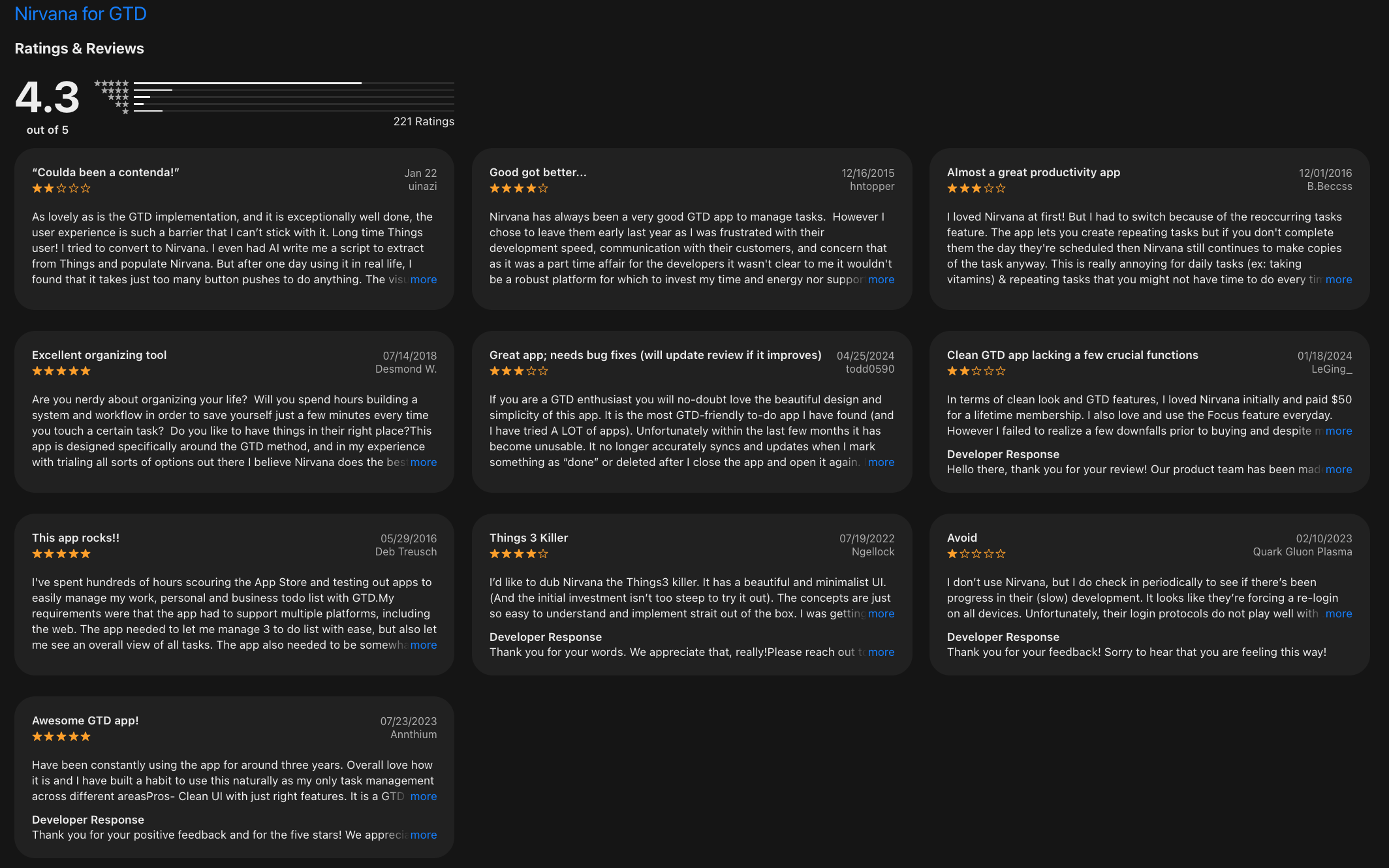
Nirvana reviews (source)
2. Saner.AI
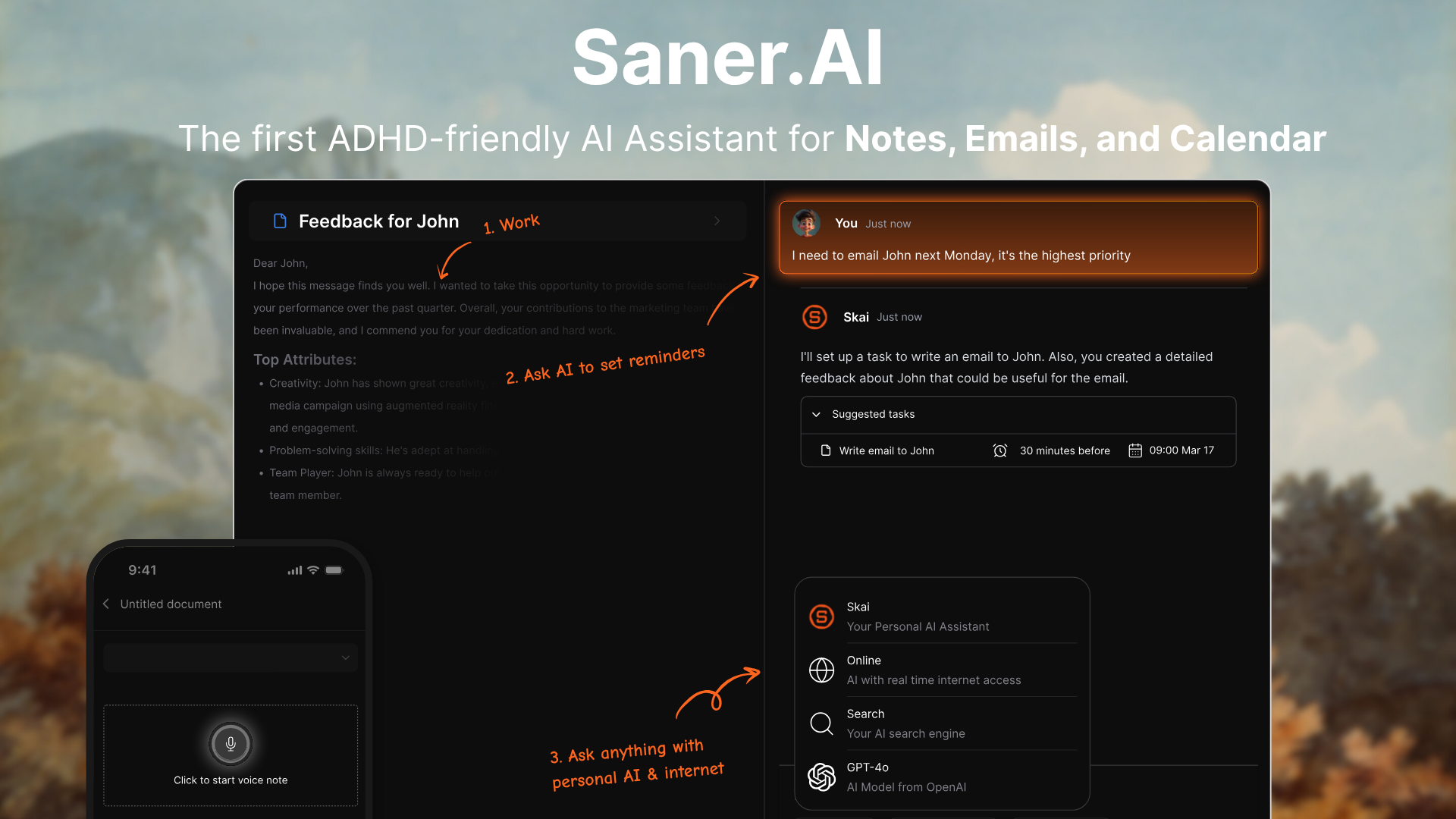
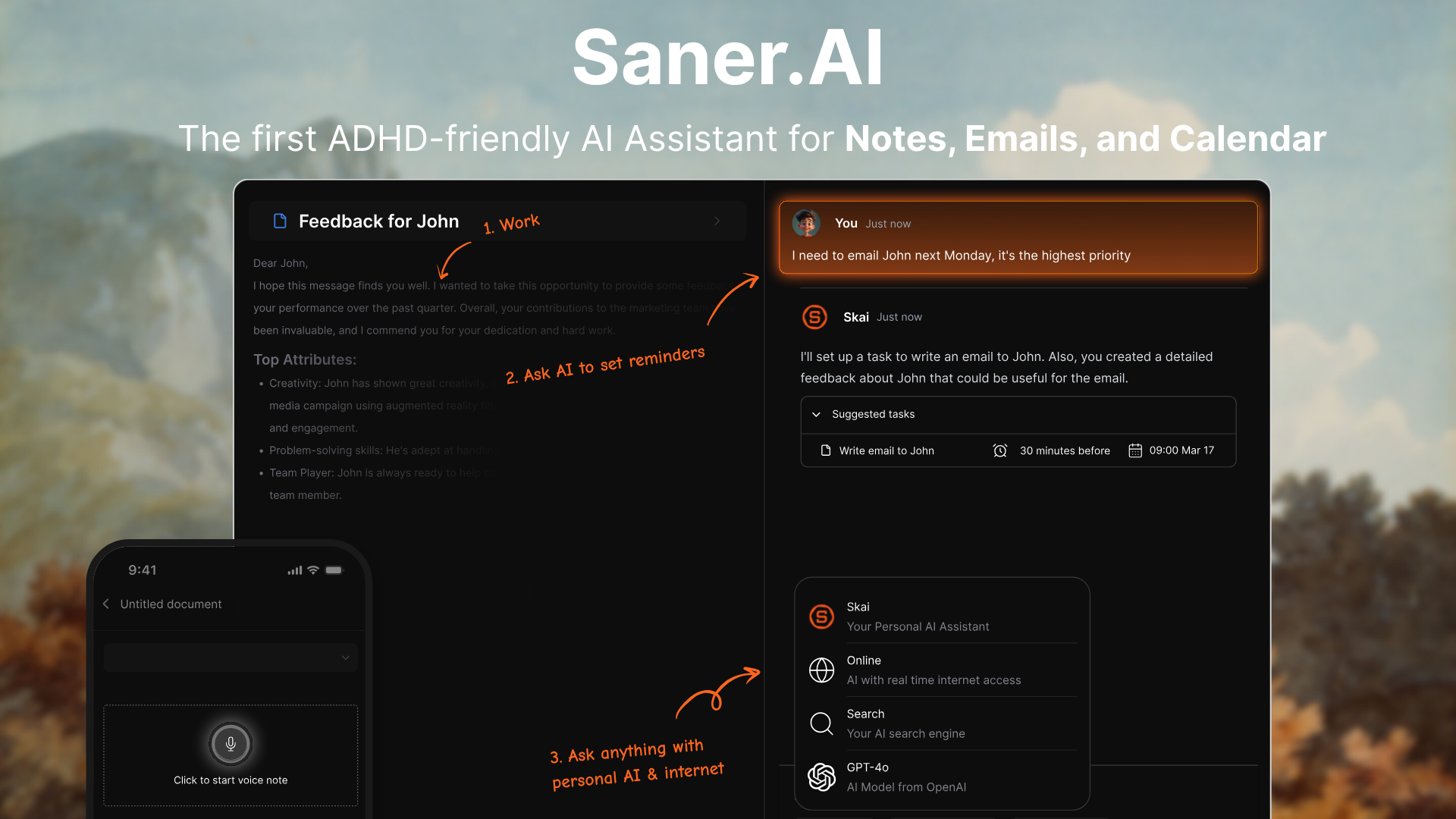
Saner.AI feels different from traditional GTD apps in a good way. I could just type messy thoughts, tasks, ideas, or notes into the app, and the AI automatically structured them into tasks, knowledge, or actionable items.
Another thing I noticed is how Saner.AI blends task management with personal knowledge management. Instead of separating notes and tasks into different tools, everything lives in the same workspace.
Key features
- I could quickly dump notes, tasks, or ideas without worrying about structure. The AI automatically organizes them so they’re easier to retrieve and act on later.
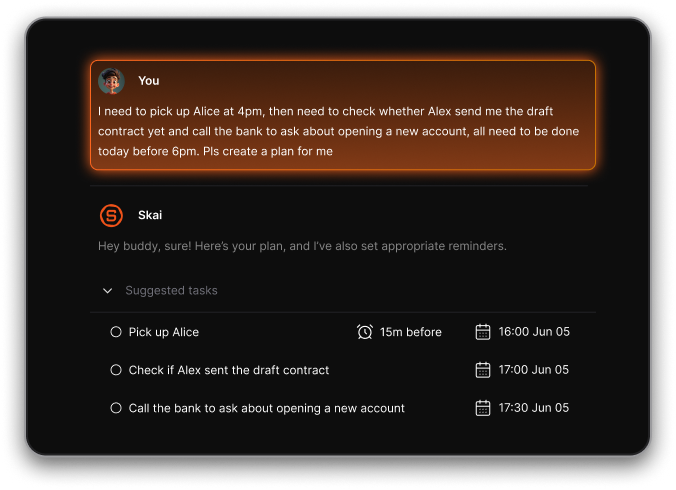
- Tasks, notes, and references live in the same system. This makes it easier to turn ideas or meeting notes into actionable tasks without switching tools.
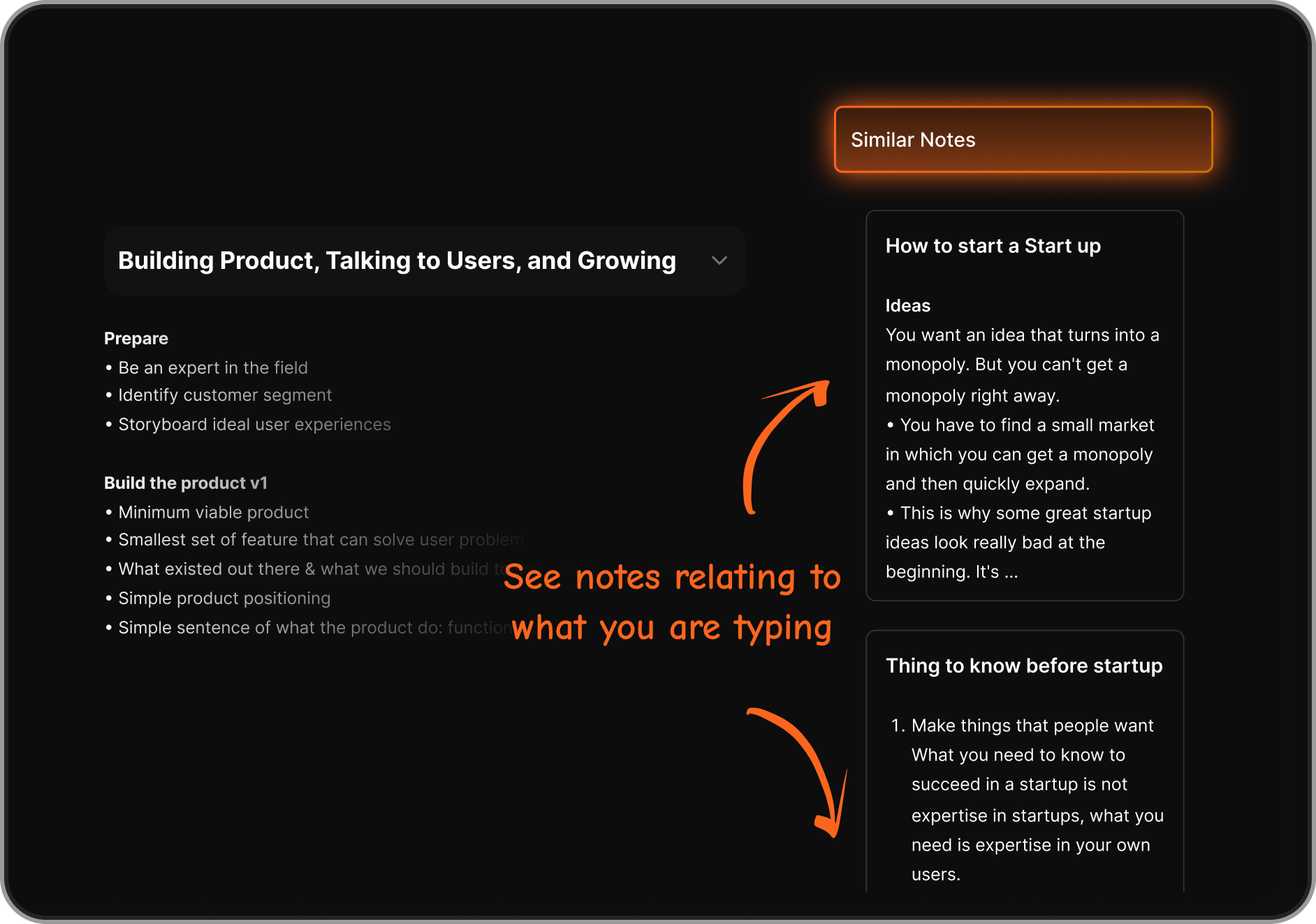
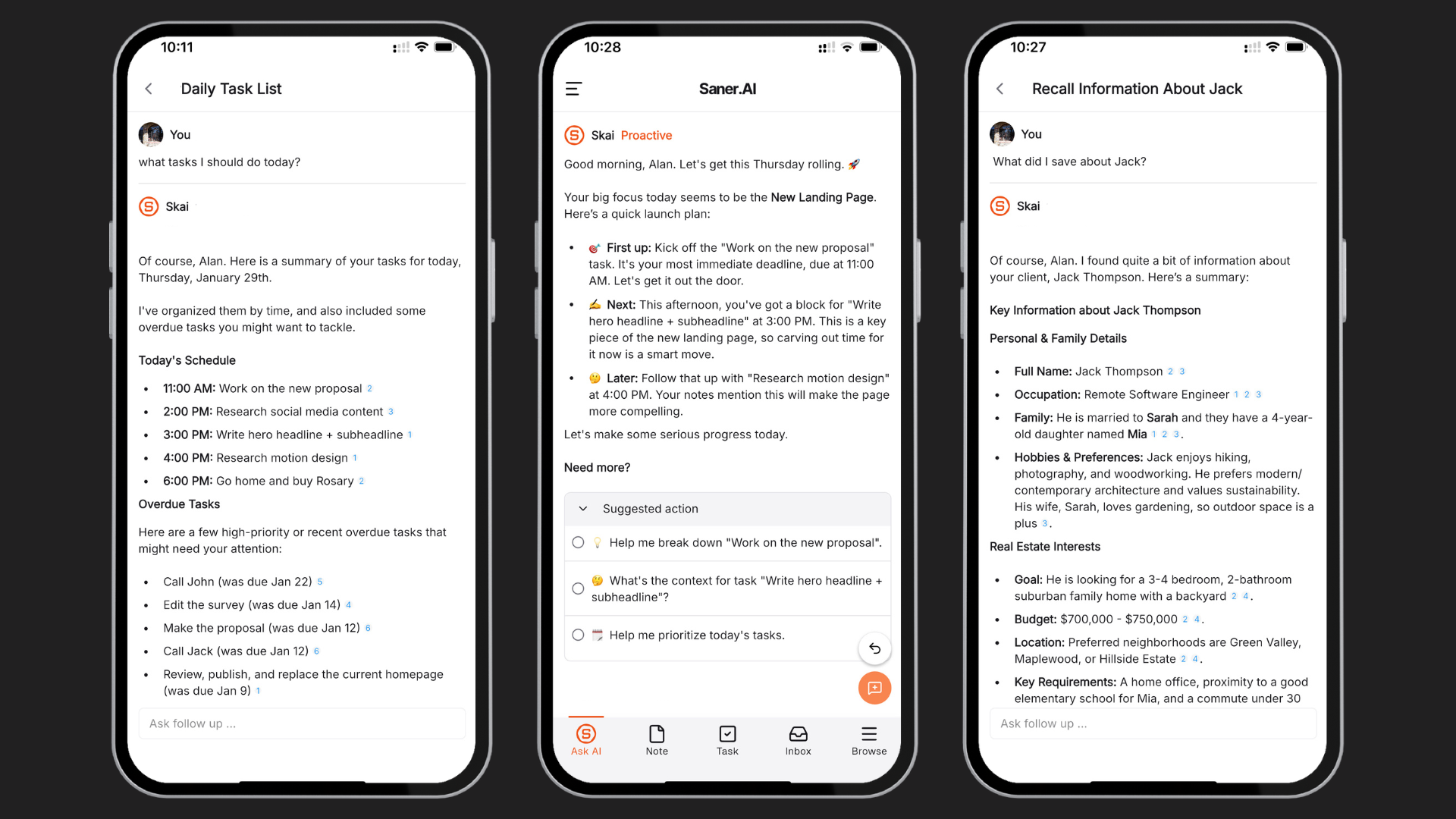
- Instead of browsing folders, I could simply search or ask the AI to find information. It understands context and surfaces relevant notes or tasks quickly.
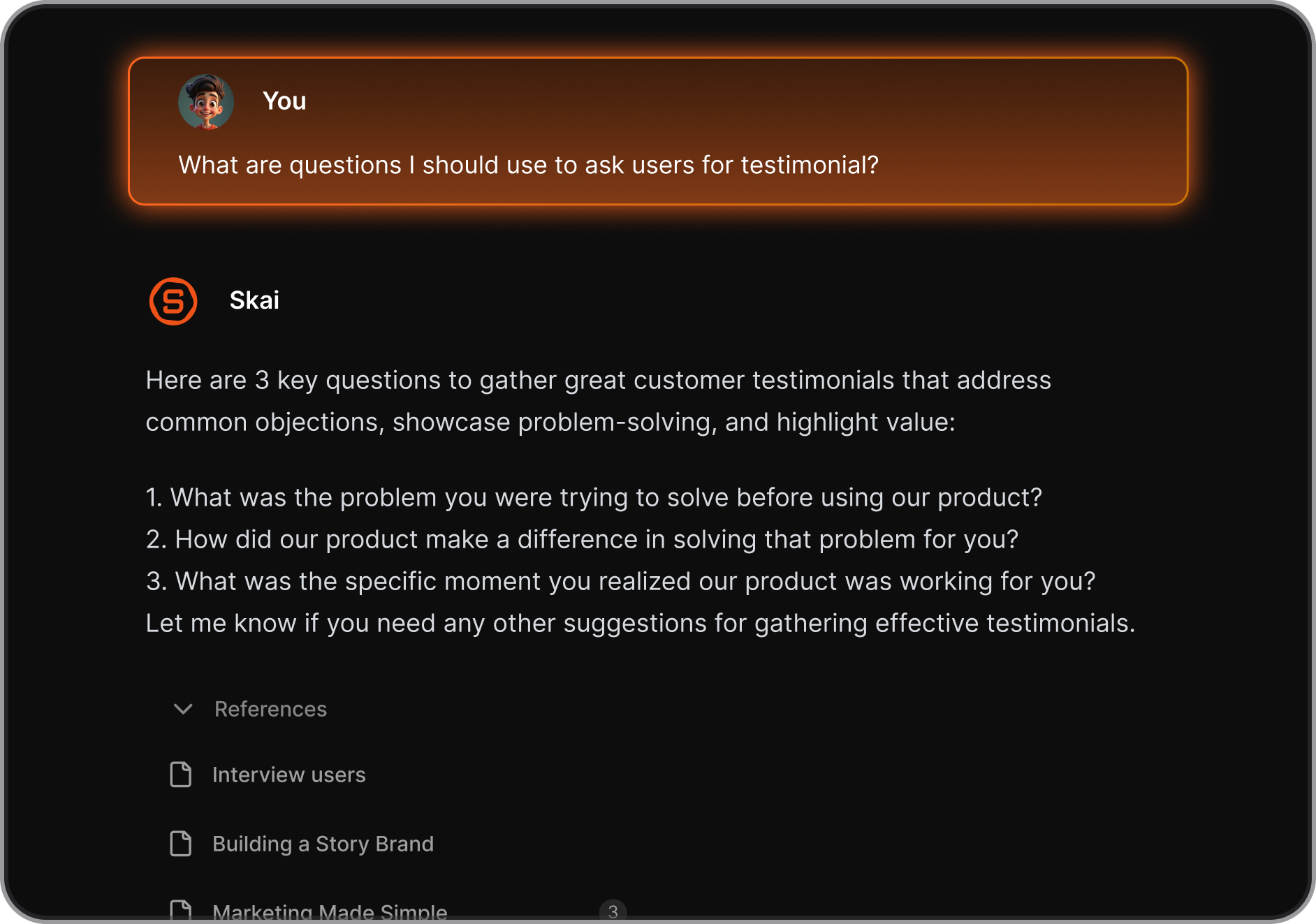
- The AI can summarize long notes, extract key insights, or help break ideas into smaller tasks.
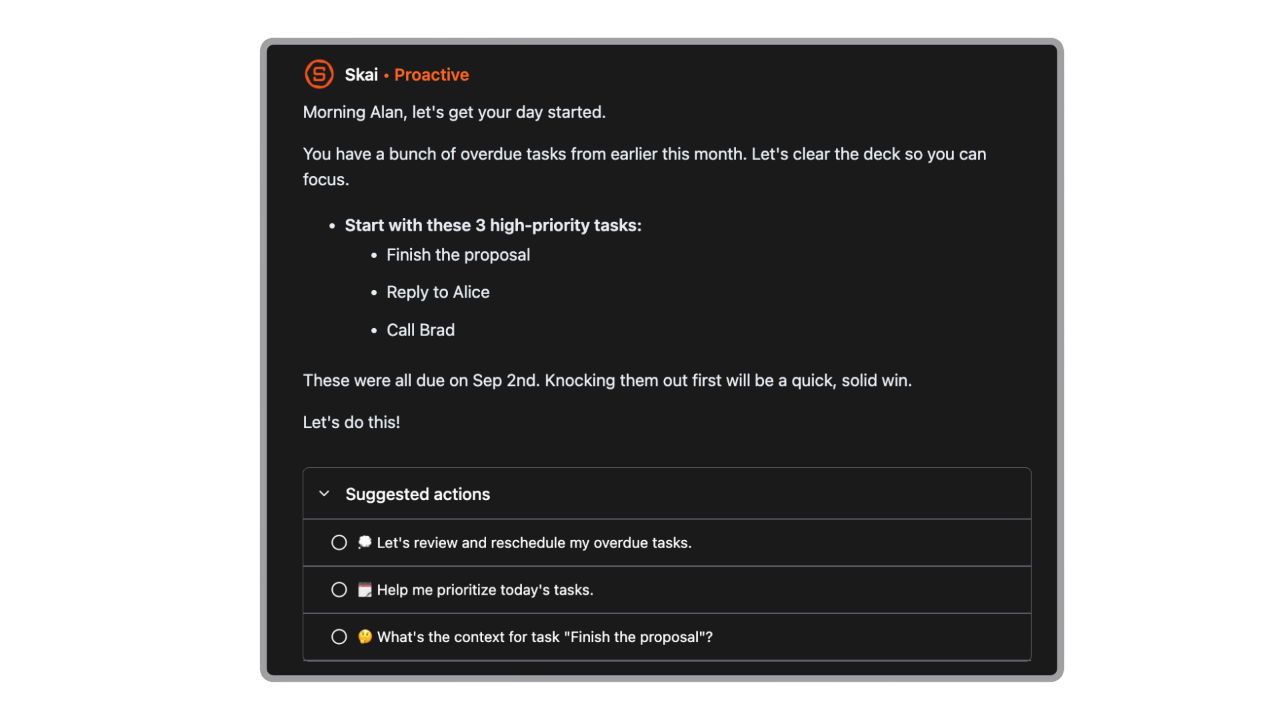
- And every morning, it gives me a well-structured day plan based on my existing tasks, calendar, and emails
Pros
- I didn’t have to think about where to place information. I could just write things down and organize them later.
- The system automatically structures notes and tasks, which lowers the friction of maintaining a productivity system.
- Instead of using separate apps for notes and tasks, everything lives in one place.
Cons
- Need internet for full access
Pricing
- Free plan
- Paid plans: start around $8–$16/month depending on usage and features
Who it’s best for
- People who want a low-friction way to capture ideas, tasks, and notes
- Users who prefer AI-assisted productivity instead of manual organization
- Knowledge workers who want tasks and information in the same system
Saner.AI reviews
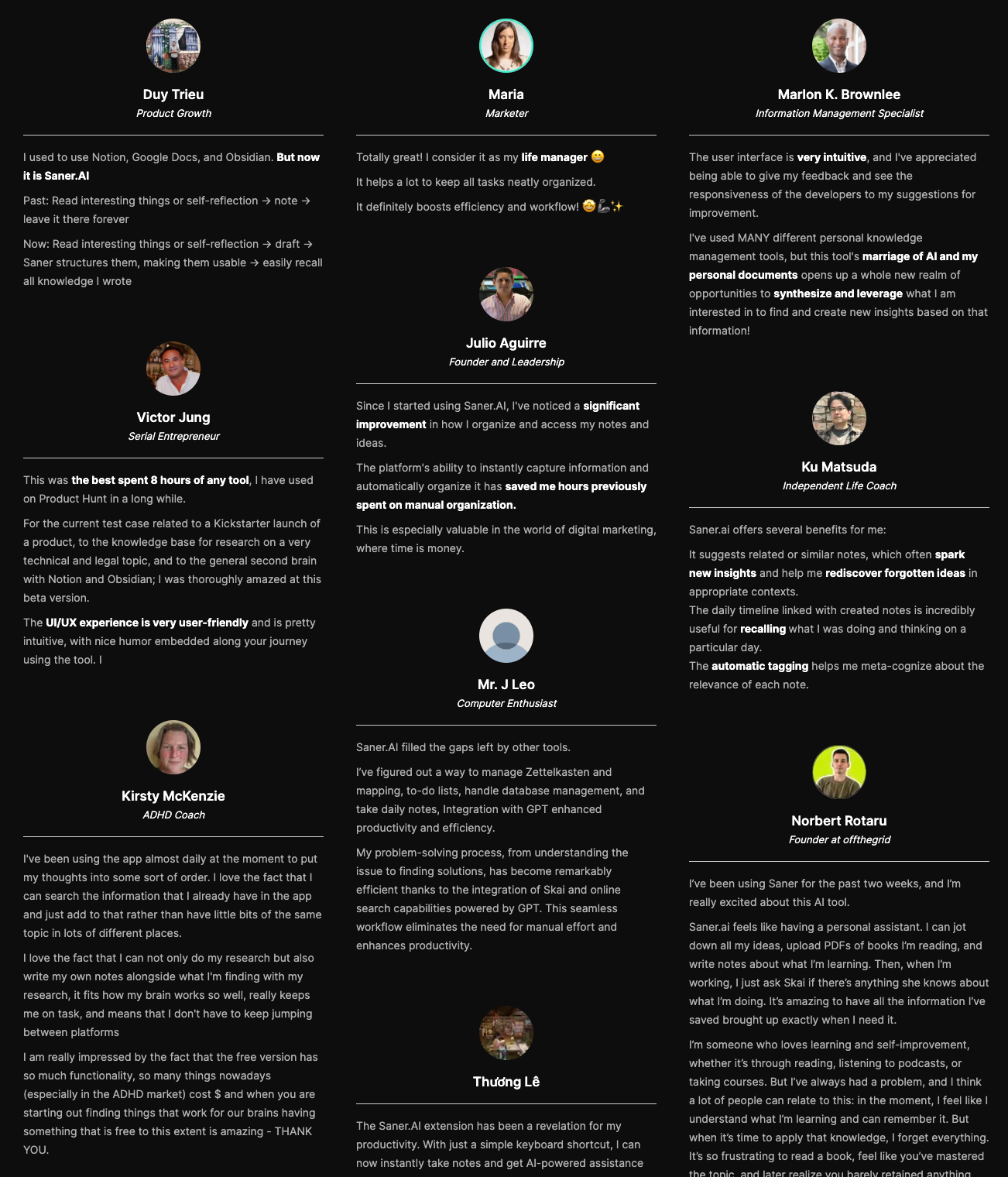
"The biggest benefit for me in using Saner is the Proactive AI. Staying on top of the constant flow of email and multiple calendars is challenging, and so far, Saner is the only AI-based tool that truly feels like a personal assistant." - Jerry
How to get started
- Go to Saner.AI
- Create a free account
- Start capturing tasks, notes, or ideas and let the AI organize them automatically.
3. Facile Things
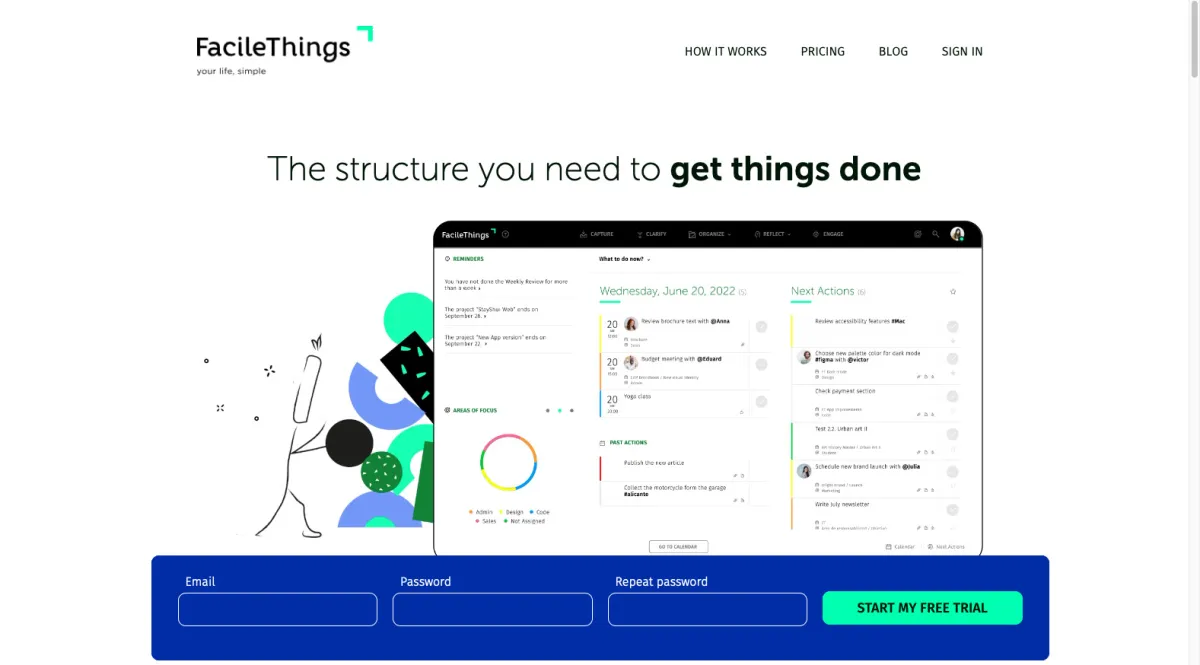
When I tested FacileThings, it immediately felt like a tool designed specifically for people who want to follow the Getting Things Done (GTD) methodology closely.
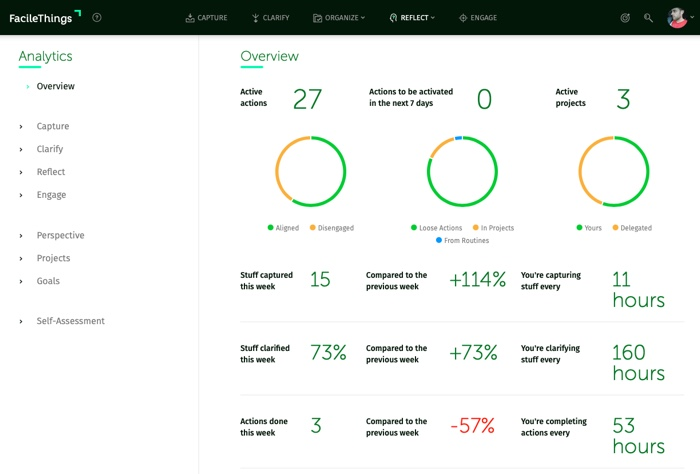
In my experience, the app breaks productivity into clear GTD stages such as Capture, Clarify, Organize, Engage, and Review. Another thing I noticed is how much emphasis FacileThings places on weekly reviews and system maintenance.
Key features
- The app walks you through capture, clarification, organization, and review.
- Tasks can be organized into projects and filtered by context, which helps you focus on actions you can complete in a specific situation.
- The app reminds you to review projects and commitments regularly so nothing falls through the cracks.
- You can link tasks to specific dates or calendar events.
Pros
- The workflow closely follows the original GTD methodology, which makes it useful if you want a structured system.
- The app actively encourages regular reviews and task processing instead of leaving everything up to the user.
- Tasks and projects sync across devices so you can manage your system anywhere.
Cons
- Because it follows the full GTD framework, the learning curve can be steeper than simpler to-do apps.
- The UI is more functional than polished.
- If you don’t follow the GTD methodology, many features may feel unnecessary.
Pricing
- Free trial
- FacileThings Premium: about $8–$10/month depending on billing cycle (around $96/year if paid annually)
Who it’s best for
- People who want a strict GTD productivity system
- Users who appreciate structured workflows and guided reviews
- Professionals managing many projects and commitments
FacileThings reviews (source)
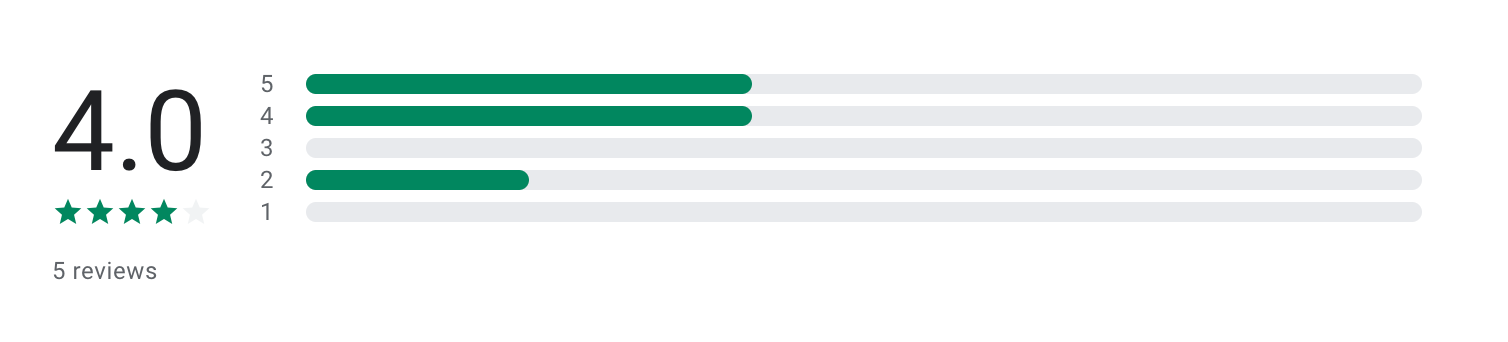
"This product has helped me significantly over the years. There is a bit of a learning curve to using the product, based around Getting Things Done methodology, but once learned it is amazing." - Cameron W.
"My work is not every day in front of a PC, so I thought the mobile app would do. But at the time, it was just starting its development, therefore, if one day I didn't show up at the PC, the next day I had to update my tasks or workflow, and that caused me to end up "working for the app" to maintain it up to date." - Isabel Cristina C.
How to get started
- Go to FacileThings.com
- Create an account and begin capturing tasks into the inbox and process them through the GTD workflow.
4. Notion
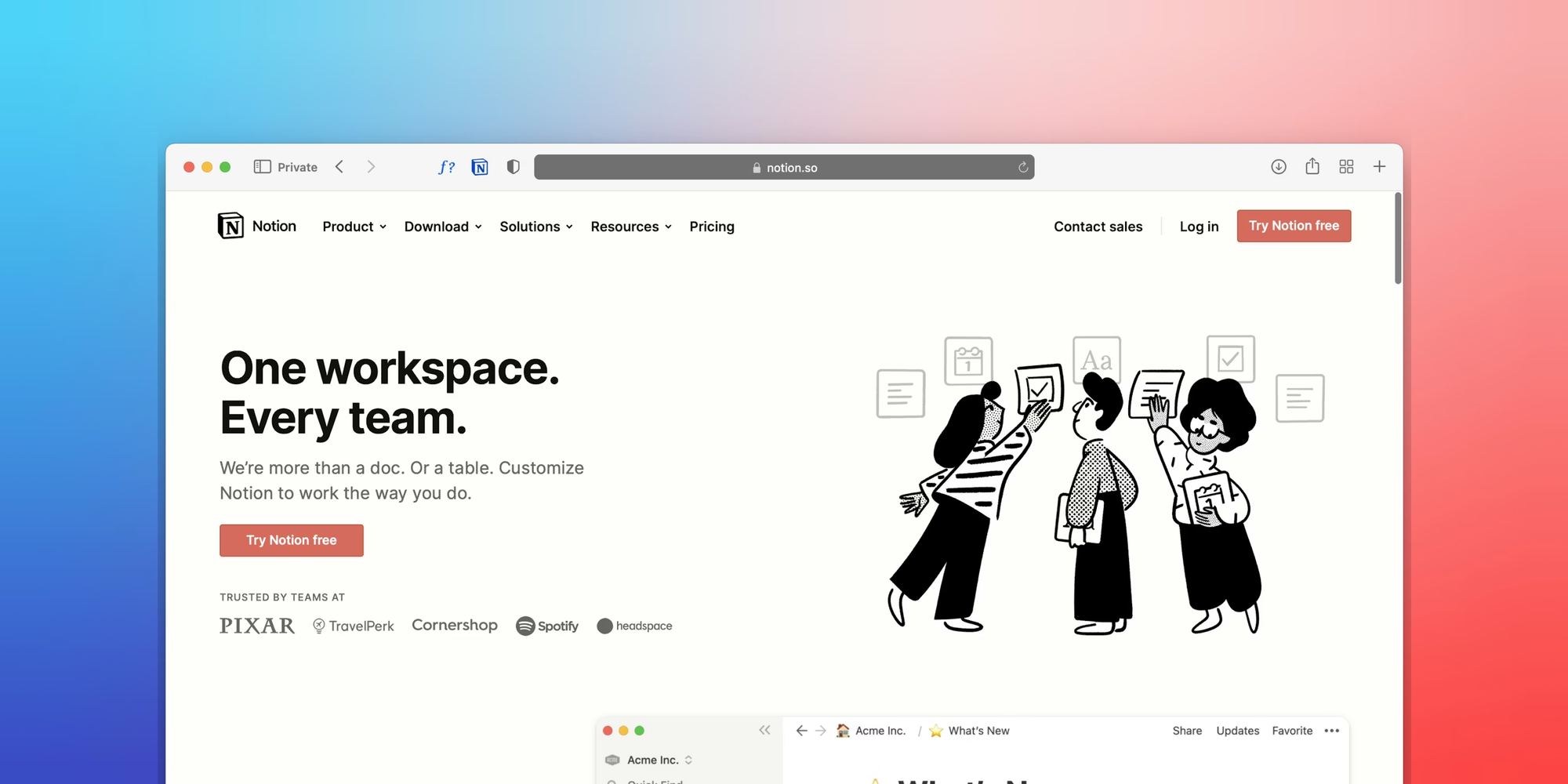
When I tested Notion as part of my GTD workflow, I quickly realized it’s not a traditional GTD app. Instead, it’s a flexible workspace where you can build your own productivity system using databases, pages, and templates.
Key features
- I can create task properties like status, context, and priority, then filter them into views like “Next Actions” or “Inbox.”
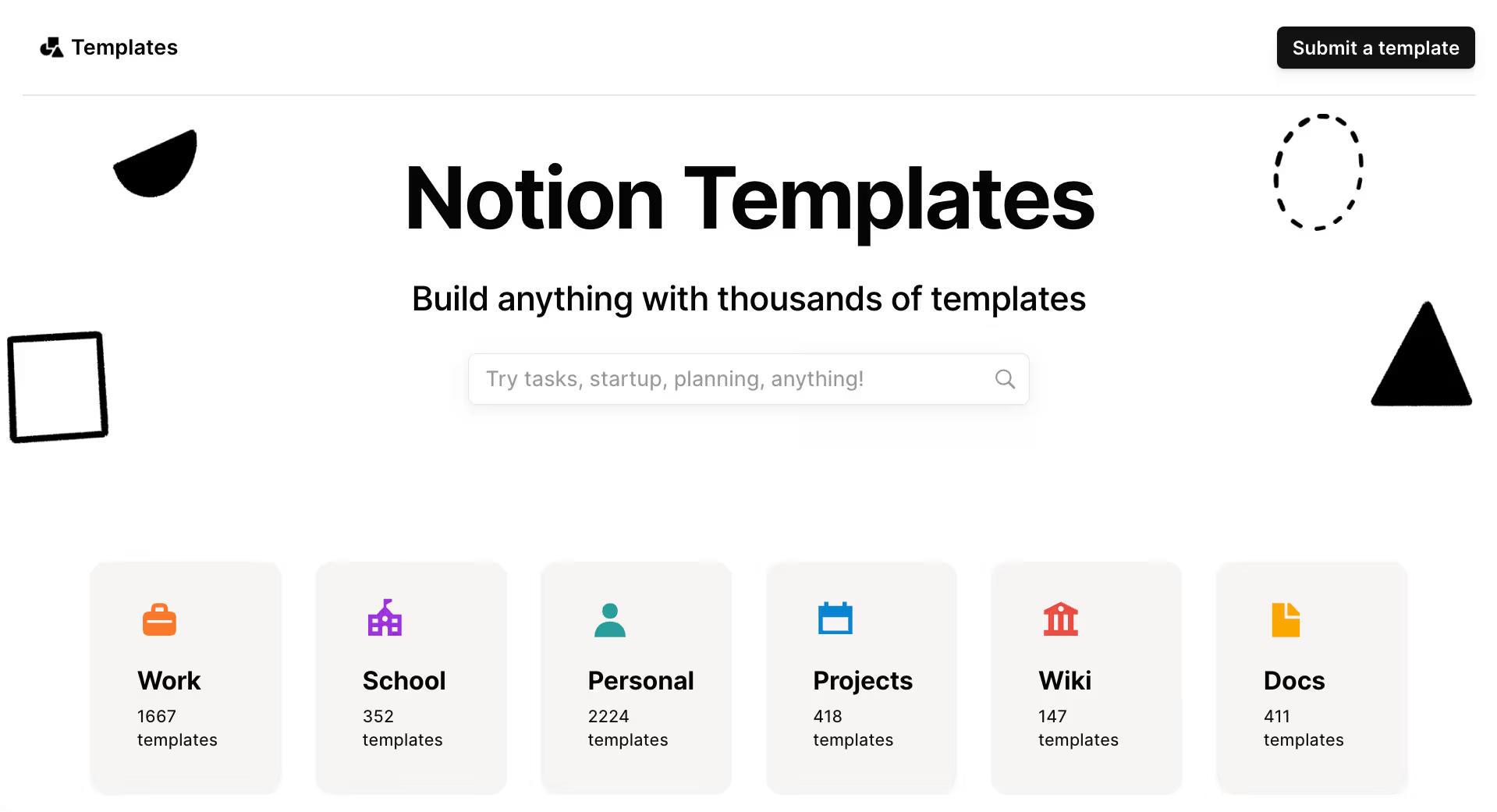
- Many pre-built templates help you set up a GTD workflow quickly.
- One thing I liked is how tasks can link directly to project pages, documents, or meeting notes.
- Tasks can be displayed in different layouts depending on how you want to plan your work.
Cons
- Unlike dedicated GTD apps, you need to build or configure your workflow before using it effectively.
- If you add too many properties, views, or linked pages, the system can feel overwhelming.
- Large workspaces may load more slowly compared to lightweight task apps.
Pricing
- Free plan
- Plus plan: about $10/month per user (or $8/month billed annually)
- Business plan: about $18/month per user (or $15/month billed annually)
Who it’s best for
- People who want to build their own GTD system
- Users who prefer combining notes, tasks, and documentation in one workspace
- Teams managing projects, documentation, and workflows together
Notion Reviews (source)
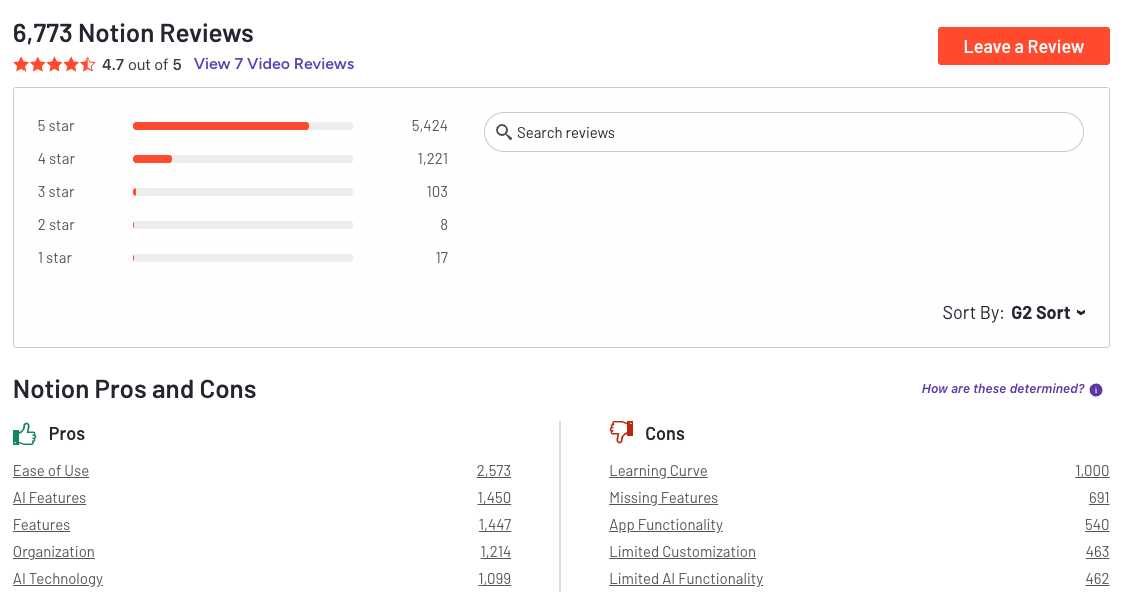
"I use Notion to run my entire business, and it covers everything from project management and knowledge management to inventory tracking and even a sales CRM." - Lexi O
"Notion is like a swiss army knife - in theory, one of the most powerful productivity tools available on the market. The platform can be very useful but takes forever to customize and set up properly." - Vanila L
How to get started
- Go to Notion.so
- Create a free workspace
- Start with a GTD template or build your own task and project databases.
5. Todoist
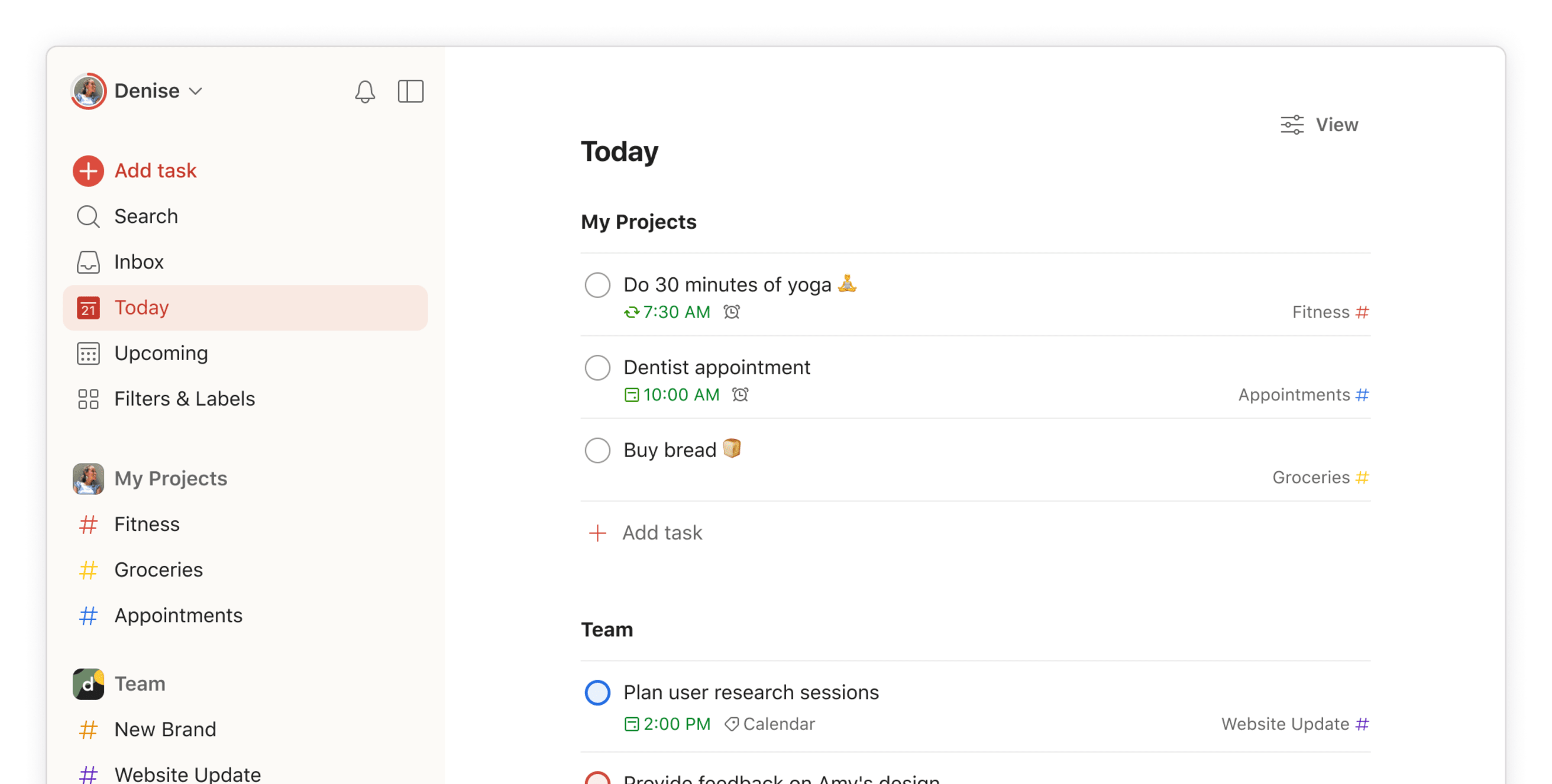
When I tested Todoist, it quickly became clear why it’s one of the most widely used task management apps. It’s not strictly designed around the Getting Things Done (GTD) methodology, but its structure works well with GTD if you set up projects, labels, and filters properly.
In my experience, Todoist strikes a balance between simplicity and powerful organization.
Key features
- One thing I liked is how quickly I could add tasks, and the app automatically created the task with the correct date and time.
- I used projects to represent GTD projects and labels to represent contexts like “computer” or “calls.” Custom filters made it easy to create views like “Next Actions” or “Today.”
- You can schedule habits, weekly reviews, or regular commitments without needing to recreate tasks every time.
Pros
- The interface is simple enough for beginners but still powerful for advanced workflows.
- Natural language input and quick-add features make it easy to capture ideas before you forget them.
- Todoist connects with many tools including calendars, automation platforms, and collaboration apps.
Cons
- You need to configure projects, labels, and filters to match the GTD workflow.
- Reminders, advanced filters, and other productivity features are limited in the free plan.
Pricing
- Free plan
- Todoist Pro: about $5/month or $48/year
- Todoist Business: about $8/month per user or $72/year per user
Who it’s best for
- People who want a simple but powerful to-do list app
- Users who want to adapt GTD without using a strict GTD tool
- Individuals or teams managing projects and personal tasks together
Todoist Reviews (source)
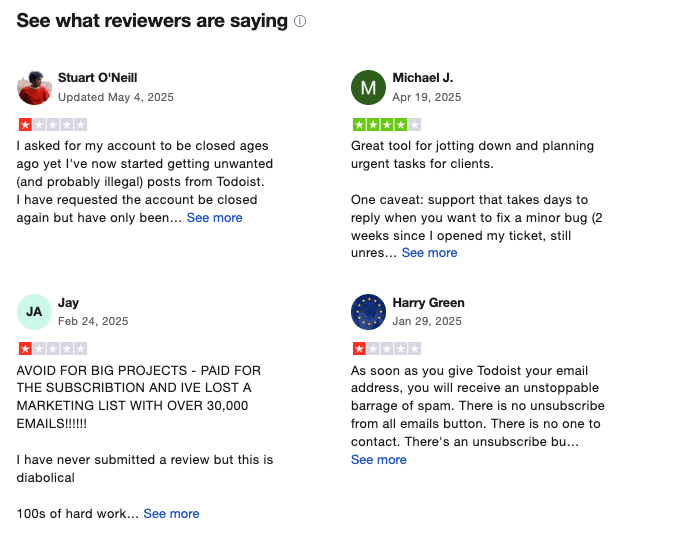
"Covers the bases for a reasonable price. Reliable, cross-platofrm, with reasonable team pricing." - Tom H
"It seems impossible to cancel a subscription after you sign up for a free trial. There is no way to cancel a subscription on the website, you have to send an email to an address that does not respond to emails." - Fisayo
How to get started
- Go to Todoist.com
- Create a free account
- Start capturing tasks and organizing them into projects, labels, and filters to match your workflow.
6. TickTick
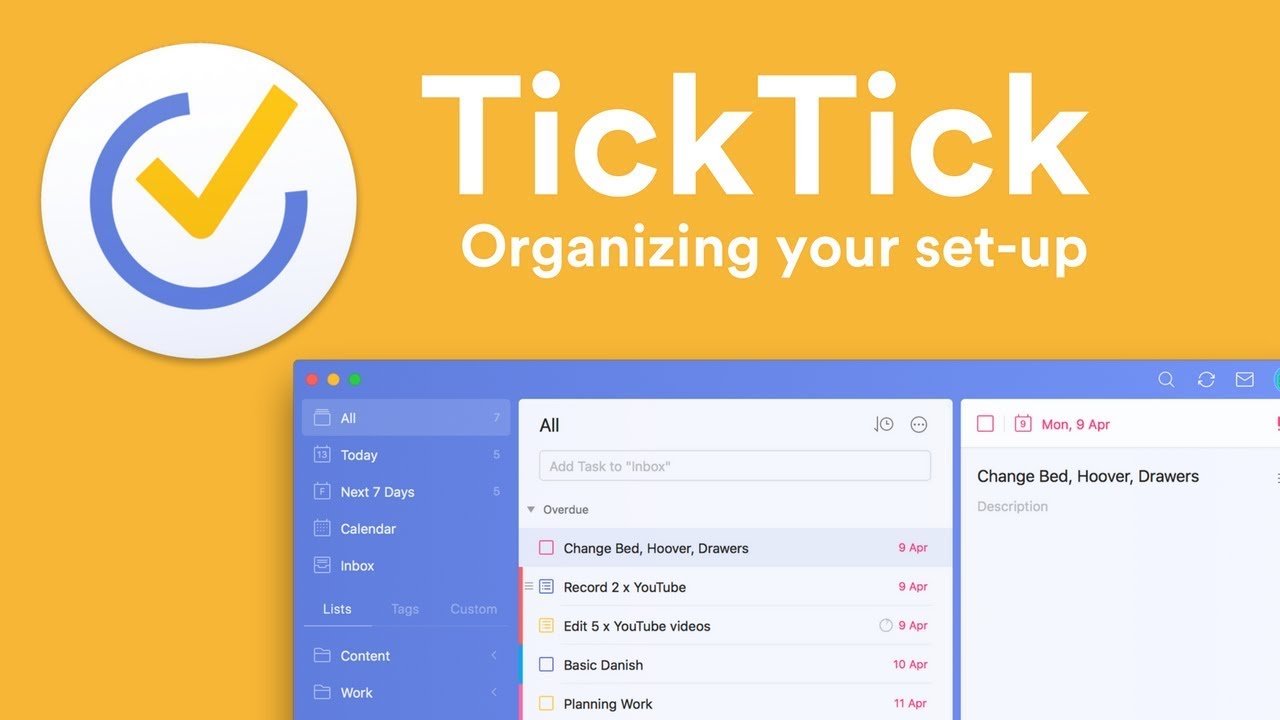
When I tested TickTick, it’s not a strict Getting Things Done (GTD) app, but it gives you enough flexibility to build a GTD workflow using lists, tags, and filters.
In my experience, TickTick stands out because it combines task management, calendar planning, and time-management tools in one place.
Key features
- I used lists to represent projects and tags to simulate GTD contexts. With custom filters, it was easy to create views like “Next Actions” or “Tasks for Today.”
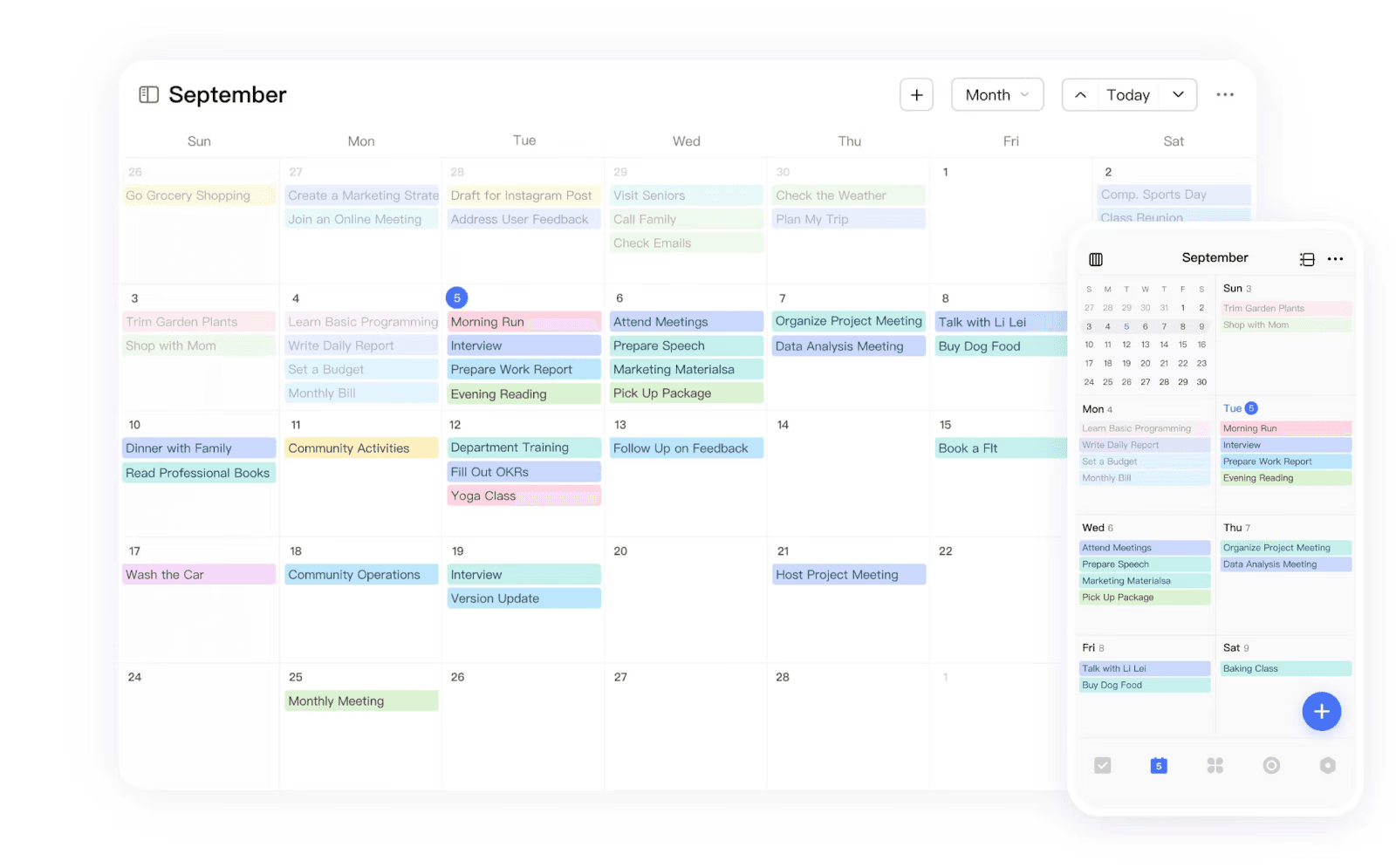
- TickTick lets you view tasks directly in a calendar layout.
- The app includes a Pomodoro timer that helps break work into focused intervals.
- You can track habits like exercise or reading within the same app.
Pros
- It combines task management, scheduling, and focus tools in one place.
- Lists, tags, priorities, and filters make it easy to adapt the app to different workflows, including GTD.
- TickTick works across web, desktop, mobile, and browser extensions, which makes it convenient for everyday use.
Cons
- Because the app includes so many tools, new users may need time to explore everything.
- Calendar views, reminders, and certain productivity tools are limited on the free version.
- If you manage a lot of projects, the workspace may start to feel cluttered.
Pricing
- Free plan
- TickTick Premium: about $3/month or $35/year
Who it’s best for
- Users who like combining tasks, habits, and time management
- Individuals looking for a flexible productivity system that can support GTD
TickTick review (source)
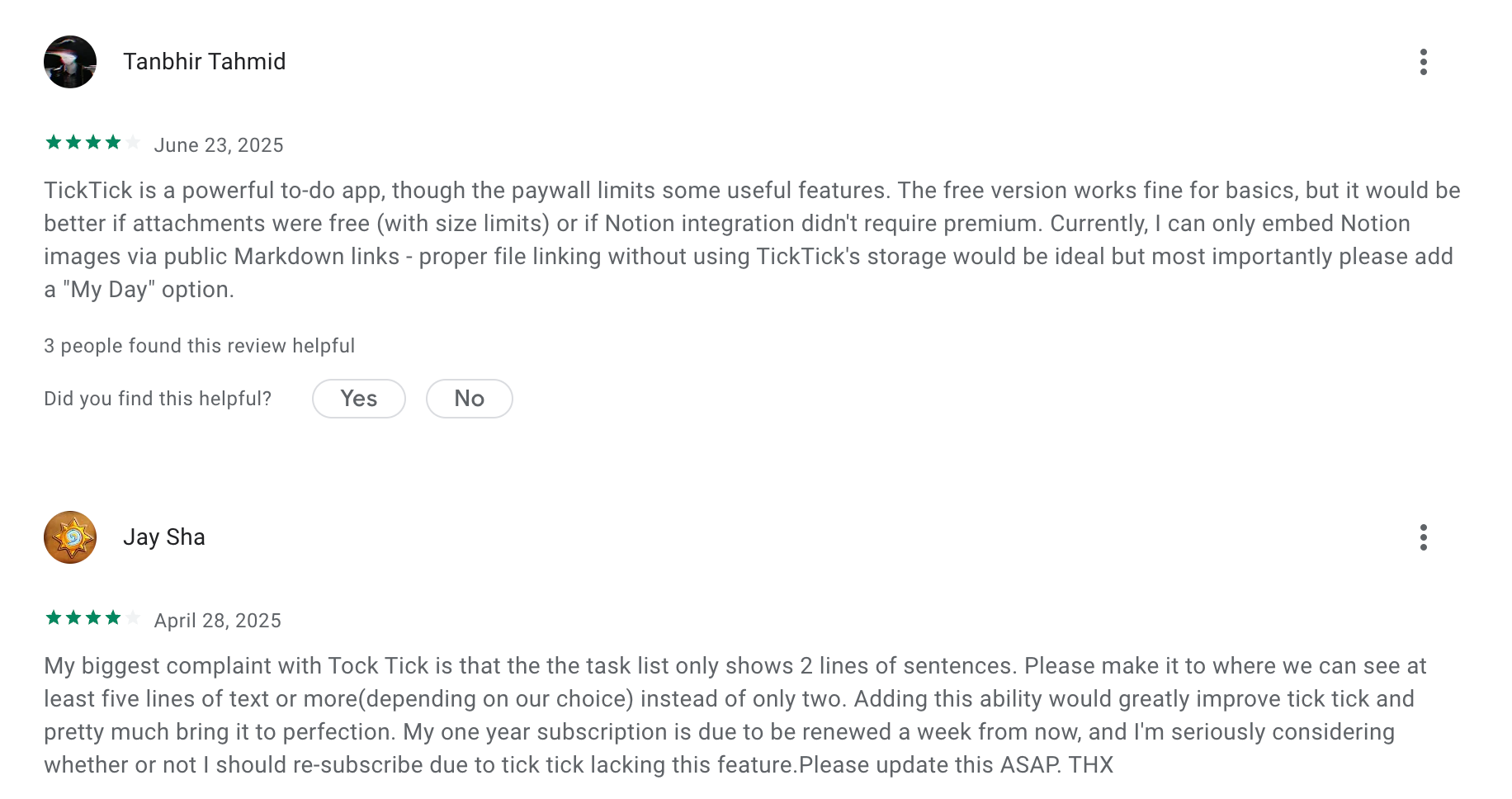
"My favorite to-do app. I've been using this for many years now, paid for it too. Simple, but versatile. Wouldn't change it for anything else." - Gábor Fehér
"Earlier this app was working perfectly when I installed it and used it for a few weeks. Reminders were coming on time and everything was smooth. But after some time, I completely stopped receiving reminder notifications. Because of this, I missed important work. The app fails at its core purpose — reminding the user." - Yuvraj Singh
How to get started
- Go to organizing
- Create a free account
- Start capturing tasks and organizing them into lists, tags, and priorities to match your workflow.
7. Things 3
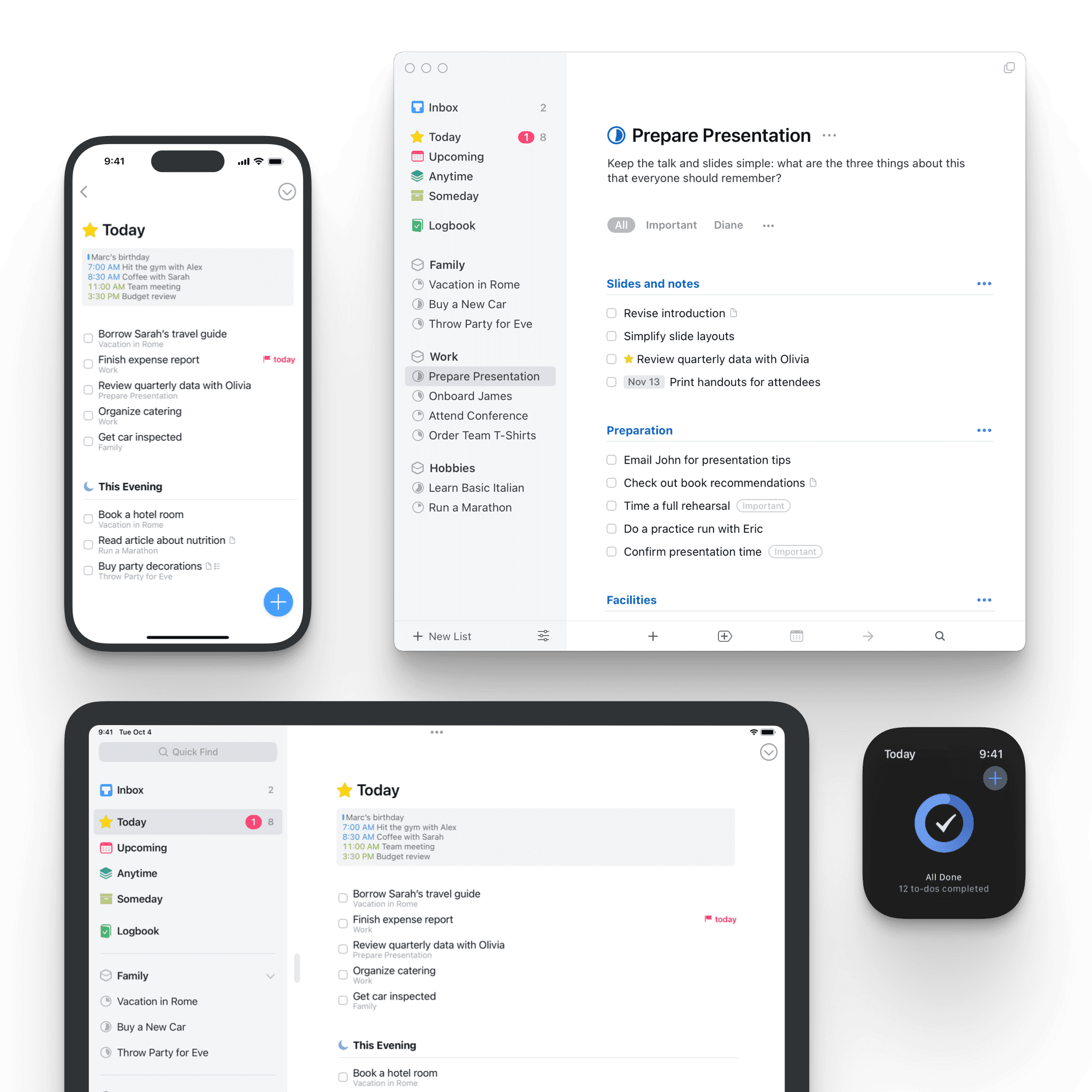
Things 3 is not strictly built around the Getting Things Done (GTD) method, but the structure of the app makes it very easy to adapt to GTD workflows.
In my experience, Things 3 focuses heavily on clarity and simplicity. Tasks are organized into Areas, Projects, and To-Dos, which mirrors how GTD separates responsibilities, projects, and next actions.
Key features
- I used Areas to represent responsibilities like work or personal life, and Projects to track multi-step goals.
- Clean Today and Upcoming views - These views help you focus on what needs attention today or later this week.
- Adding tasks is fast. I could type things like “Prepare meeting notes tomorrow,” and the app automatically scheduled the task.
- Projects can contain multiple steps, making it easy to track progress without cluttering the main task list.
Pros
- The interface is clean and thoughtfully designed.
- The Areas and Projects structure makes it easy to manage multiple responsibilities.
- Everything from adding tasks to reviewing projects feels fast and intuitive.
Cons
- Things 3 only works on macOS, iPhone, iPad, and Apple Watch.
- The app is designed primarily for individual productivity.
- You need to buy separate versions for iPhone, iPad, and Mac.
Pricing
Things 3 uses one-time purchases instead of subscriptions:
- iPhone: about $9.99 (one-time purchase)
- iPad: about $19.99 (one-time purchase)
- Mac: about $49.99 (one-time purchase)
Who it’s best for
- People in the Apple ecosystem who want a beautifully designed task manager
- Users who prefer simple and structured project organization
- Individuals who want a clean GTD-style workflow without complexity
Things3 reviews (source)
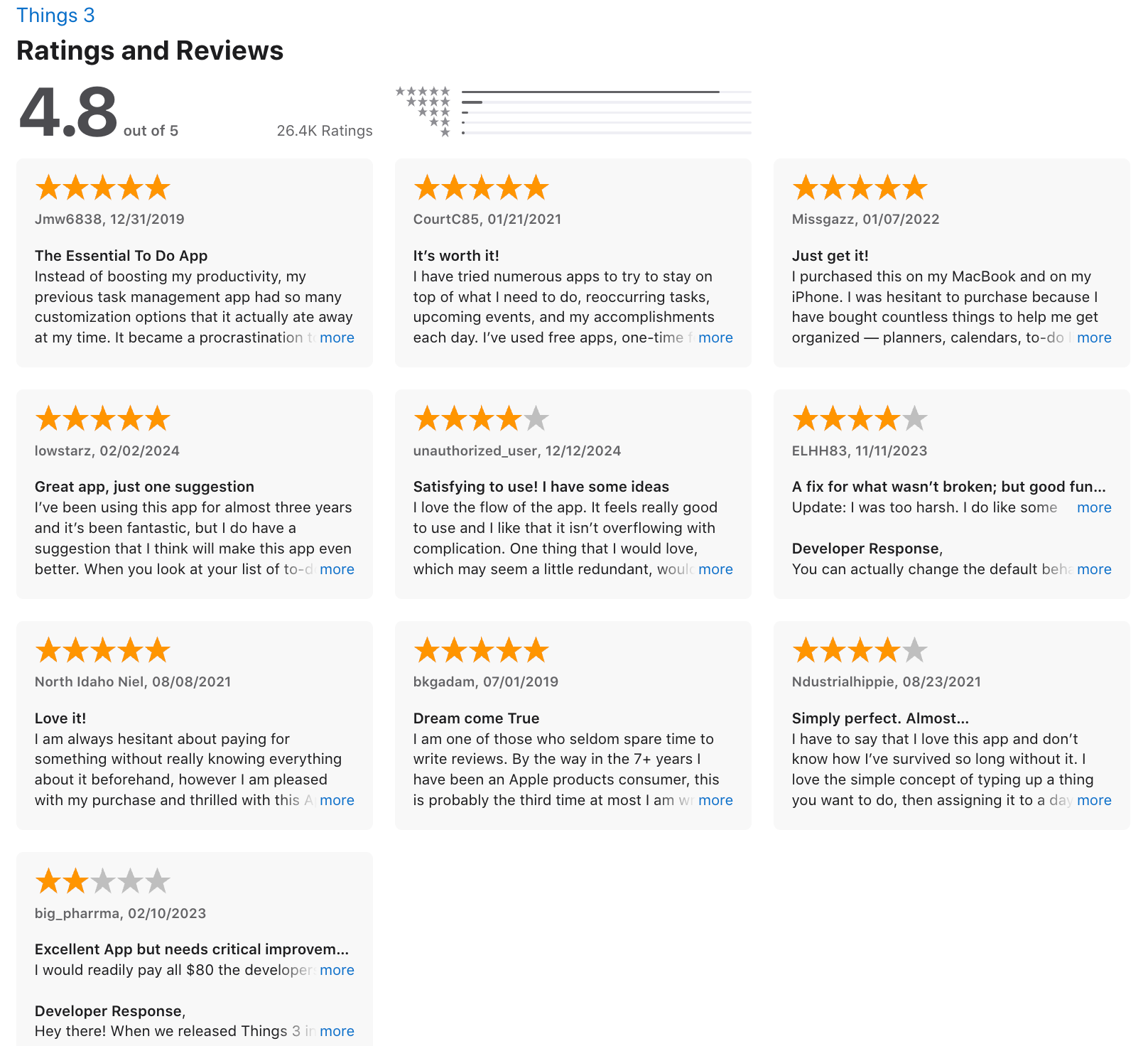
"I've tried so many productivity apps, but Things 3 is the only one that stuck. The design is just chef's kiss – clean, minimal, nothing screaming for attention." - Marina Sokolov
"Ccreating repeating tasks is not easy. Biggest disappointment is that after all these years we cannot check off task’s & there checklists that repeat ahead of time." - Richard
How to get started
- Go to CulturedCode.com/Things
- Download the app from the Apple App Store for your device
- Create areas and projects, then start adding tasks to organize your workflow.
8. Asana
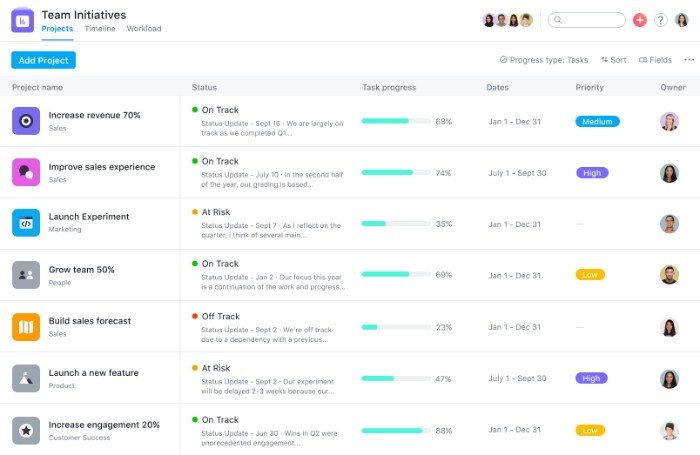
When I tested Asana, it felt more like a project management platform than a simple GTD app. It’s designed primarily for teams managing complex projects, but I found that it can still support a Getting Things Done (GTD) workflow if you structure projects and tasks carefully.
In practice, I could break larger goals into smaller actionable steps and assign deadlines or priorities to keep everything moving forward. Asana also supports collaboration and workflow management.
Key features
- I could create projects for larger goals and break them into smaller tasks and subtasks.
- Tasks can be visualized in different ways depending on how you plan your work. I often switched between the list view for task management and the timeline view for project planning.
- Asana allows you to assign tasks, add comments, and track progress across teams.
- The app includes built-in automation features that can move tasks between stages, assign owners, or trigger reminders automatically.
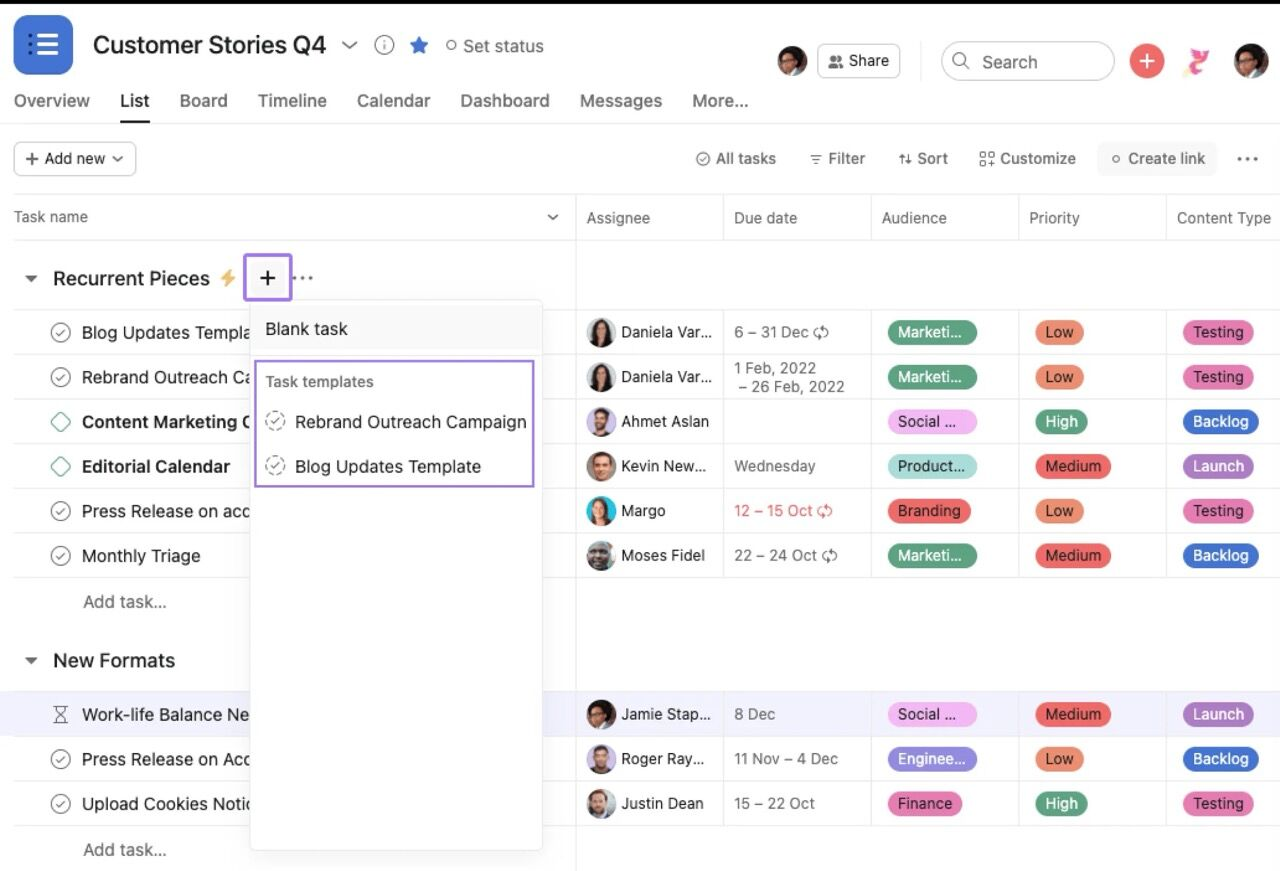
Pros
- It’s easy to assign tasks, track progress, and communicate within projects.
- Multiple views help you plan work in the format that suits your workflow.
- Automations reduce manual work and help keep projects organized.
Cons
- If you just want a simple GTD system, Asana may feel more complex than necessary.
- The number of features and project views can take time to understand.
- Timeline views, automation limits, and reporting tools are restricted in lower plans.
Pricing
- Free plan
- Starter plan: about $13.49/month per user (or $10.99/month billed annually)
- Advanced plan: about $30.49/month per user (or $24.99/month billed annually)
Who it’s best for
- Teams managing collaborative projects and workflows
- Organizations that need task tracking and project visibility
- Users who want project management features beyond a simple to-do list
Asana reviews (source)
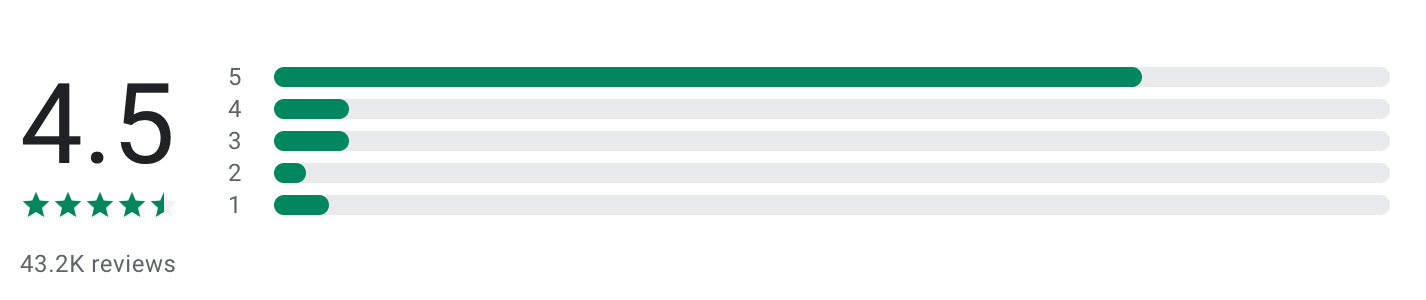
"Asana is really helpful for planning work and managing tasks. Everything is well organized and easy to follow. It helps me stay productive and focused. Overall, it’s a great app for work and teamwork." - Maisarah Asri
"Doesn't provide the same task grouping functionality as the website, and the web interface is a pita to use on a phone - in most situations where I'm trying to use Asana on my mobile, the website is better to use, and I'm having to jump through several hoops to stop it saying 'use the app' at every turn." - Henry Bevan
How to get started
- Go to Asana.com
- Create a free workspace
- Start by creating a project, then add tasks and subtasks to organize your workflow.
9. Omnifocus 4
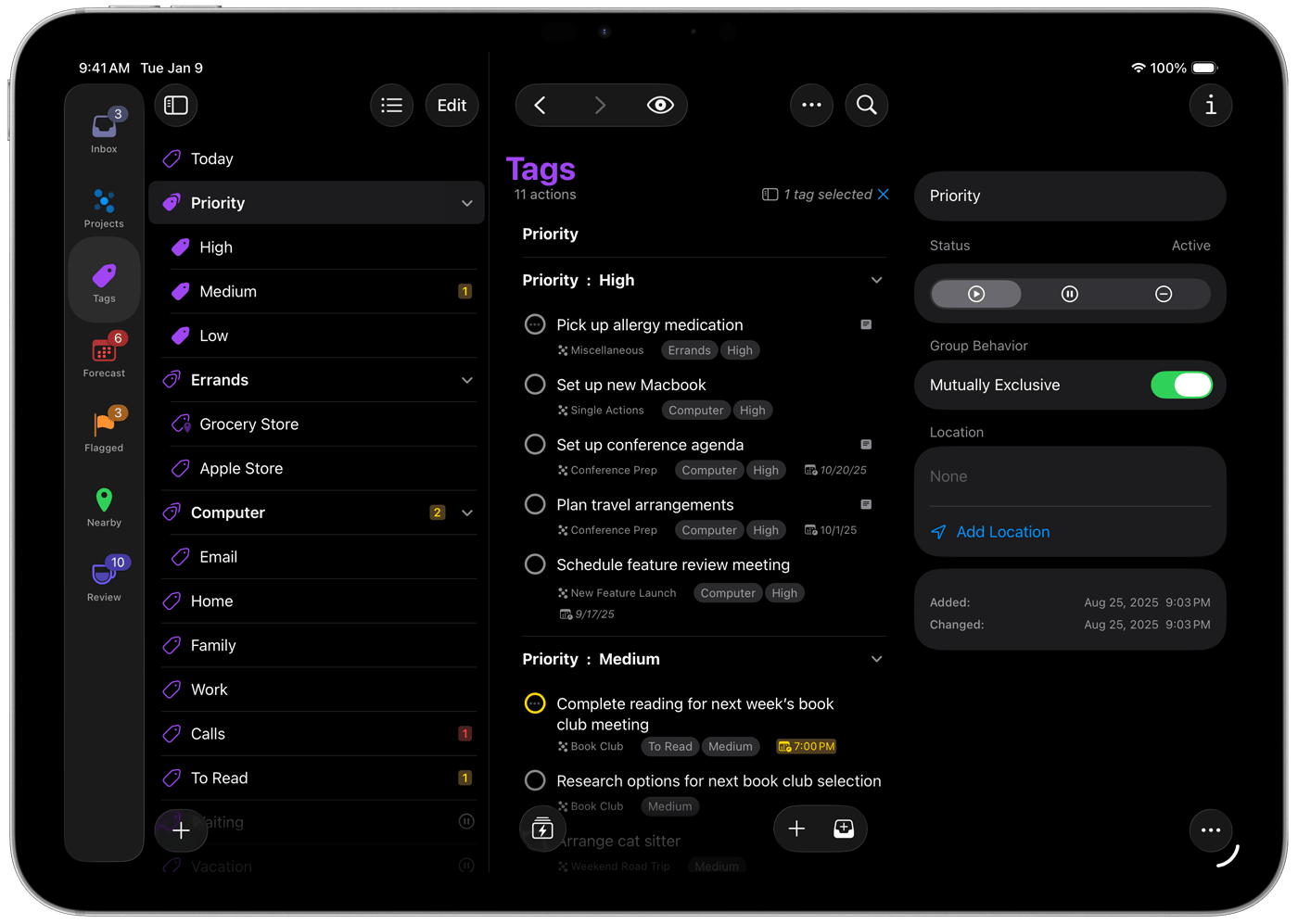
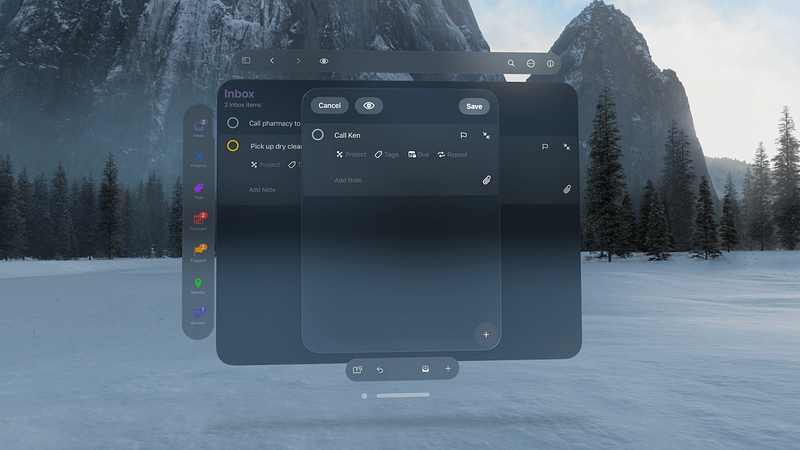
When I tested OmniFocus 4, it felt like one of the most powerful apps specifically designed for the Getting Things Done (GTD) methodology.
What stood out most while using it is how deep the customization goes. You can create advanced perspectives (custom task views), automation shortcuts, and detailed task relationships.
Key features
- I could organize work into projects, groups, and actions with dependencies between tasks.
- Tasks can be filtered by tags like location, tools, or type of work.
- OmniFocus includes a built-in review feature that reminds you to revisit projects regularly.
- The app supports automation through shortcuts and scripting.
Pros
- The system closely aligns with the GTD methodology and supports complex workflows.
- Tags, perspectives, and automation make it possible to tailor the app exactly to your workflow.
- The structure works well for people juggling many projects and responsibilities.
Cons
- The number of features and settings can feel overwhelming for new users.
- OmniFocus is designed for macOS, iPhone, and iPad, which limits accessibility for cross-platform users.
- The subscription and one-time purchase options are more expensive than typical to-do apps.
Pricing
OmniFocus offers both subscription and one-time purchase options:
- Subscription: about $9.99/month or $99.99/year
- Standard one-time purchase: about $49.99
- Pro one-time purchase: about $99.99 (includes advanced perspectives and automation)
Who it’s best for
- Power users who want a full-featured GTD system
- Professionals managing many projects and responsibilities
- Users who prefer highly customizable productivity workflows
How to get started
- Go to OmniGroup.com/OmniFocus
- Download the app for macOS, iPhone, or iPad
- Create projects and start defining the next actions for each commitment.
Conclusion - Which is the Best GTD App in 2026?
- Some people want a pure, structured GTD system with clear projects, contexts, and reviews (apps like Nirvana or Facile Things).
- Others prefer powerful task managers that can adapt to many workflows (like Saner.AI, Todoist, TickTick, or Things 3).
- And some teams need flexible workspaces that combine tasks with notes and collaboration (such as Notion or Asana).
What matters most isn’t how many features an app has, it’s whether it helps you capture everything quickly, clarify what matters, and move through your work with less mental friction.
👇 If you want a modern GTD experience built around fast capture and AI organization, start with Saner.AI.
Stay on top of your work with the top GTD App
FAQs: Best Apps for GTD in 2026
1. What are the best apps for GTD in 2026?
The best apps for GTD in 2026 help you capture ideas, organize tasks into projects, and focus on the next actionable step.
Popular options include:
- Nirvana – A classic GTD-focused task manager built around David Allen’s methodology
- OmniFocus 4 – Powerful GTD workflows for Apple users
- Saner.AI – AI-powered GTD workspace that turns notes into actionable tasks
- FacileThings – One of the few apps designed specifically for GTD
- Todoist – A flexible task manager with strong project organization
- TickTick – Combines tasks, calendar, and habits
- Things 3 – A beautifully designed GTD-friendly task manager
- Notion – Highly customizable workspace for projects and notes
- Asana – Ideal for GTD in team environments
The best choice depends on whether you prioritize simplicity, automation, collaboration, or AI planning.
2. What is a GTD app?
A GTD app is a productivity tool built around the Getting Things Done (GTD) methodology created by productivity expert David Allen.
A typical GTD system helps you:
- Capture ideas quickly
- Organize tasks into projects and contexts
- Identify the next action for each task
- Review commitments regularly
- Focus on what matters now
Apps like Nirvana, OmniFocus 4, and FacileThings closely follow the original GTD framework, while tools like Saner.AI or Todoist adapt the method with modern features like automation and AI.
3. What features should the best GTD apps have?
The best GTD apps in 2026 typically include:
- Quick capture – Capture ideas instantly
- Project organization – Group tasks into meaningful projects
- Next-action focus – Identify the next step clearly
- Context filters – Sort tasks by location, tool, or situation
- Review workflow – Weekly reviews and progress tracking
- Cross-device syncing – Access tasks everywhere
4. Which GTD app is closest to the original Getting Things Done method?
If you want a tool that follows the GTD method exactly, these apps are often recommended:
- Nirvana – One of the most faithful GTD implementations
- OmniFocus 4 – Powerful and customizable for advanced GTD users
- FacileThings – Designed specifically for the full GTD workflow
5. What is the easiest GTD app to start with?
For beginners, simpler tools often work best. Good starting points include:
- Saner.AI – Easy to use with a helpful AI personal assistant
- TickTick – Combines tasks, calendar, and reminders
- Things 3 – Clean design and intuitive workflow
6. What is the best GTD app for Apple users?
Apple users often prefer tools designed for the Apple ecosystem.
Top choices include:
- OmniFocus 4 – One of the most powerful GTD apps available
- Saner.AI – Elegant and simple for everyday productivity
- TickTick – Works well across Apple and other platforms
OmniFocus remains the most advanced GTD solution for macOS and iOS.
7. What is the best AI-powered GTD app in 2026?
AI is increasingly integrated into productivity tools.
One of the most notable options is:
- Saner.AI – Uses AI to convert notes into tasks, suggest priorities, and reduce manual organization
Instead of manually tagging and sorting everything, AI tools help automatically structure your workflow and surface what matters next.
8. Can GTD apps help reduce overwhelm?
Yes. One of the main goals of the Getting Things Done system is to reduce mental overload.
A good GTD app helps by:
- Capturing ideas before you forget them
- Breaking large goals into smaller tasks
- Clarifying priorities
- Tracking commitments across projects
9. Are there free GTD apps available?
Many GTD tools offer free plans.
Examples include:
- Todoist – Free plan with core task management features
- TickTick – Free plan with reminders and basic project tools
- Notion – Free workspace for notes and project tracking
- Saner.AI – Free plan with AI task reminders and note search
10. What is the best GTD app for teams?
While GTD was originally designed for individuals, some tools adapt well to team workflows.
Popular options include:
- Asana – Project management with task dependencies and collaboration
- Notion – Flexible workspace for team documentation and projects
- Todoist Teams – Lightweight team task management
11. What is the best GTD app for ADHD?
People with ADHD often benefit from tools that reduce complexity and friction.
Helpful options include:
- Saner.AI – AI organizes thoughts into tasks automatically
- TickTick – Visual scheduling and reminders
- Todoist – Simple task capture and prioritization
12. Do GTD apps replace project management tools?
Not always. GTD apps are designed primarily for personal productivity and task clarity, while project management tools focus on team coordination and planning.
For example:
- OmniFocus or Saner.AI – Personal GTD workflows
- Asana or Notion – Collaborative project management
13. What is the difference between a to-do list app and a GTD app?
A simple to-do list stores tasks, while a GTD app organizes work into a full productivity system.
Key differences:
| To-Do List App | GTD App |
|---|---|
| Basic task list | Structured workflow |
| Minimal organization | Projects, contexts, next actions |
| Simple reminders | Reviews and prioritization |
Apps like Todoist or Saner.AI can function as both, depending on how you structure them.
14. How do I choose the best GTD app for my workflow?
The best GTD app depends on your needs and work style.
Consider:
- Complex workflows → OmniFocus 4
- Pure GTD experience → Nirvana or FacileThings
- Simple productivity → Todoist or TickTick
- AI-assisted planning → Saner.AI
- Team collaboration → Asana or Notion
Stay on top of your life with the best GTD app